


SMARTGENIUS · AI TOOL DIRECTORY
One SmartGenius Editor for portraits, backgrounds, image quality, styles, composition, and commercial visuals. Upload a photo once and continue with the AI tool you need in the same workspace.
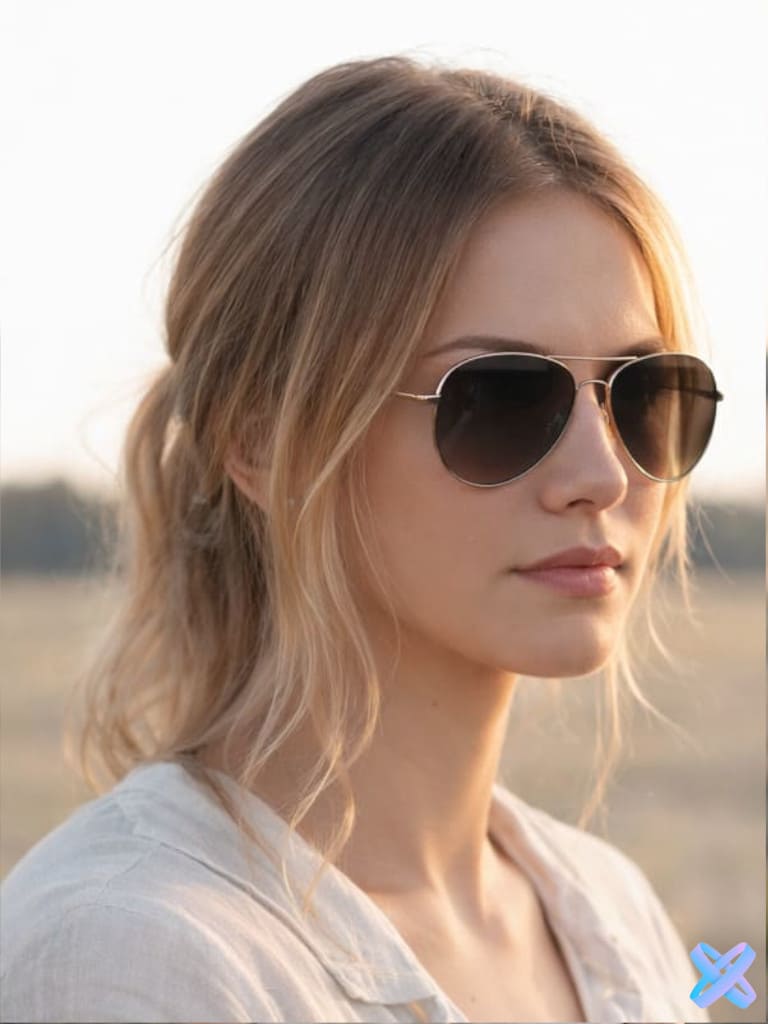

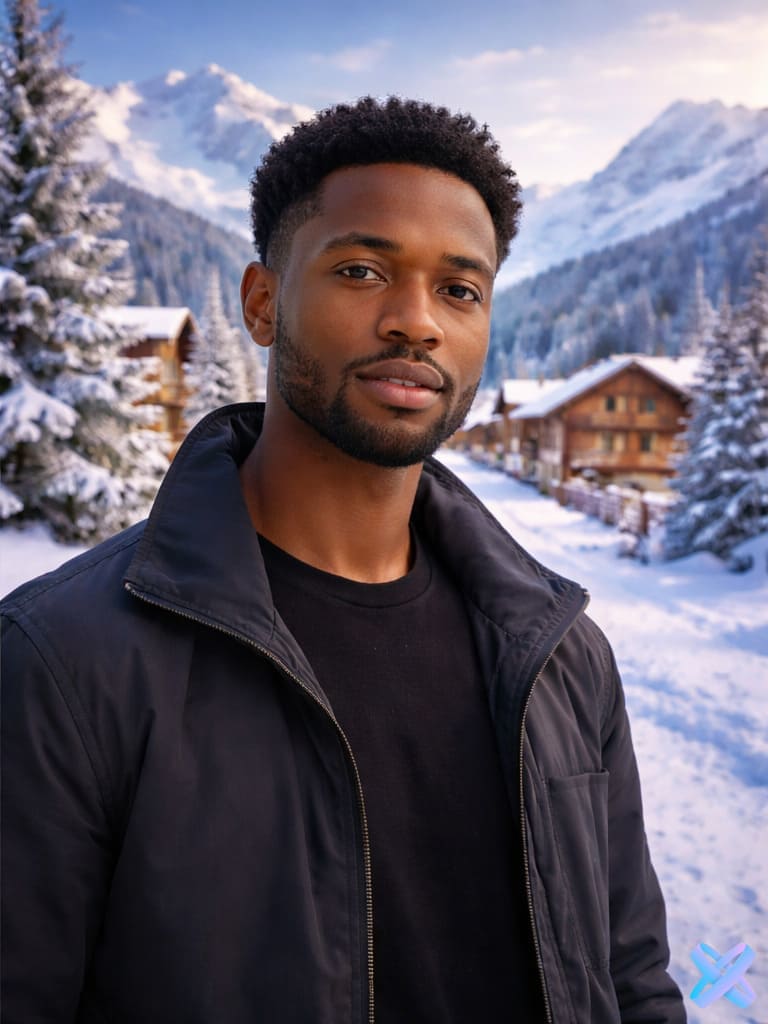


REAL TOOL OUTPUTS
All examples from the original page are preserved. Each comparison follows the natural aspect ratio of its source image at runtime instead of forcing one global crop.


TOOL MAP
Tools are grouped by real editing task so you can reach the right workflow without browsing a wall of identical cards.
WORKFLOW
The same uploaded image can move through several tools without being prepared again for every step.
JPEG, PNG, or WebP. The file is handed off to the Editor through the existing workflow.
Start with one task and switch to other tools in the Editor when needed.
Save the finished image or keep editing it in the workspace.
ONE WORKSPACE
Here this means a set of specialized workflows inside one Editor rather than one generic filter pretending to do everything.
Portrait tools, image quality, backgrounds, composition, styles, prompt editing, and seller visuals are organized around one Editor.
You do not need to learn a new interface for every next adjustment.
Hair, Pose, Face Swap, Enhance, and other modes keep their own task-specific workflow.
The page and Editor are designed for uploads from both desktop and mobile.
After one operation, the same image can continue through the Editor.
FAQ
Quick answers about access, formats, and choosing the right tool.
If the task is clear, choose the matching tool below. For a complex or multi-step edit, open the Editor or AI Agent.
Yes. The Editor workflow is designed so you can keep working with an uploaded image and switch between tools.
The SEO Hero supports JPEG, PNG, and WebP under the current Editor upload limit.
AI tools use the shared SmartGenius guest demo logic. If the demo has already been used, registration is required to continue.
Use AI Agent for a non-standard prompt: describe the change in words and continue in the Editor.
No. The Hero uses the existing handoff flow to pass the uploaded image into the Editor.
SMARTGENIUS EDITOR
Open SmartGenius Editor or upload a photo directly in the first section of this page.
Guest AI edits are unavailable. A new account created after the offer started gets one successful free edit with any editor tool, including Premium. Further edits require tokens. This is one account-wide attempt, not one per page.
Further AI edits use tokens at the tool rate. Technical failures should not consume a free attempt. Switching project modes does not reset used attempts. Purchased tokens and permanent Premium remain intact; Premium unlocks after a purchase.