
REMOVE OBJECT · AI CORRECTION
Remove an Object from a Photo
Remove one specific unwanted item and rebuild what was hidden behind it. AI follows nearby texture, perspective, light, and shadows instead of treating the whole frame as a general cleanup.
- One specific object
- Hidden background reconstruction
- People and composition stay intact
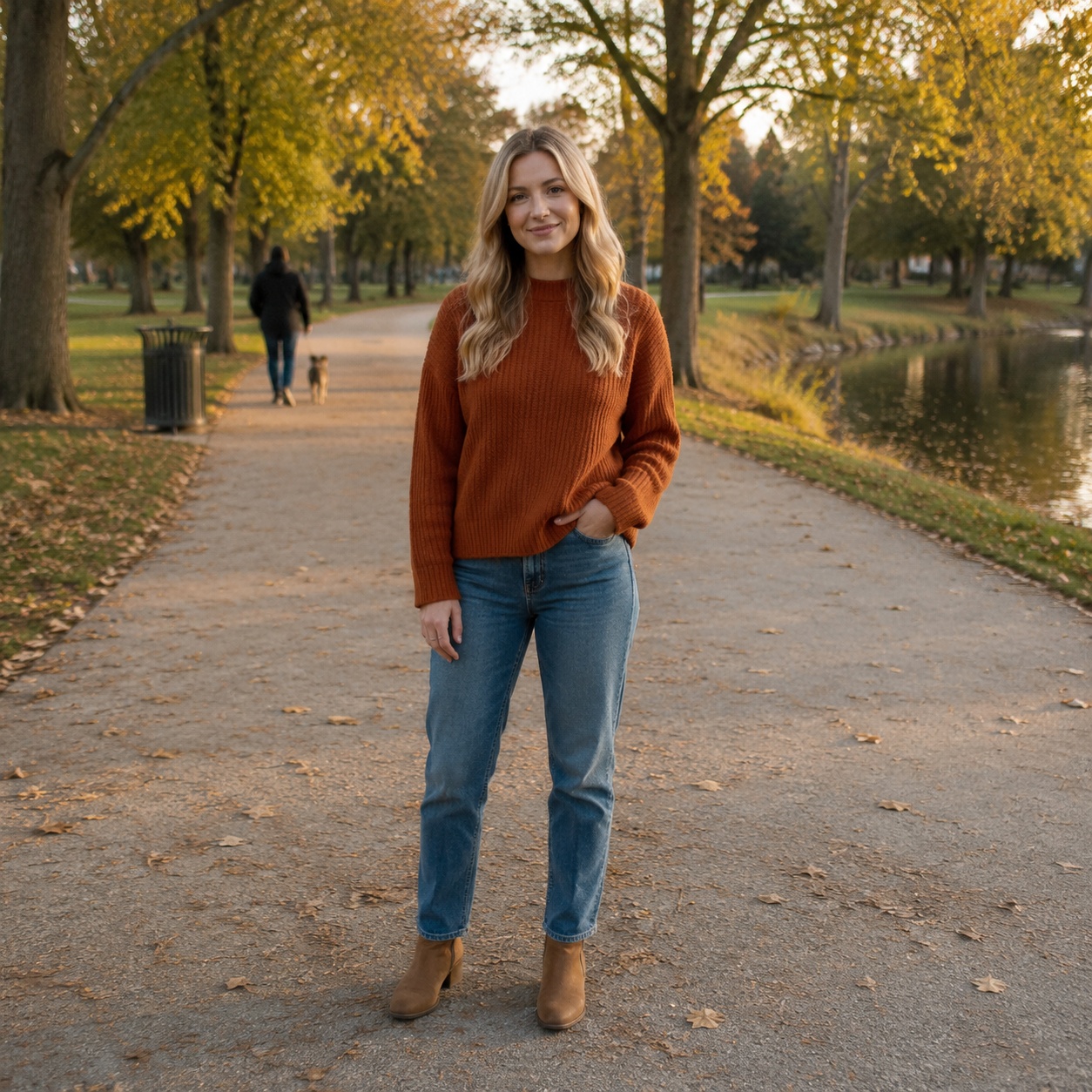

BEFORE / AFTER
Before / After examples
Compare the source frame with the edited version. Every example belongs to this focused task.


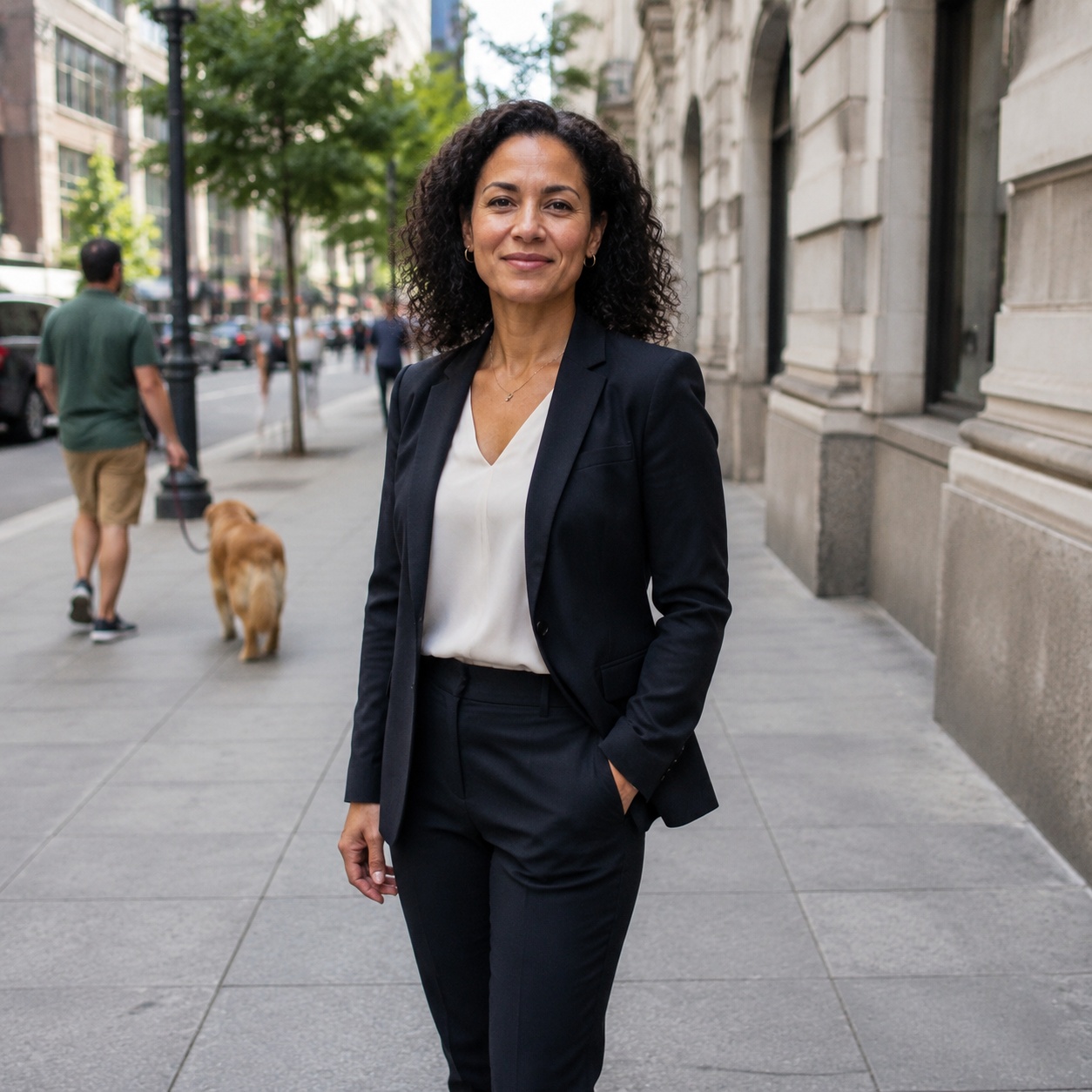





TOOL SCOPE
One object, one precise task
Use this page when you can clearly name the item that should disappear. It is intentionally narrower than general Photo Cleanup.
A specific item
A chair, bag, bottle, sign, prop, or another clearly identifiable object.
The hidden area
AI continues the floor, wall, grass, fabric, or other background that the object covered.
Everything else
The main person, product, nearby objects, color, and composition should remain unchanged.
Choose this page
You know the one object that needs to go.
- One item
- Its connected shadow or reflection when needed
- The background directly behind it
Choose Cleanup instead
There are several small distractions and no single main target.
- Small litter
- Stray wires and tiny details
- General visual clutter
USE CASES
Where this workflow helps
Remove one specific unwanted item and rebuild what was hidden behind it. AI follows nearby texture, perspective, light, and shadows instead of treating the whole frame as a general cleanup.
Travel photos
Remove a bin, sign, or accidental prop near the main subject.
Interiors
Erase one unwanted furnishing while preserving room geometry.
Product images
Remove a specific prop that distracts from the product.
Everyday photos
Clean one item from a table, floor, or background without changing the scene.
PROMPT / TASK
Precise task examples
Use this page when you can clearly name the item that should disappear. It is intentionally narrower than general Photo Cleanup.
Remove one item
Remove the red chair on the right and naturally continue the floor and wall behind it.
Item and shadow
Remove the bag and its contact shadow. Leave every other object unchanged.
Continue a surface
Remove the item from the table and reconstruct the wood grain without repeated patches.
Protect the subject
Remove only the specified object. Keep the person, clothing, and surrounding scene unchanged.
FAQ · REMOVE-OBJECT
Frequently asked questions
Clear boundaries for this tool and what to expect from the result.
How is Remove Object different from Cleanup?
Remove Object targets one specific item. Cleanup handles multiple small distracting details.
Do I need to describe the object?
Yes. The tool above includes a short target field; a concrete description makes the task much clearer.
Will AI rebuild the background?
It reconstructs the hidden area from nearby texture, lighting, shadows, and perspective.
Can I remove a very large object?
The more hidden scene AI must invent, the less predictable the result. Complex edits are safer in smaller steps.
What can I do after generation?
Compare Before / After, download the result, or continue in the Editor.
SMARTGENIUSAI · CORRECTION
Try it on your photo
Upload a photo, name one object, and run a focused removal.
AI processing terms
What is free and when do I need an account?
Guest AI edits are unavailable. A new account created after the offer started gets one successful free edit with any editor tool, including Premium. Further edits require tokens. This is one account-wide attempt, not one per page.
How do I pay for further edits?
Further AI edits use tokens at the tool rate. Technical failures should not consume a free attempt. Switching project modes does not reset used attempts. Purchased tokens and permanent Premium remain intact; Premium unlocks after a purchase.