
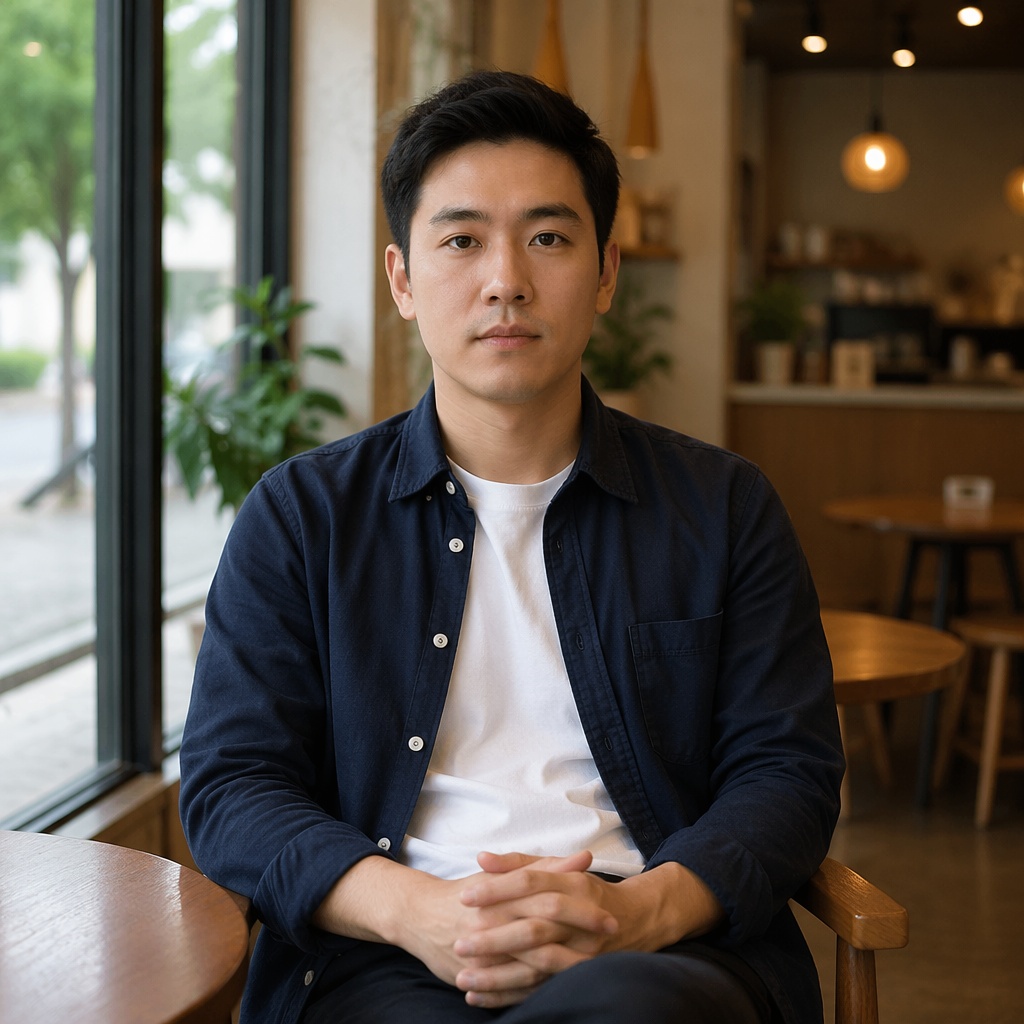
Soft smile for a calm portrait

AI Smile Editor
Upload a portrait and choose the smile that fits the photo. AI changes the mouth expression and related facial cues while keeping recognizable features and the rest of the scene consistent.


Natural smile
Two equal comparisons show how a smile relates to the cheeks and eyes. Drag the divider and inspect the transition without decorative filters.
Soft smile for a calm portrait


A more open smile for a friendly photo
Real directions
The tool uses real Emotion presets from the current Editor: Soft smile, Big smile, Happy, and Laughing. It does not add invented extra modes.
A restrained expression when only a small adjustment is needed.
A more visible friendly smile with natural-looking teeth.
The smile is supported by a more joyful eye expression.
The most expressive option for a lively emotional portrait.


What changes
Changing only the mouth contour can look artificial. After generation, review the lips, teeth, cheeks, and the area around the eyes together.
The lip contour and visible teeth should match the camera angle instead of looking pasted in.
A smile subtly affects the cheeks and eyes, which helps the expression read as one whole.
Hair, clothing, background, and pose are not the target of Smile editing and should stay stable.
AI Smile Editor
Choose a clear photo where the face is visible and not heavily occluded.
Start with Soft smile or pick a stronger joyful expression when the photo calls for it.
Drag Before/After, review teeth and eyes, then download the result or continue in the Editor.
Where it helps
The same smile intensity does not suit every portrait. A business photo usually benefits from restraint, while personal content can support a more lively expression.
Make an expression friendlier without rebuilding the portrait.
Add a subtle smile while keeping a calm professional look.
Improve an awkward expression in an otherwise good frame.
Prepare a warmer expression for a thumbnail, card, or creative.
Related pages
All available facial expressions and the broad Emotion tool.
A focused page for a surprised expression.
FAQ
Yes. This page is focused on smiling and uses Smile directions from the Emotion tool.
The tool above uses real directions: Soft smile, Big smile, Happy, and Laughing.
The Emotion prompt is designed to change expression while preserving recognizability. As with any generative edit, review the result visually.
An eligible guest can use one successful demo generation globally on SmartGenius. After that, continuing requires registration and the Editor.
No. Choose one of the ready-made Smile presets in the tool above.
AI Smile Editor
Return to the tool above, choose the expression that fits, and run the edit.
Guest AI edits are unavailable. A new account created after the offer started gets one successful free edit with any editor tool, including Premium. Further edits require tokens. This is one account-wide attempt, not one per page.
Further AI edits use tokens at the tool rate. Technical failures should not consume a free attempt. Switching project modes does not reset used attempts. Purchased tokens and permanent Premium remain intact; Premium unlocks after a purchase.