

01
Clothing: red jacket → dark blue
Change the jacket color to dark blue, keep the fabric, shadows, face and background unchanged

AGENT · OBJECT COLOR
Choose one specific item and describe the new shade. AI Agent recolors it locally while trying to preserve shape, material, highlights, shadows, and the rest of the scene.
BEFORE / AFTER
Change the jacket color to dark blue, keep the fabric, shadows, face and background unchanged
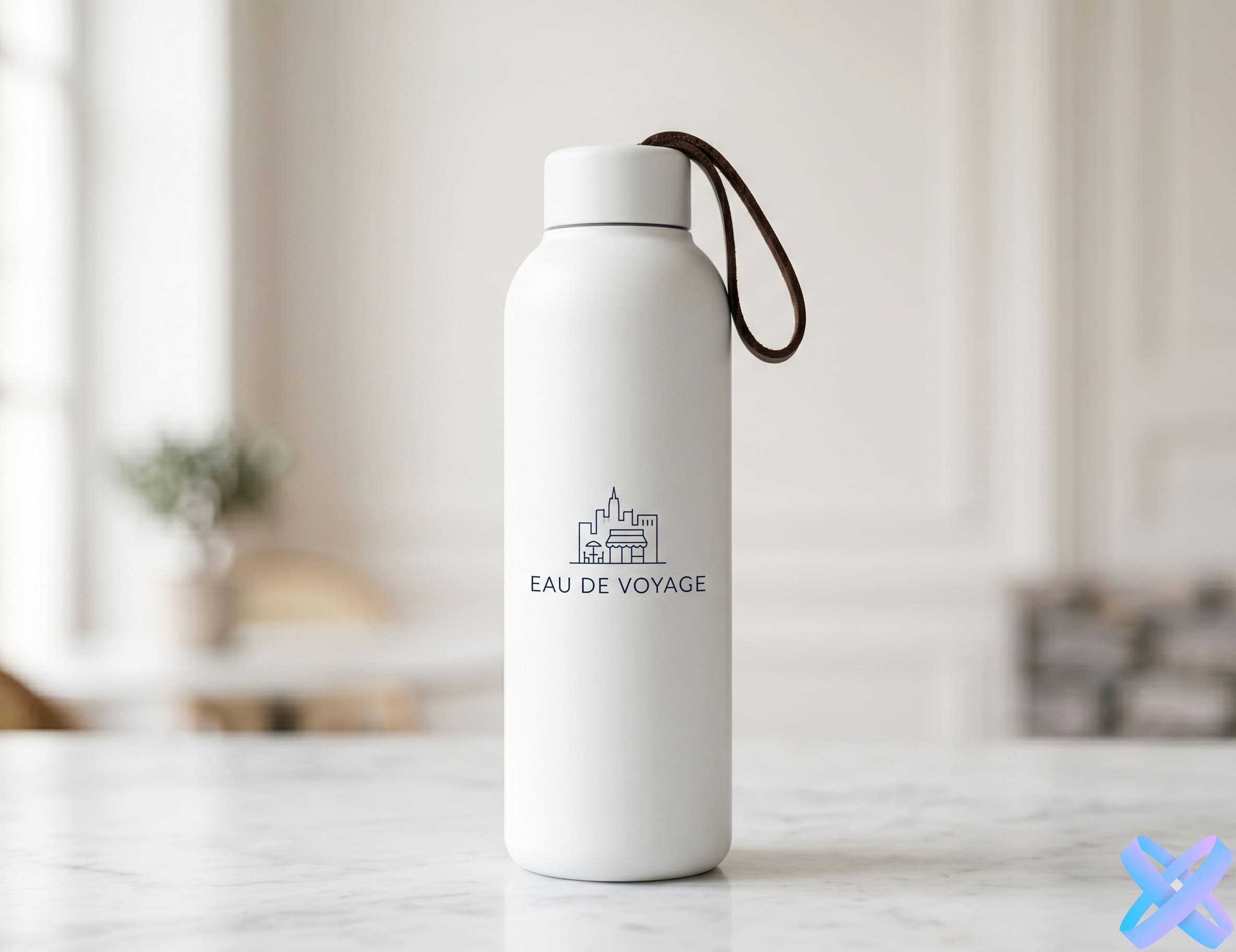

Change the bottle color to matte black, preserve the shape, reflections and highlights


Change the sofa color to olive green, preserve the material and lighting


Change the packaging color to dark gray with gold accents, preserve the texture
FOCUS
Fabric, seams, folds, and shadows.
Packaging, plastic, metal, and reflections.
Furniture, surfaces, and decor.
Bodywork, coatings, metal, and controlled highlights.
POSITIONING
One specific object and a new shade while the rest of the scene stays intact.
If shape, model, or object type must change too, use a different focused tool.
USE CASES
Show multiple color variants of the same product.
Quickly test furniture or room-detail colors.
Match an object to a campaign palette.
Recolor an accessory or garment without replacing the whole outfit.
QUALITY CHECK
Name the exact object instead of writing only “make it blue.”
For complex materials, say that texture, reflections, or shine must be preserved.
Do not mix recoloring with object-shape changes in the same request.
Inspect object edges and reflected color on nearby surfaces.
FAQ
Clothing, products, furniture, accessories, car or tech elements, and other clearly visible objects.
The workflow aims to preserve texture and light behavior, but complex reflective materials should be reviewed carefully.
Yes. Use a color name, a shade such as graphite, or a more detailed verbal description.
Yes. Explicitly say that the logo, label, and text must remain unchanged.
Simplify the request to one target object and explicitly say that the background and all other objects must remain unchanged.
Yes. A quick option only fills the text field; you can rewrite it before generation.
AI AGENT
Guest AI edits are unavailable. A new account created after the offer started gets one successful free edit with any editor tool, including Premium. Further edits require tokens. This is one account-wide attempt, not one per page.
Further AI edits use tokens at the tool rate. Technical failures should not consume a free attempt. Switching project modes does not reset used attempts. Purchased tokens and permanent Premium remain intact; Premium unlocks after a purchase.