CLOTHING · AI CLOTHES CHANGER
Change clothes on photo online with AI
Upload a photo and choose a ready-made look or describe new clothing in your own words. AI changes the wardrobe while preserving the face, pose, body proportions, background, and original lighting.
- 0 guest edits · 1 free edit after registration
- 8 real Outfit presets from the Editor
- Ready-made looks or a custom prompt

PRESET + PROMPT
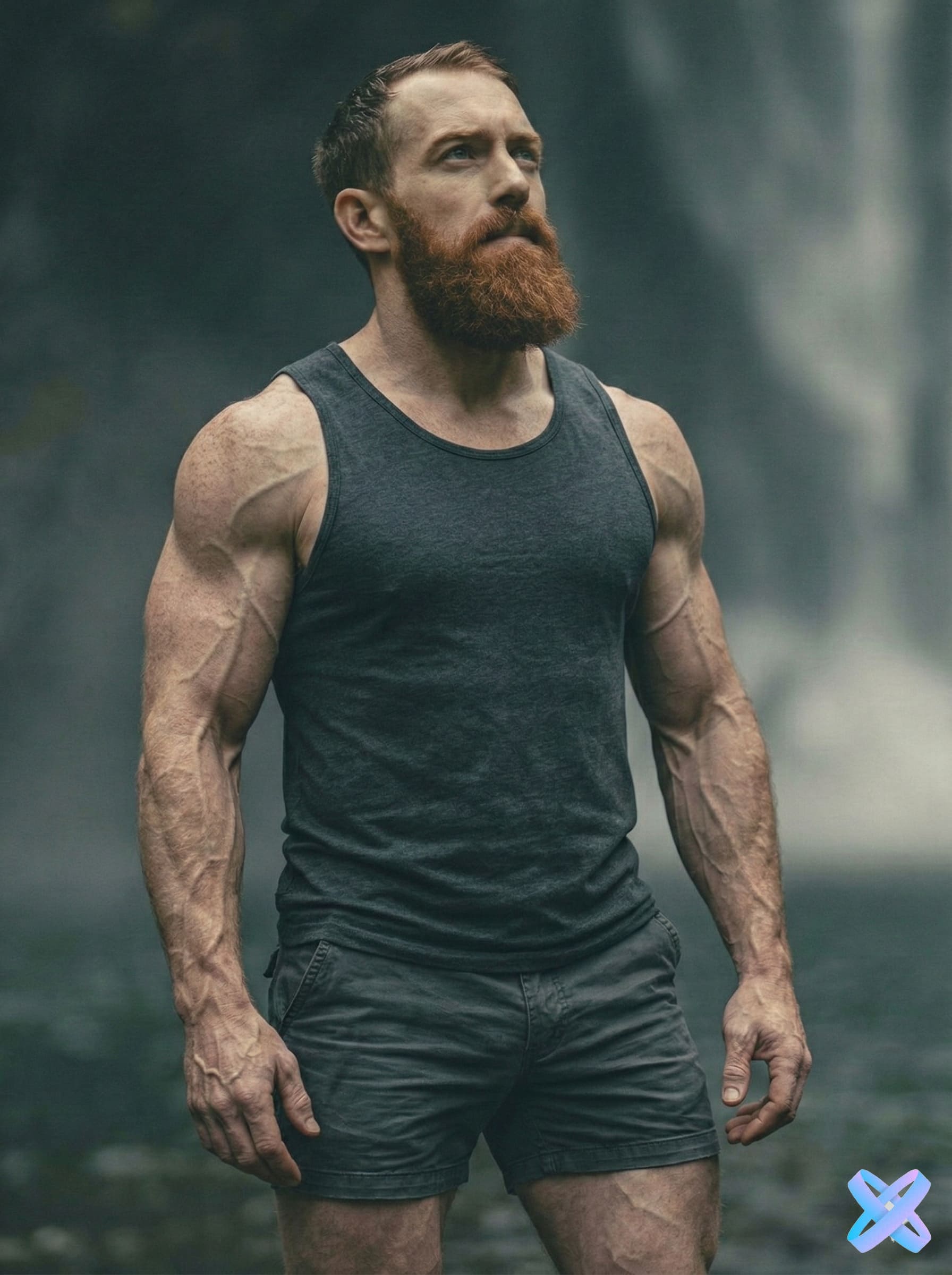
The outfit starts with a command
Choose a ready-made Outfit preset or describe the new wardrobe in your own words.
LOOKBOOK
One person — different outfits
Ready-made directions quickly show how differently the wardrobe can change on the same photo.


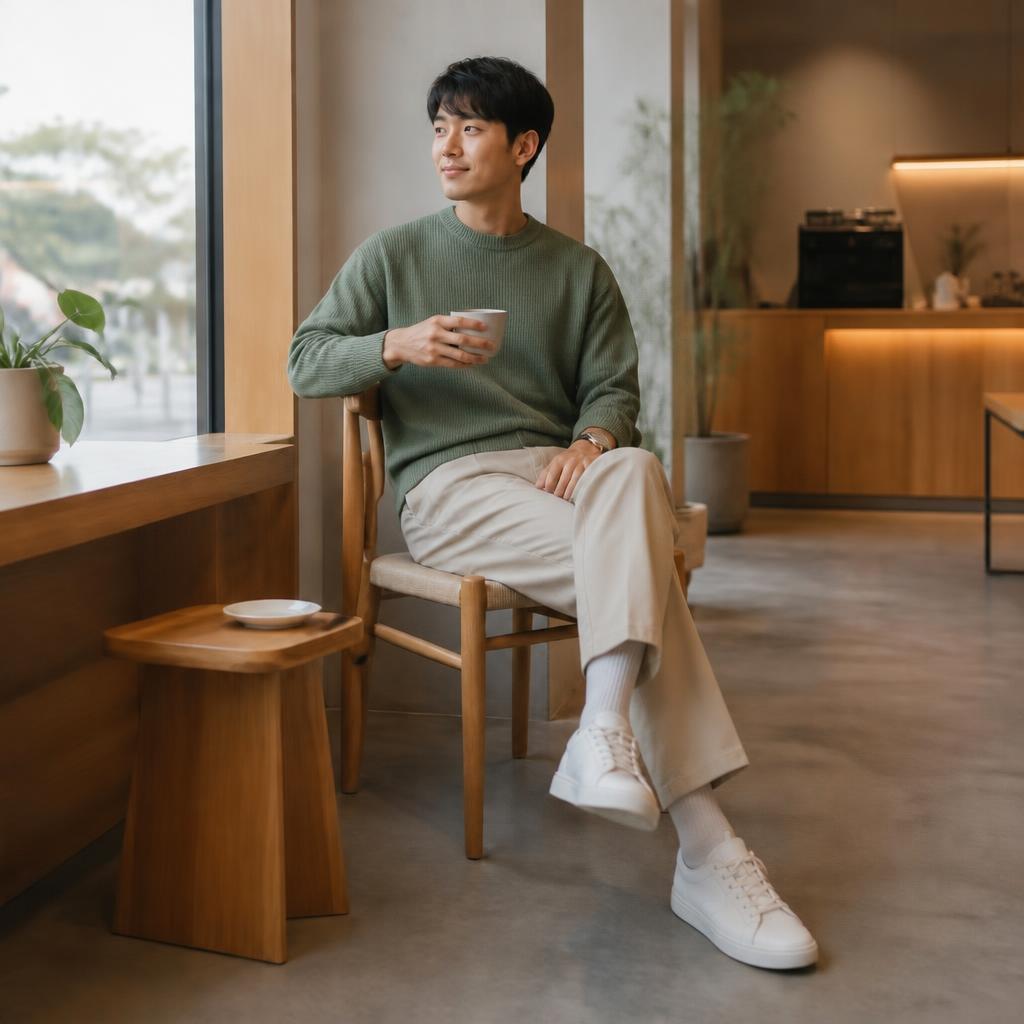
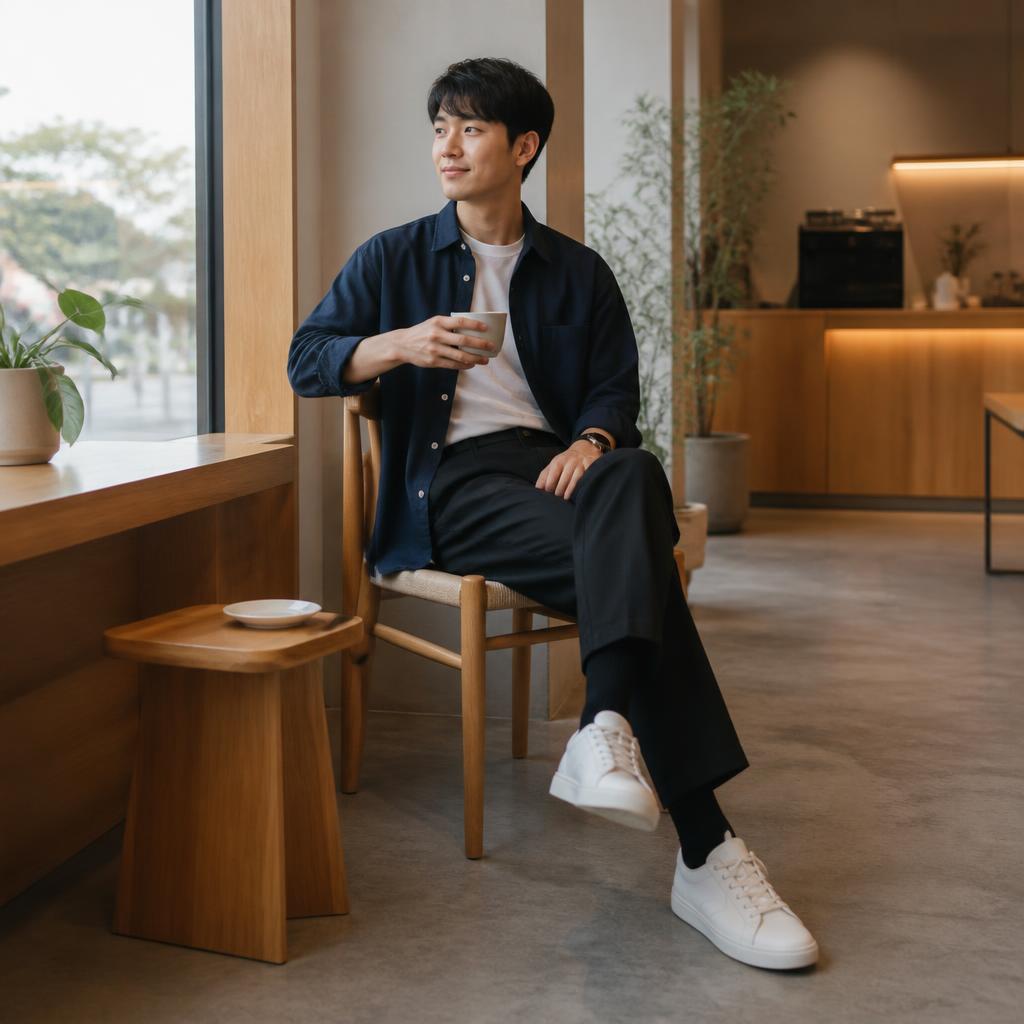
General clothes-changing examples
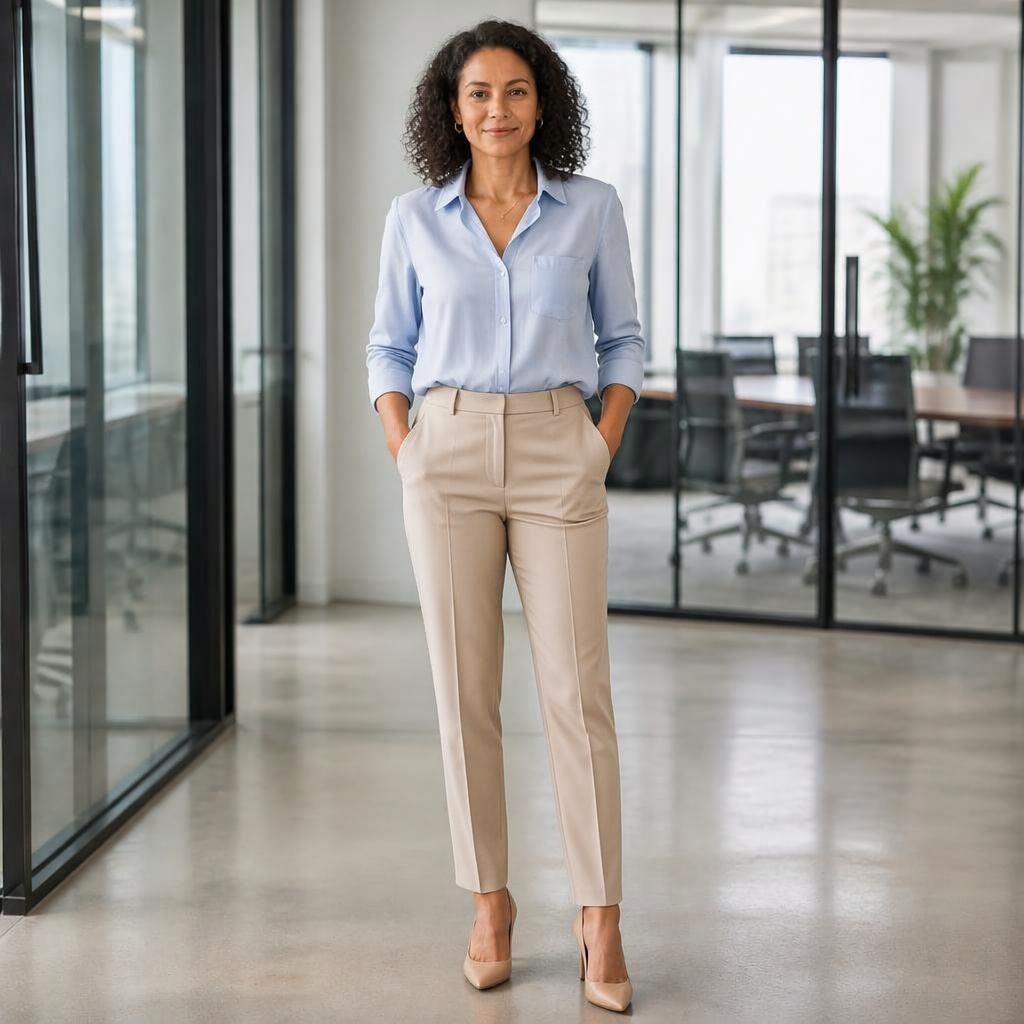
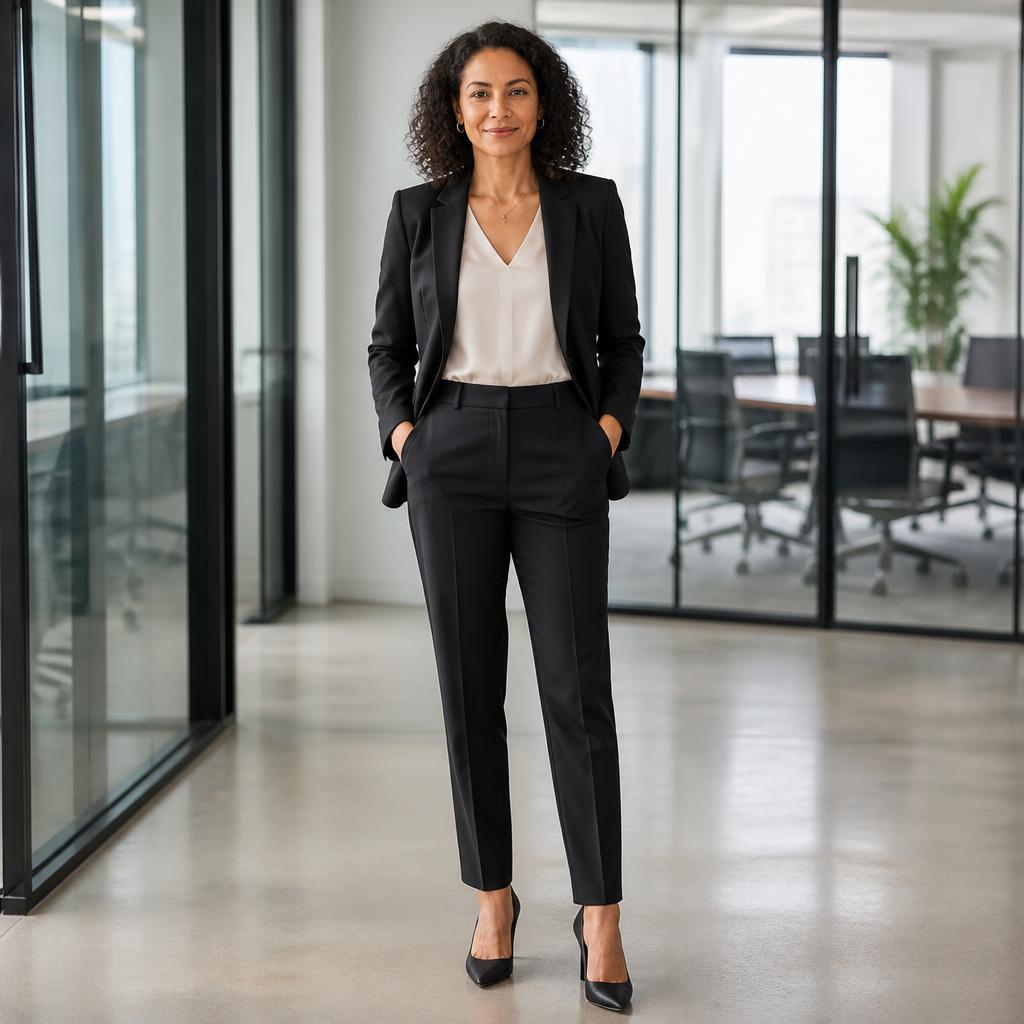
These additional examples show the broad clothes-changing workflow, from a casual wardrobe update to a more noticeable style change while keeping the same person and scene.
SOURCE LOCK
What should stay consistent
The clothing changes inside the source photo — not the person and the whole scene around it.
Face and identity
Facial features, age, and expression stay consistent.
Pose and body
The person’s position and body proportions should not change with the clothes.
Background and light
The scene, camera angle, and lighting remain the same unless requested separately.
Fabric and fit
New clothing should follow realistic folds, shadows, and contact with the body.
WORKFLOW
How this workflow works
Upload a photo
Use a clear image where the body and clothing are visible.
Define the change
Use this cluster’s focused control — color, dress, preset, suit, or reference garment.
Inspect the result
Compare Before / After, check fabric details, and try another variation if needed.
CLOTHING CLUSTERS
Other ways to change clothing
AI CLOTHING STUDIO
AI clothes changing without another photoshoot
AI Clothes Changer is the broad workflow for replacing clothing in an existing photo. Choose a current Outfit preset or describe the garment type, color, fit, and material in text.
For a narrow goal, use the dedicated mode. Color keeps the garment and changes only its shade, Dress Changer focuses on dresses, Suit Changer focuses on business suits, and Outfit Generator builds a coordinated look.
To try a specific garment from another image, use Virtual Try-On. It accepts two images — your photo and a clothing reference — so it serves a different intent from ordinary outfit generation.
FAQ
Frequently asked questions
Can I use ready-made looks?
Yes. The tool above uses real Outfit presets, and you can switch to a custom description when needed.
Can I describe my own outfit?
Yes. Specify the garment type, color, cut, and material in the command field.
What if I want a specific garment from another photo?
Use Virtual Try-On. That workflow adds a second image containing the garment to transfer.
Why have separate pages for color, dresses, and suits?
Each mode focuses on one concrete task, so the controls and examples stay relevant instead of mixing every clothing edit together.
Try this workflow on your photo
Use the tool above, upload an image, and run the focused Clothing workflow.
AI processing terms
What is free and when do I need an account?
Guest AI edits are unavailable. A new account created after the offer started gets one successful free edit with any editor tool, including Premium. Further edits require tokens. This is one account-wide attempt, not one per page.
How do I pay for further edits?
Further AI edits use tokens at the tool rate. Technical failures should not consume a free attempt. Switching project modes does not reset used attempts. Purchased tokens and permanent Premium remain intact; Premium unlocks after a purchase.