Social campaigns
Create stronger visuals for feeds, stories and ads.

AD PRODUCT PHOTO · ART DIRECTION
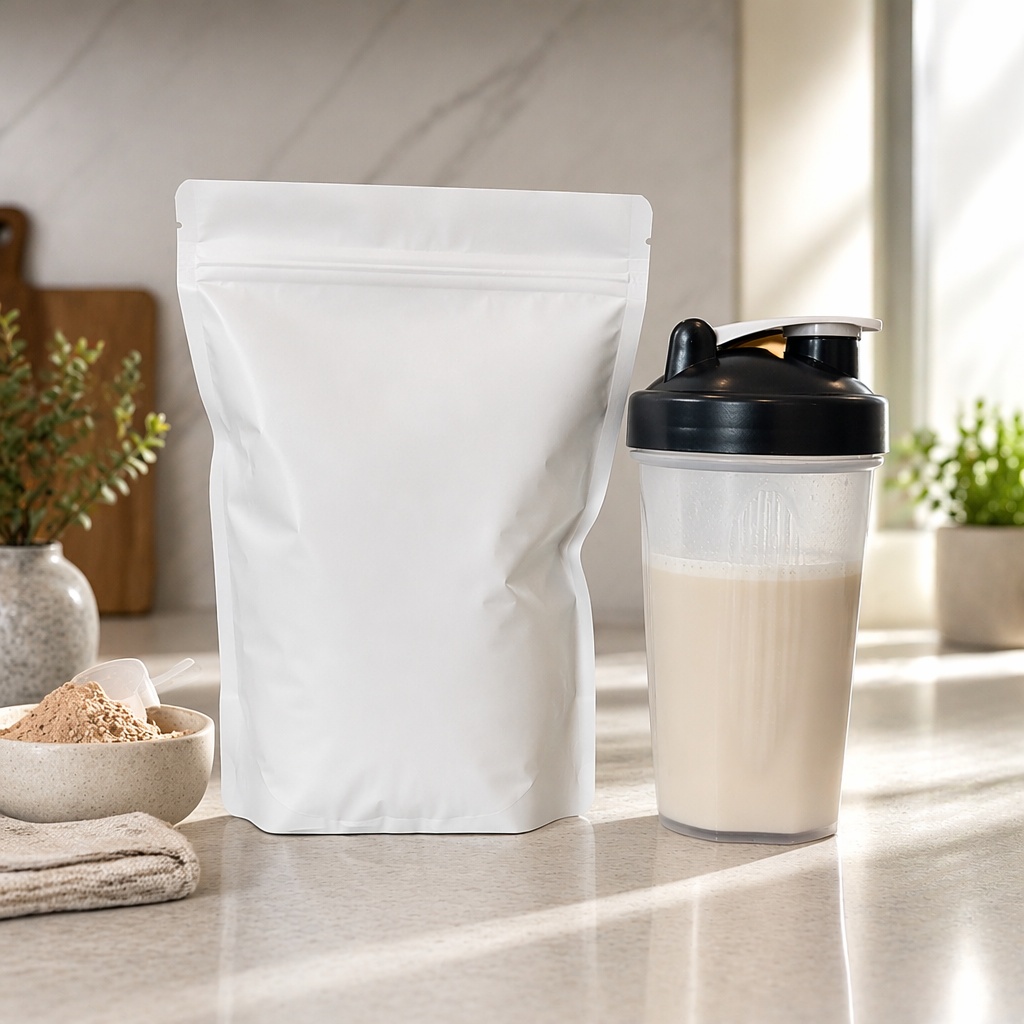
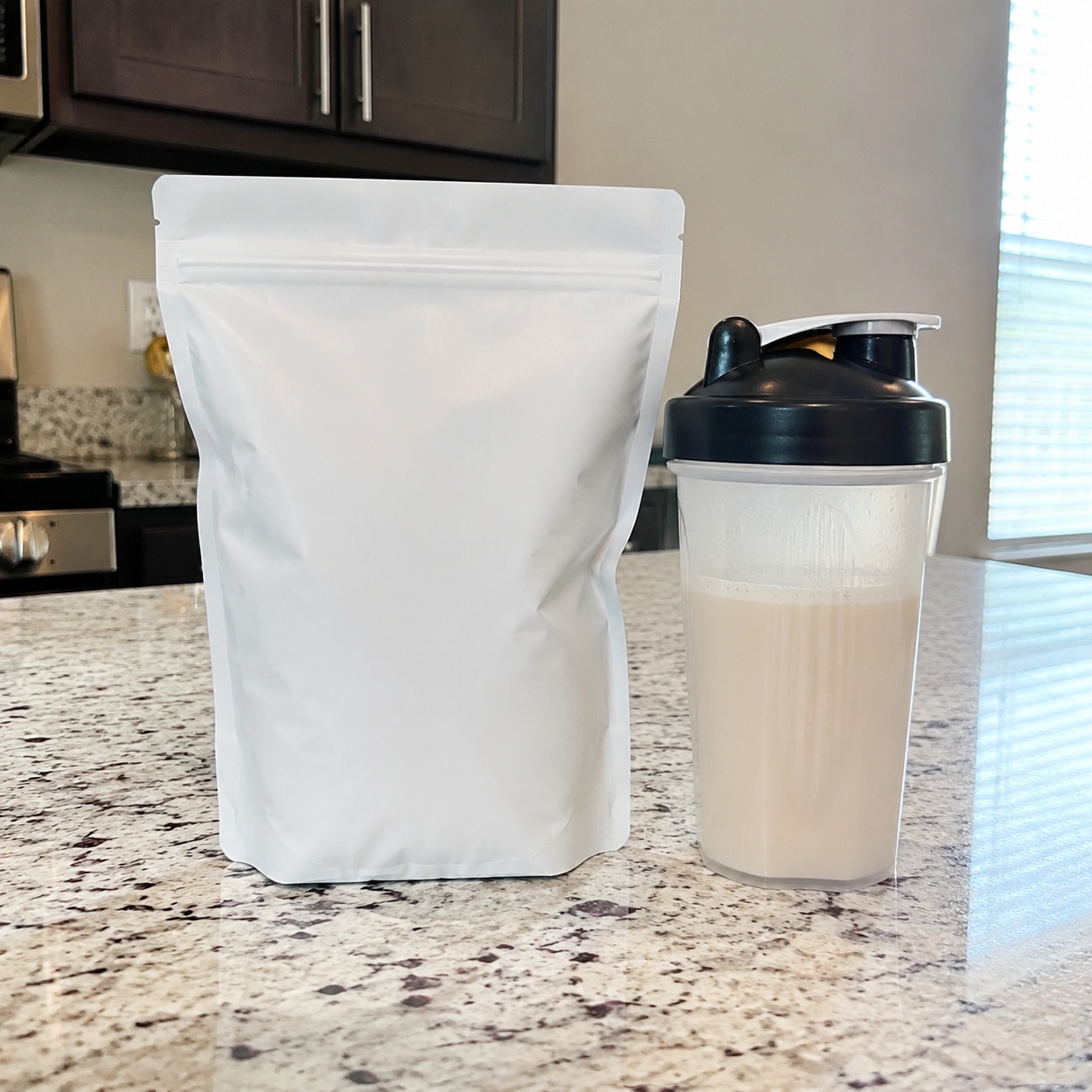
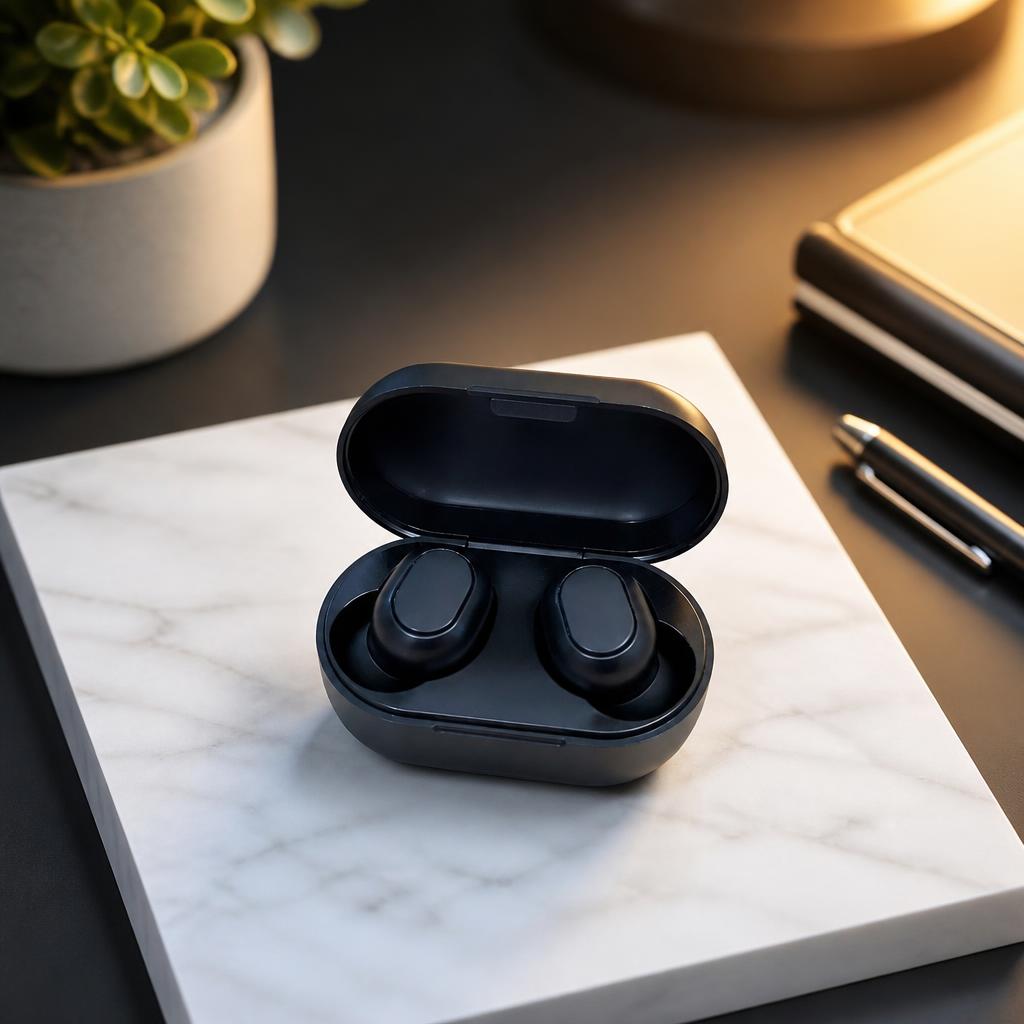
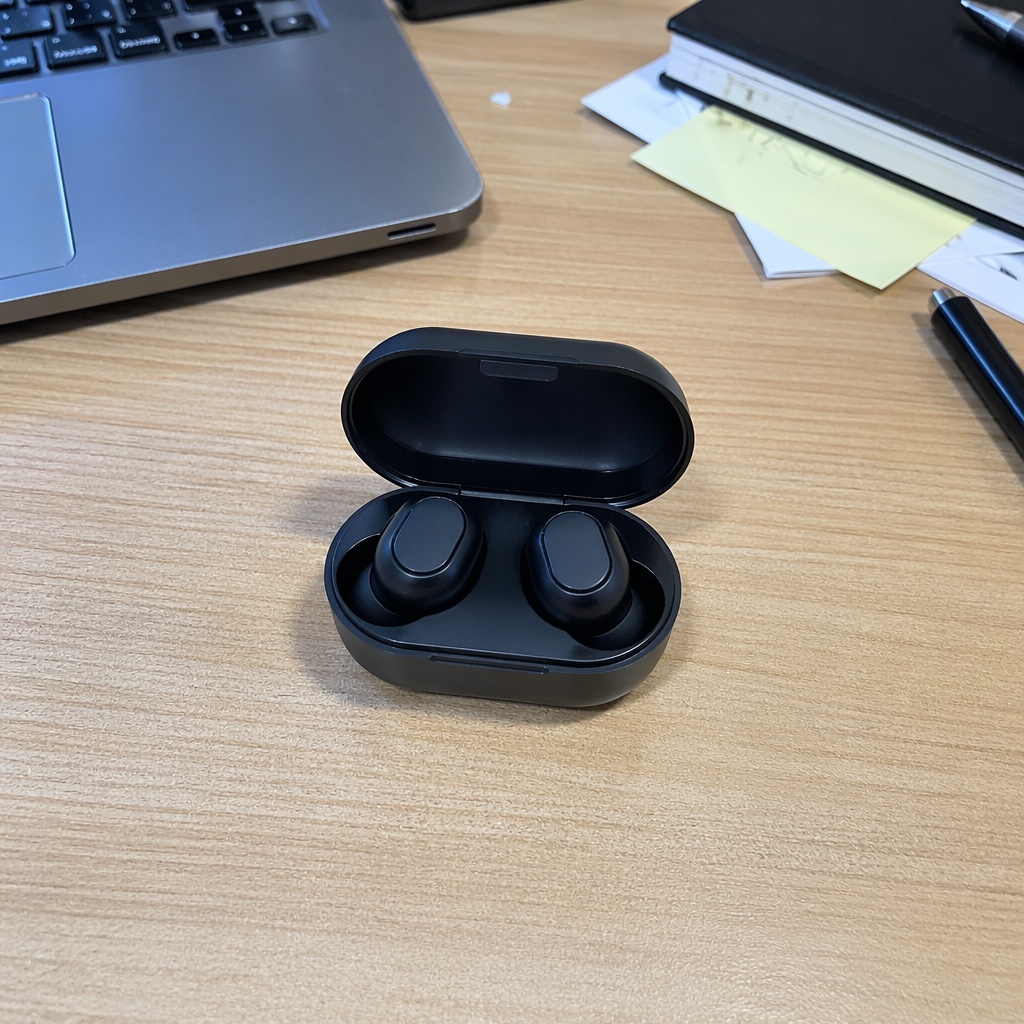
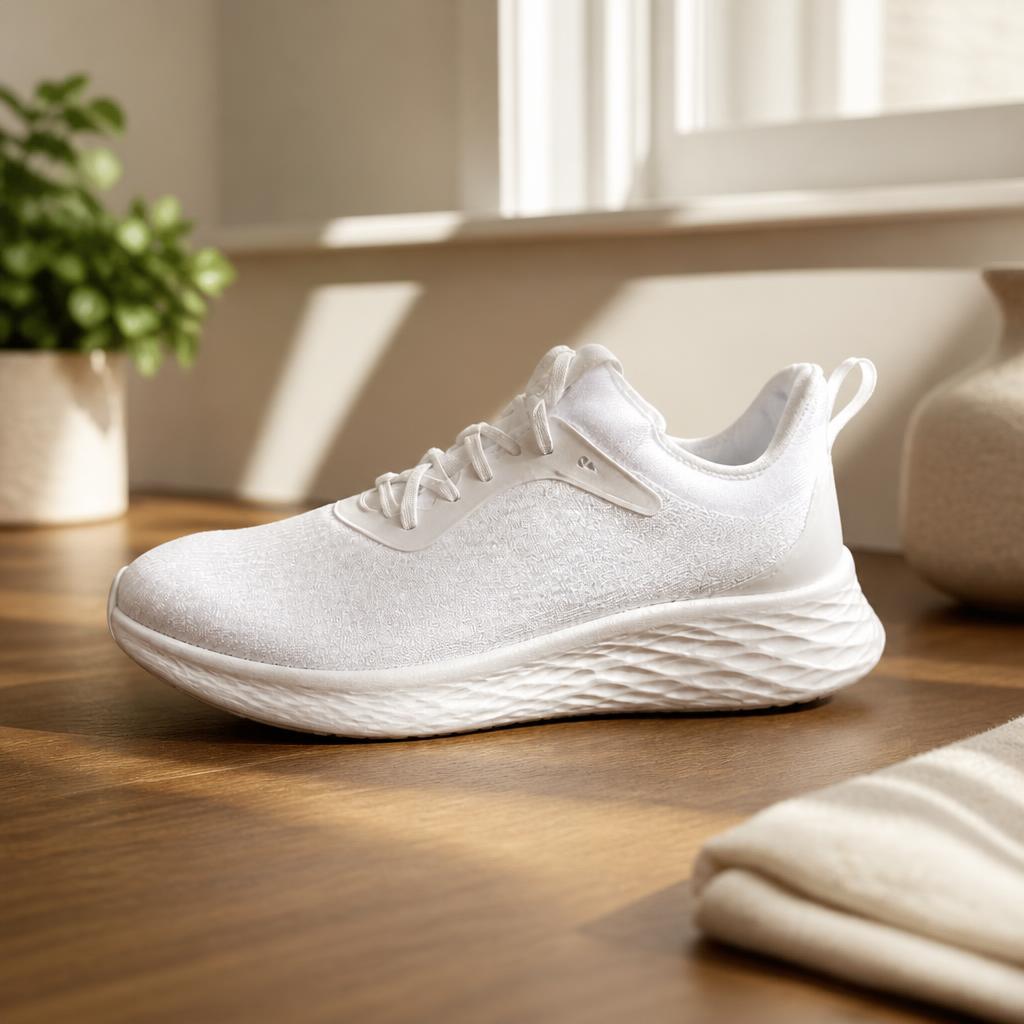
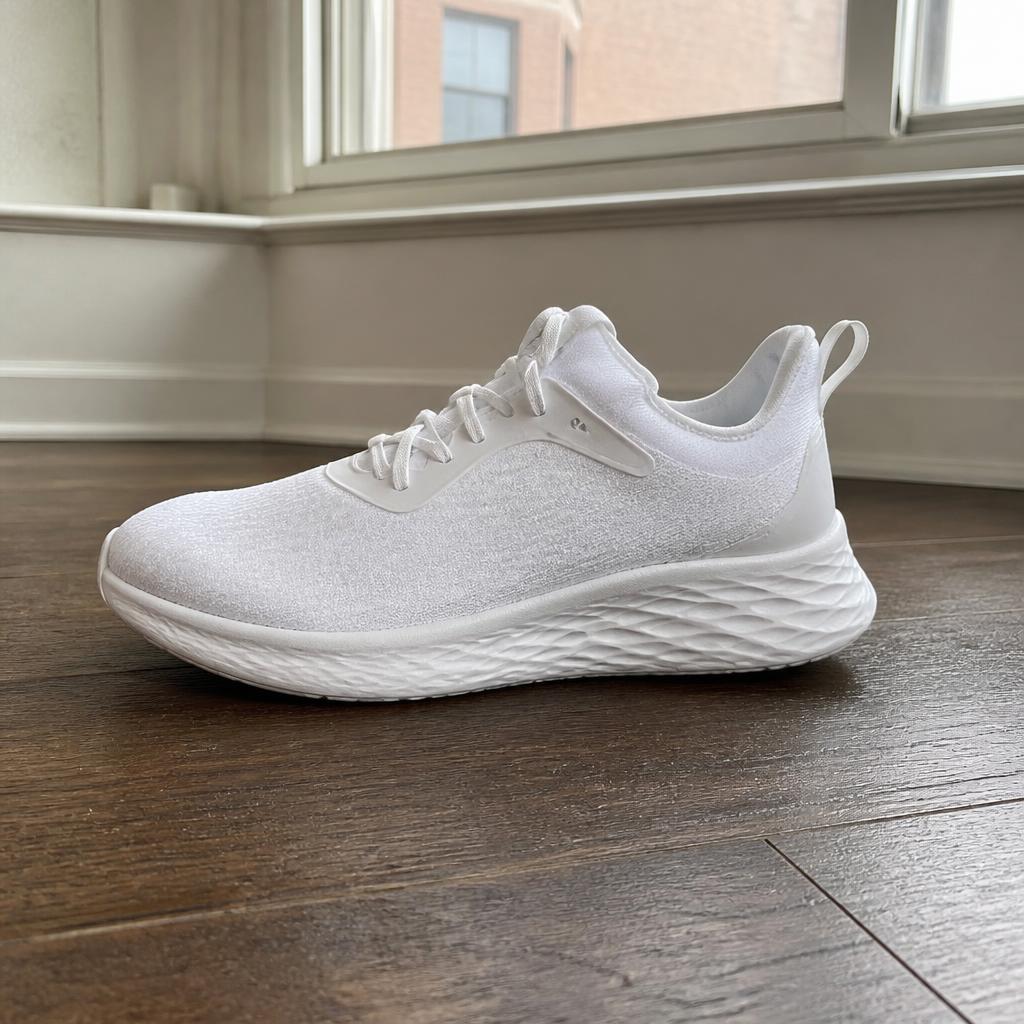
Turn a basic product shot into a stronger commercial visual: premium studio, lifestyle or social scene with more deliberate lighting and composition. The product stays recognizable and campaign copy is added later as controlled design text.
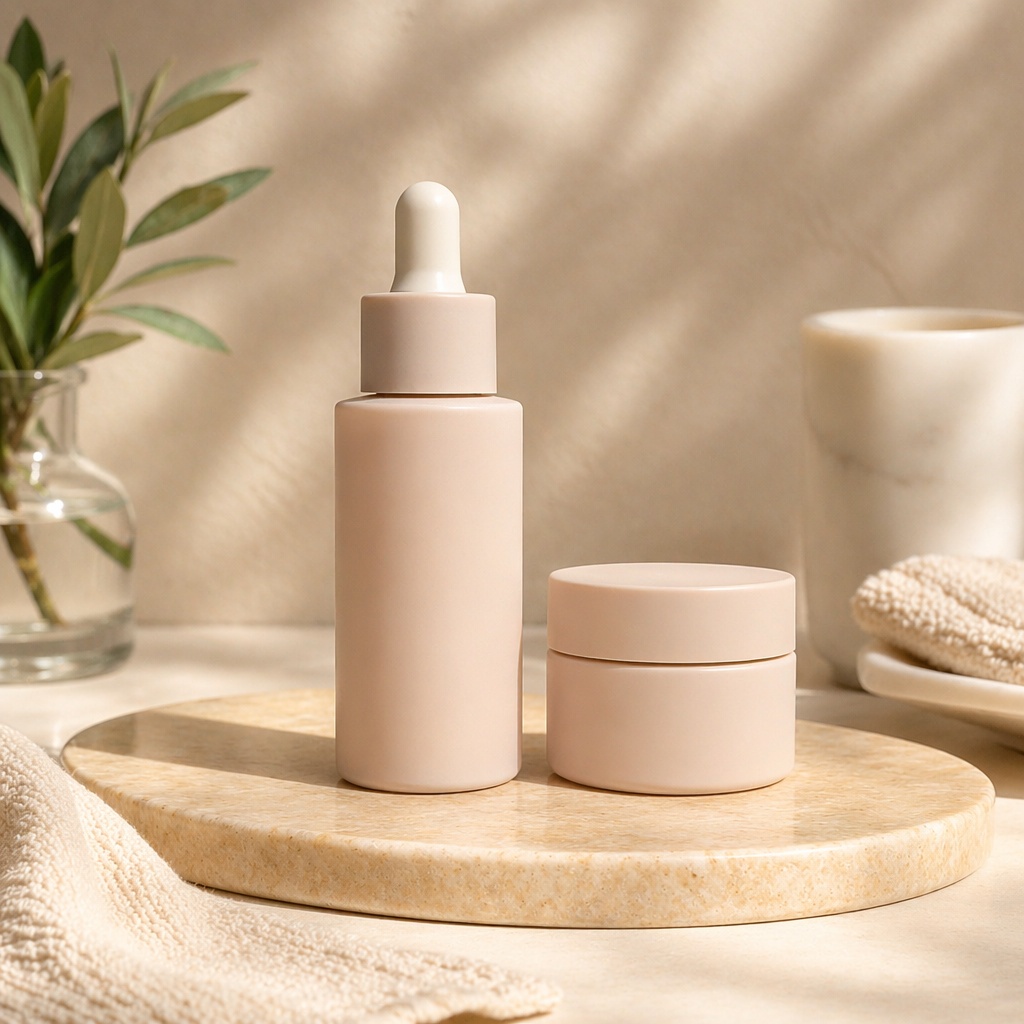
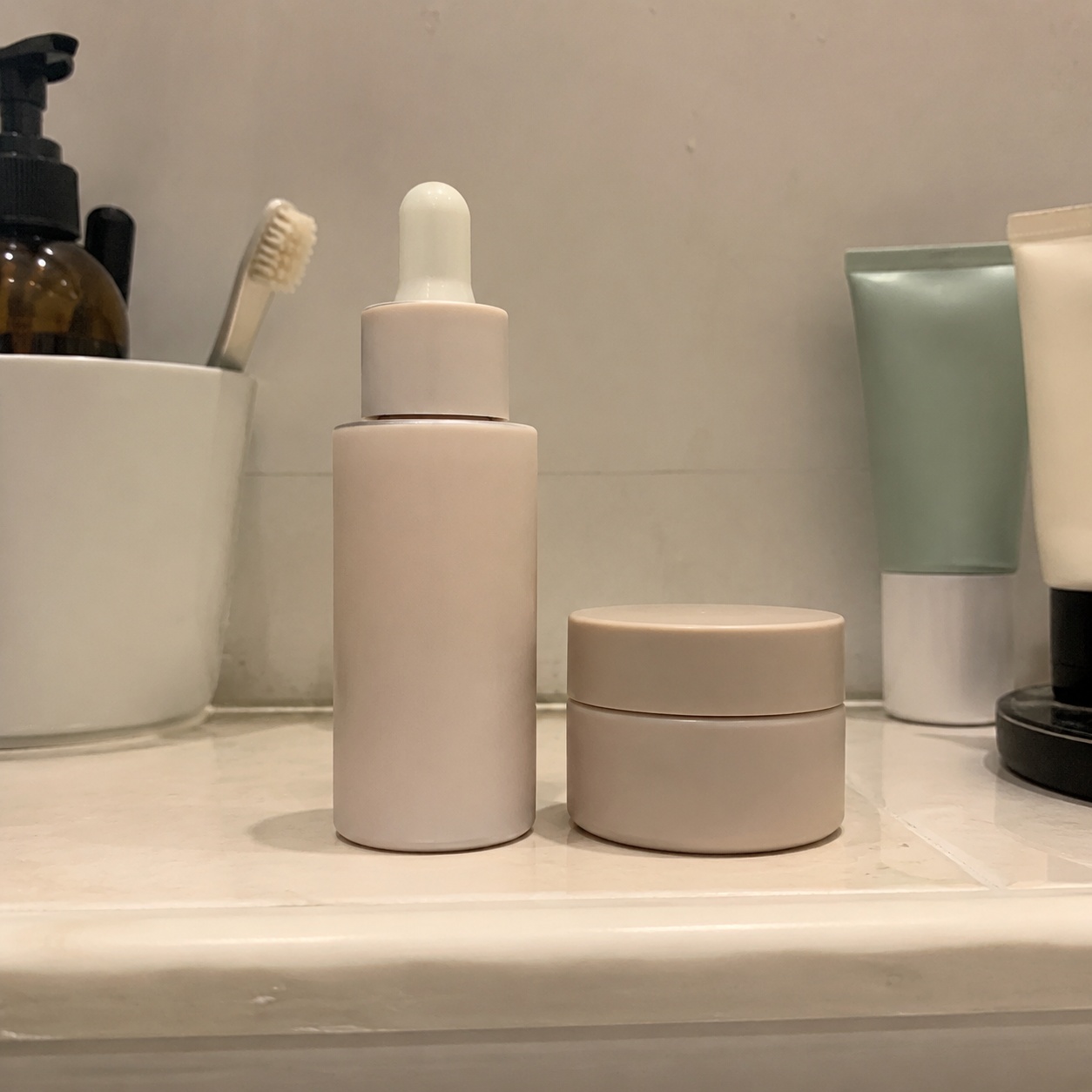
BEFORE / AFTER
Compare an ordinary product photo with stronger advertising scenes built around the same item.
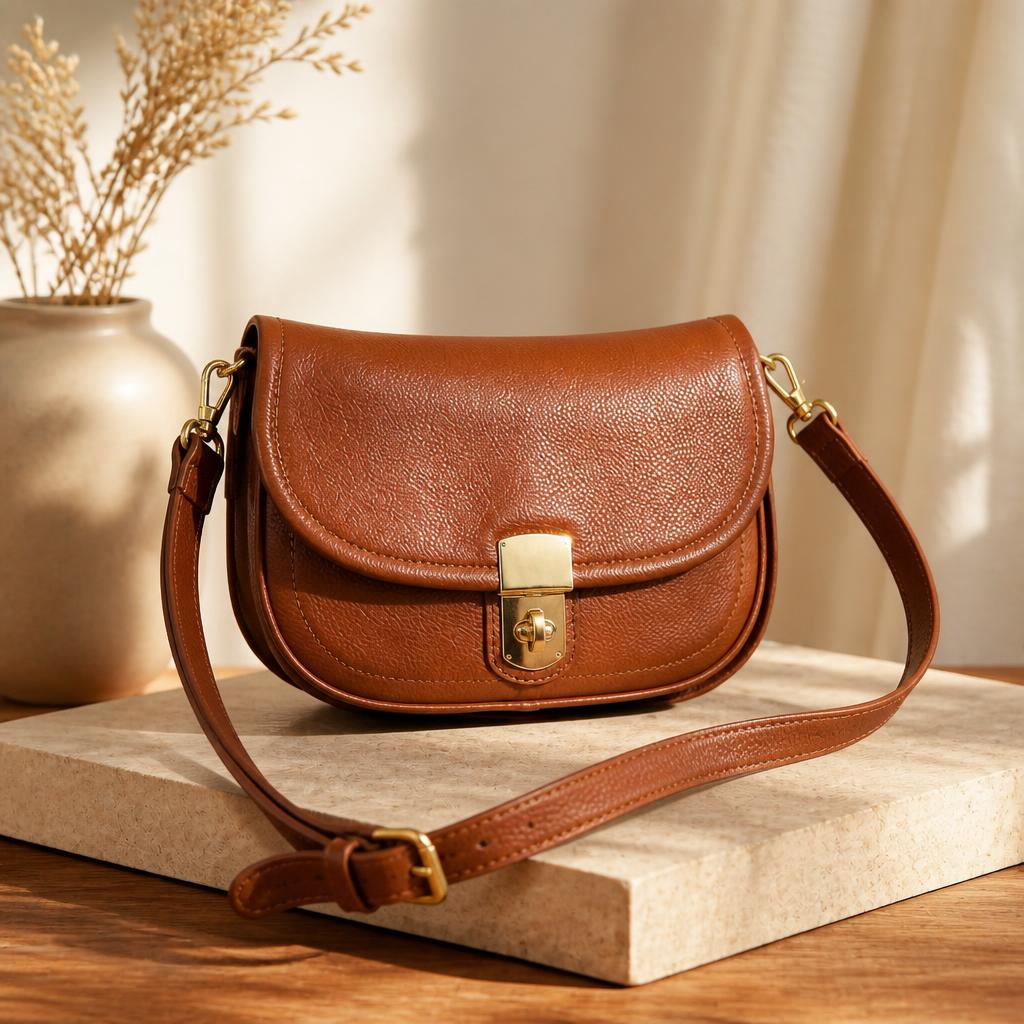
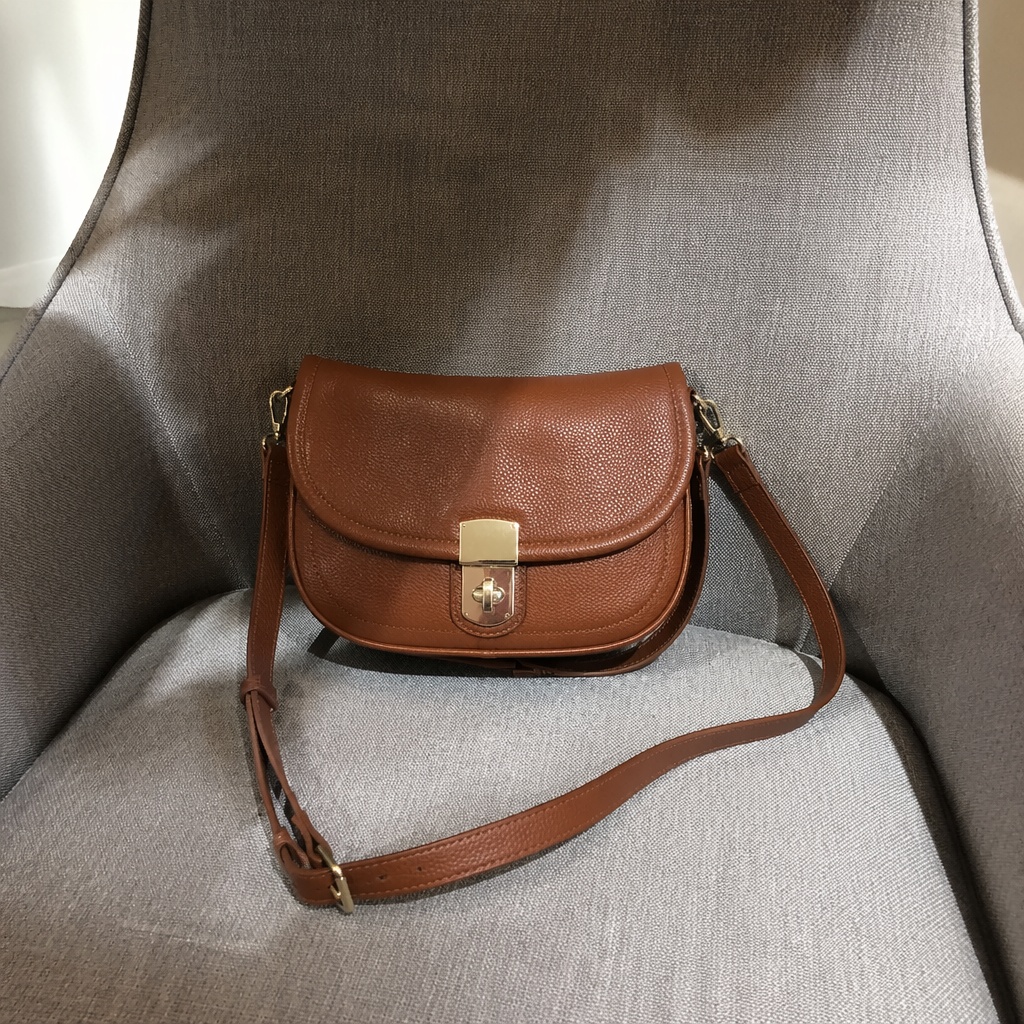
USE CASES
Unlike catalog photos, advertising creative can use stronger light, props, depth and mood while keeping the product itself accurate.
Create stronger visuals for feeds, stories and ads.
Build a commercial scene for a landing page or banner; add the headline and CTA later as design layers.
Compare several art directions before a full production shoot.
Change mood and setting for a season without redesigning the item.
WHAT YOU GET
Unlike catalog photos, advertising creative can use stronger light, props, depth and mood while keeping the product itself accurate.
Choose a premium, lifestyle or social direction.
Rim, studio or atmospheric light can reveal material and volume.
The generated scene stays text-free so exact campaign copy can be added later in the layout.
PRODUCT CREATIVE
Turn a basic product shot into a stronger commercial visual: premium studio, lifestyle or social scene with more deliberate lighting and composition. The product stays recognizable and campaign copy is added later as controlled design text.
Create a premium advertising shot on a light stone podium with soft side lighting. Keep the product unchanged.
Place the product in a clean interior with warm morning light and minimal props.
Create a modern dark advertising scene with rim light and depth. Generate no text.
Place the product slightly to the right with balanced framing. Keep shadows, depth and perspective realistic; add campaign copy later outside generation.
Stronger lighting, mood, props and visual depth.
Cleaner and more functional, prioritizing product clarity and consistent catalog presentation.
FAQ · AD-PRODUCT
Clear boundaries around the task, product accuracy, and what happens after generation.
Background mainly replaces the environment. Ad Product Photo adds stronger art direction through mood, composition, lighting and props.
No. Product Creative keeps generated scenes text-free, so exact copy, prices and logos should be added later as controlled design layers.
No. Preserve mode keeps the real product color and material locked.
A sharp image where the whole product is visible, unobstructed and not cropped at important edges.
Yes. The tool includes several visual directions, and the full Editor exposes more controls.
SMARTGENIUSAI · PRODUCT CREATIVE
Create several advertising directions from one source and choose the strongest concept for your campaign.
Guest AI edits are unavailable. A new account created after the offer started gets one successful free edit with any editor tool, including Premium. Further edits require tokens. This is one account-wide attempt, not one per page.
Further AI edits use tokens at the tool rate. Technical failures should not consume a free attempt. Switching project modes does not reset used attempts. Purchased tokens and permanent Premium remain intact; Premium unlocks after a purchase.