Portrait and character
Anime, Cartoon, Avatar, and 3D Cartoon treat the face and character design in different ways.

PHOTO STYLES · CREATIVE EXPLORATION
Upload a photo and explore different visual directions — anime, sketch, painting, comic, 3D, and more. One source image can become completely different creative versions inside SmartGenius.


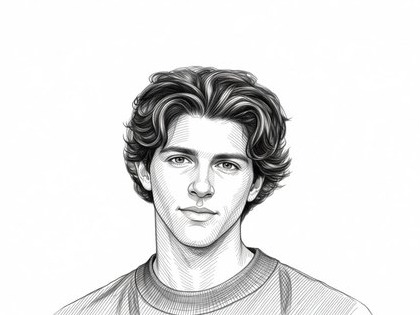 Pencil
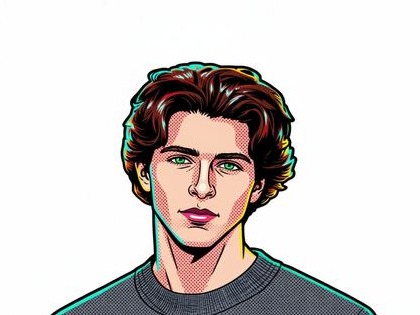 Comic
Comic
AI STYLE DIRECTORY
Choose a visual task rather than a random preset. Each section below targets a distinct result and opens the Hero with the matching style already selected.
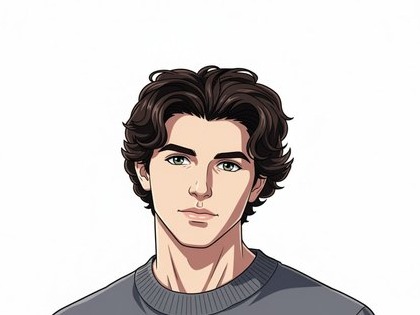 AnimeLinework, cel shading, and an expressive anime portrait.
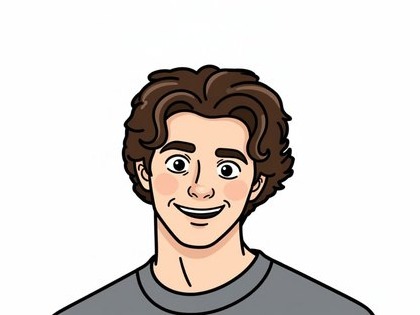 CartoonFlat 2D styling with clean simplified contours.
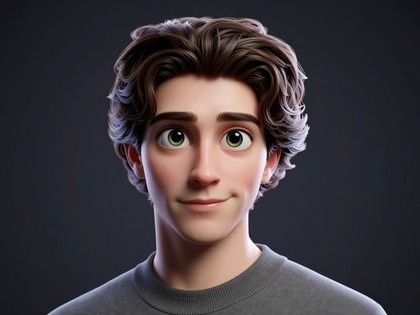 AI AvatarProfile-ready character styling focused on facial recognizability.
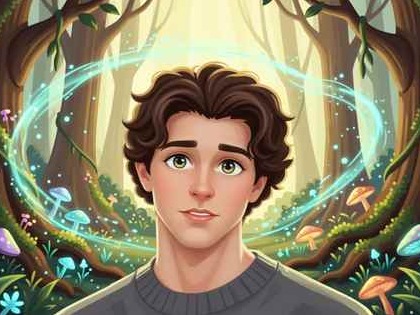 GhibliSoft hand-painted atmosphere and warm natural light.Pencil SketchGraphite linework, hatching, and paper texture.
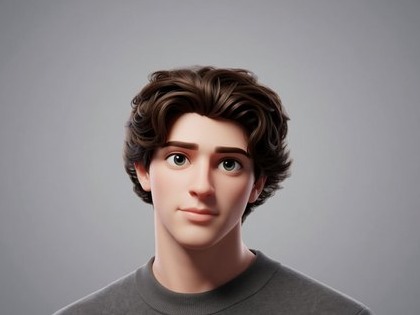 3D CartoonDimensional character rendering with soft studio light.ComicBold outlines, contrast, and graphic storytelling.
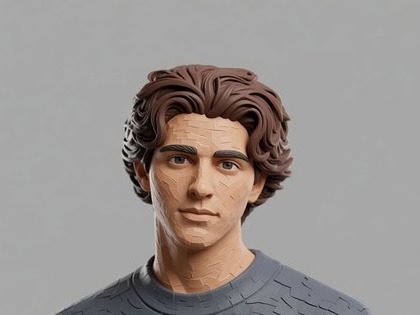 Clay StyleMatte plasticine texture and a stop-motion feel.
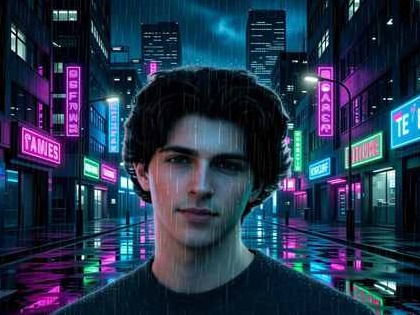 CinematicLighting, depth, and filmic color like a movie still.
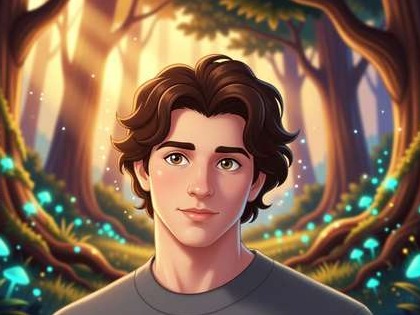 FantasyMagical atmosphere and painterly fantasy-art detail.
WHY THESE PAGES
These directions are not interchangeable presets: each changes a different visual language and fits a different use case.
Anime, Cartoon, Avatar, and 3D Cartoon treat the face and character design in different ways.
Sketch and Comic both use linework but differ in tone, contrast, and print-like texture.
Ghibli, Cinematic, and Fantasy reshape light and environment according to different visual rules.
Clay specifically imitates a physical plasticine surface rather than being “just another 3D” style.
MORE IN EDITOR
Beyond the 10 dedicated SEO directions, the Editor contains additional artistic presets. These three examples stay part of the broader Editor collection rather than separate cluster pages.
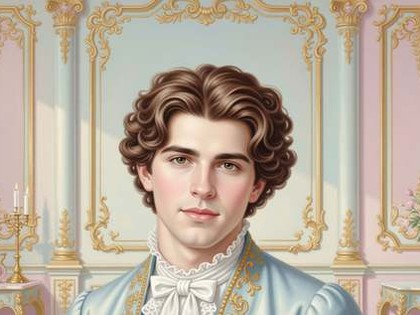 RococoEditor collection
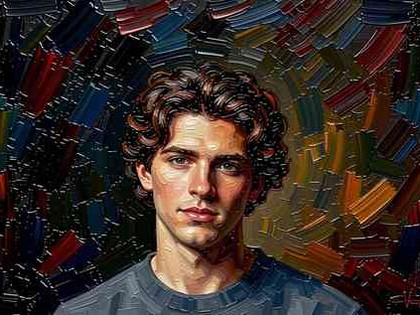 Oil PaintingEditor collection
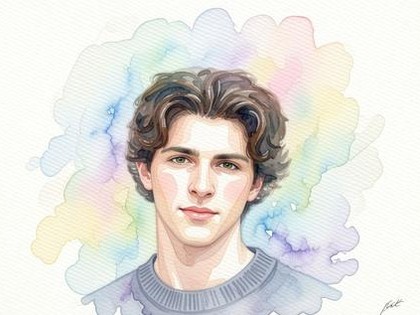 WatercolorEditor collection
CHOOSING A DIRECTION
Do you need an avatar, drawing, cartoon character, movie still, or a more artistic atmosphere?
A clear image with an obvious main subject gives the model more reliable information.
Check faces, hands, text, and important objects before downloading or continuing in the Editor.
FAQ
A filter mainly changes tone and color. AI stylization can rebuild linework, materials, lighting, and the artistic texture of an image.
They represent distinct user tasks with their own pages, examples, and guidance. The broader preset library remains inside the Editor.
Yes. Download the result or continue with other tools in the Editor.
No. Pick a direction based on your goal, then compare it with two or three nearby styles on the dedicated cluster page.
Start with one of the 10 dedicated styles above or upload an image in the Hero and compare directions directly on the page.
Guest AI edits are unavailable. A new account created after the offer started gets one successful free edit with any editor tool, including Premium. Further edits require tokens. This is one account-wide attempt, not one per page.
Further AI edits use tokens at the tool rate. Technical failures should not consume a free attempt. Switching project modes does not reset used attempts. Purchased tokens and permanent Premium remain intact; Premium unlocks after a purchase.