
STANDING POSE · CONFIDENT STANCE · SMARTGENIUSAI
How to Change a Standing Pose in a Photo With AI
Standing poses look simple, but small changes in shoulder angle, weight distribution, arm position and foot placement can completely change the confidence and energy of a portrait. AI pose editing lets you test those variations without repeating the original location or photoshoot.
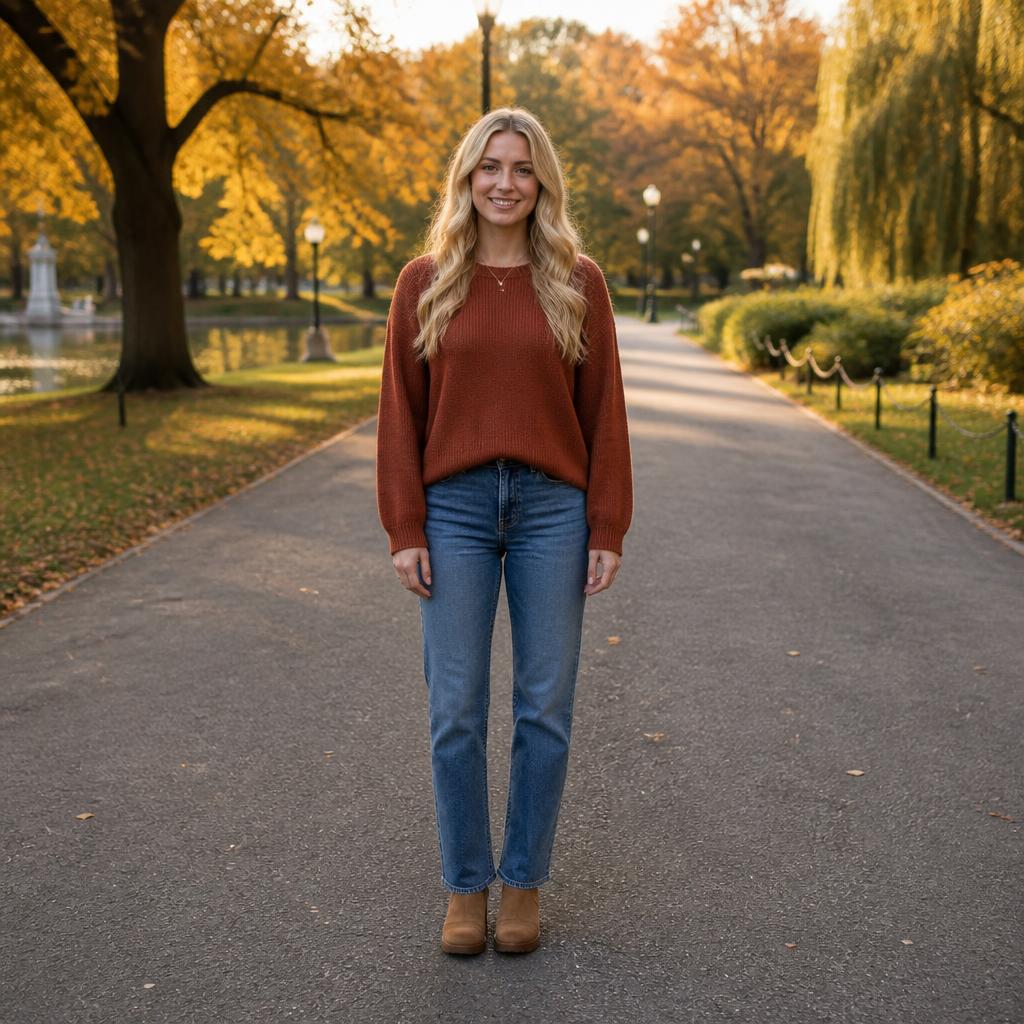
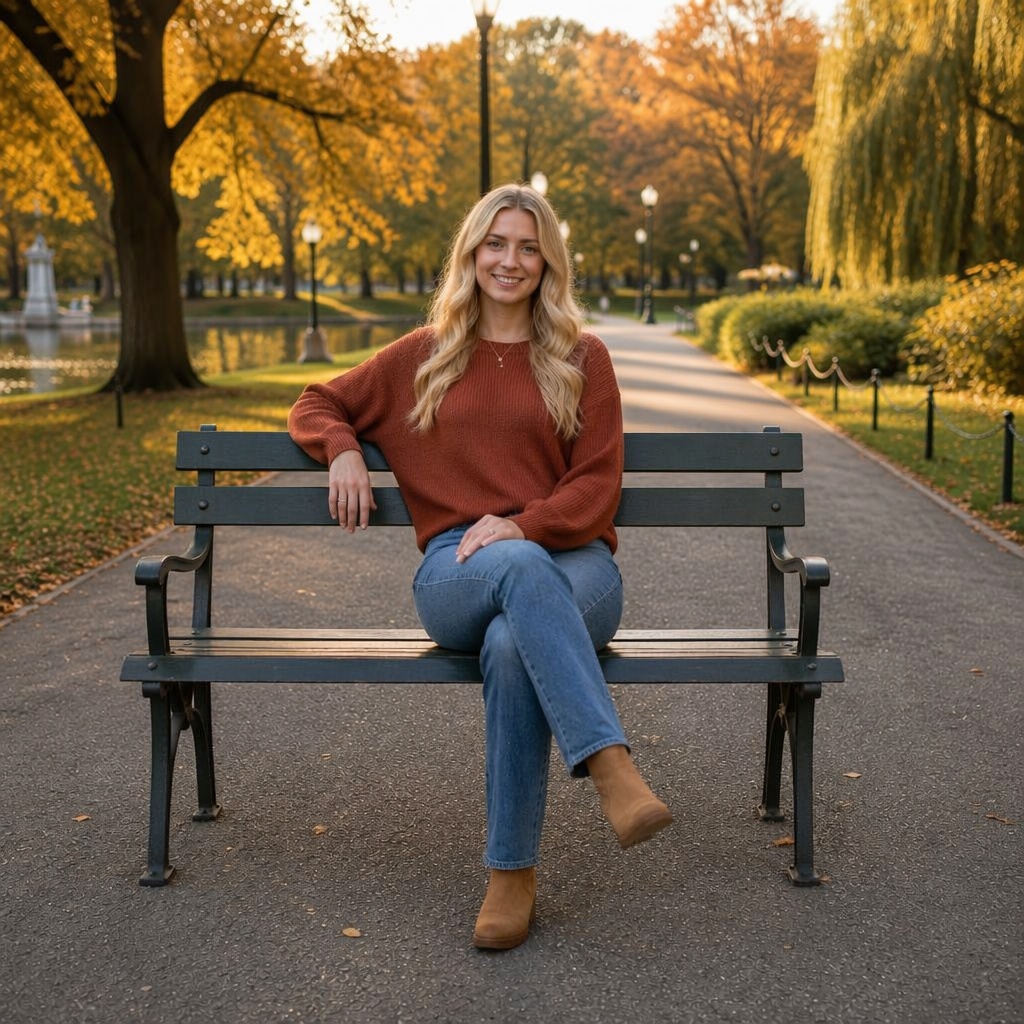
A practical guide to changing standing posture while keeping the body balanced, the outfit readable and the source scene intact. Choose a source that clearly shows the body area you want to move, request one pose direction, keep identity and scene constraints explicit, then inspect anatomy, clothing and physical contact before you keep the result.
What change standing pose with AI actually changes
Standing poses look simple, but small changes in shoulder angle, weight distribution, arm position and foot placement can completely change the confidence and energy of a portrait. AI pose editing lets you test those variations without repeating the original location or photoshoot.
Pose editing is a reconstruction task rather than a simple transform. When an elbow moves, the sleeve must change. When a hip rotates, clothing folds and leg depth change. When a foot moves, the AI may have to rebuild the ground that used to sit behind it. The result is strongest when all of those local changes still agree with the same camera, person and environment.
Think in terms of body position, not body replacement. The face, age, overall body proportions, outfit identity and scene should remain recognizable while the skeleton and fabric are redrawn into a different posture.
Start with the right source photo
Choose a frame where the person is upright and the floor or ground is visible enough to understand their stance. A full-body image is ideal, but a waist-up photo can still support upper-body posture changes if you do not ask the AI to invent hidden legs.
Sharpness matters because the model needs to separate body, clothing and background edges. Very strong blur, extreme compression, dark clothing on a dark background, crossed limbs or foreground objects can make those boundaries ambiguous. A difficult source does not make editing impossible, but it increases the amount of visual information the AI must guess.
Leave room in the direction of movement. A person already touching the left frame edge has little space for a wider left-facing gesture. Likewise, a tightly cropped portrait cannot become a convincing full-body walking photo without inventing most of the unseen scene.
Read the pose as connected body geometry
Standing posture is built around weight. Decide whether the new stance is symmetrical, weight-on-one-leg, slightly turned or walking-ready. The hips and shoulders should respond to that choice, and the feet must remain connected to the ground plane.
Use simple joint chains to inspect the result: shoulder → elbow → wrist, and hip → knee → ankle. Then look at the torso as the bridge between upper and lower body. If the limbs appear plausible individually but the torso cannot physically connect those positions, the pose will still feel wrong.
Also compare body depth with the camera. One knee may sit closer to the lens, one shoulder may rotate away, and an arm may cross the torso. Those differences should create a coherent three-dimensional pose rather than a flat cutout made from unrelated parts.
A repeatable AI pose workflow
Choose a source that shows the movement area
Use a clear source with enough visible anatomy and enough frame space for the pose you want to create.
Choose one pose direction
Start with a clear stance, seated position, hand placement, side turn or movement goal instead of mixing several large changes.
Preserve what already works
Keep the same face, age, body proportions, outfit, lighting and environment unless another change is intentionally part of the project.
Inspect anatomy and scene contact
Check hands, wrists, elbows, hips, knees, feet, clothing folds, ground or seat contact, shadows and background geometry before export.
The first generation should answer one clear question: does this new body position work? Once the pose is strong, you can continue into other SmartGeniusAI tools. Keeping the workflow staged protects good parts of the image from unnecessary regeneration.
Useful situations for change standing pose with AI
- Make a casual stance feel more confident for a profile or presentation.
- Test hands-in-pockets or arms-at-sides variations.
- Create a cleaner fashion or catalog standing pose.
- Turn a square-on pose into a three-quarter or side-facing stance.
Pose variations are especially useful when the original location, outfit or lighting is already valuable. Instead of rebuilding an entire shoot, you can test how another stance changes the composition and decide whether the concept is worth keeping, refining or recreating physically.
Confident does not have to mean rigid
A professional pose usually looks stronger when the spine is upright but the shoulders and hands remain relaxed. Overly squared shoulders, locked elbows and perfectly symmetrical feet can make a generated stance look more like a mannequin than a person.
Three-quarter poses are useful for comparison
Turning the torso slightly can create more depth while preserving a clear view of the face and outfit. It is a useful middle ground between a straight-on stance and a full side profile, especially for business and fashion images.
Keep the person recognizable while the body moves
A pose edit can be technically impressive and still fail if the person no longer looks like the source. Compare facial structure, hairline, hairstyle, age cues and visible body proportions before focusing on small style improvements. The new pose should still read as another frame of the same person rather than a newly generated model.
Large pose changes can create more identity pressure because the AI redraws more of the body and may rotate the head or torso. If identity begins to drift, reduce the pose difference, use a source with clearer facial detail, or choose a pose that keeps the head angle closer to the original.
Clothing is part of the anatomy check
Fabric provides evidence about the body underneath. Sleeves should bend at elbows, trousers should respond to knees and hips, and jackets should rotate with shoulders. Inspect pockets, buttons, logos, patterns, straps and jewelry because generative pose changes can accidentally move or simplify those details.
If exact fashion or product fidelity matters, use a pose that does not hide or heavily distort the important part of the garment. The more fabric is folded, covered by hands or turned away from camera, the more reconstruction the model has to perform.
Lighting, shadows and scene contact
Changing pose also changes how the body catches light. An arm turned toward a window should not remain shaded exactly like the old arm position. At the same time, the direction and color of the scene light should remain consistent. Look for highlight direction on the face and clothes, then compare cast shadows near feet, chair contact or nearby objects.
Contact is one of the strongest realism cues. Feet should sit on the floor or ground; hips should meet a chair; a hand on a pocket should meet the garment; an arm near a table should pass in front of or behind it correctly. Floating contact points often make an otherwise good pose feel artificial.
Prompt directions you can adapt
Pose prompts work better when they describe the body position and the preservation constraints separately. First state the pose. Then state what should remain unchanged: person, face, body proportions, outfit, lighting, camera framing and background.
Change to a confident standing pose with relaxed shoulders and natural weight on one leg; preserve the same face, outfit and background.
Turn the person slightly three-quarters to camera with arms relaxed and feet naturally placed on the same ground plane.
Create a clean upright business stance with balanced posture, subtle confidence and unchanged clothing and scene.
Avoid stacking unrelated edits into the first request. Changing pose, outfit, background, hairstyle and age at once makes quality control much harder. If you want a multi-step makeover, establish a clean pose result first and continue from there.
Common mistakes in change standing pose with AI
| Problem | What to do instead |
|---|---|
| Keeping | Keeping both legs identical while the torso leans strongly. Change one variable at a time so you can see whether the problem comes from the source, the requested pose or the generated anatomy. |
| Moving | Moving the shoulders without adjusting the pelvis. Change one variable at a time so you can see whether the problem comes from the source, the requested pose or the generated anatomy. |
| Placing | Placing hands where clothing has no believable pocket or support. Change one variable at a time so you can see whether the problem comes from the source, the requested pose or the generated anatomy. |
| Forcing | Forcing a side pose into a frame with no horizontal room. Change one variable at a time so you can see whether the problem comes from the source, the requested pose or the generated anatomy. |
| Ignoring | Ignoring the original floor perspective and shadow direction. Change one variable at a time so you can see whether the problem comes from the source, the requested pose or the generated anatomy. |
When a result fails, diagnose the first broken cue. If hands are wrong, use a hand-focused correction or simplify the gesture. If the feet float, solve stance and ground contact. If the face drifts, reduce the transformation or use a clearer source. Narrow fixes preserve the parts that already work.
How to inspect the result systematically
Do one pass for identity, one pass for anatomy, one pass for clothing and one pass for the scene. Separating the review prevents a flattering face or dramatic pose from distracting you from small but important errors.
- Facial: review facial identity and hairline at full resolution and compare it with the source.
- Shoulder: review shoulder and elbow anatomy at full resolution and compare it with the source.
- Hands: review hands and finger count at full resolution and compare it with the source.
- Hip-to-knee: review hip-to-knee alignment at full resolution and compare it with the source.
- Foot: review foot contact and floor perspective at full resolution and compare it with the source.
- Clothing: review clothing seams and folds at full resolution and compare it with the source.
- Background: review background lines near moved limbs at full resolution and compare it with the source.
Zoom in for hands, facial identity and fabric details, then zoom back out to judge the silhouette and composition. A pose can be anatomically clean but still feel awkward at normal viewing size if the body line fights the crop or scene balance.
When Pose Changer is not the right tool
If the main goal is to change body shape rather than body position, use the AI Body Editor. If the project needs a wider combination of object, background, lighting or styling changes, start with the AI Photo Editor. Pose Changer is the more focused choice when posture and body position are the primary variables.
A real reshoot can also be the right answer when exact product fidelity, complex physical interaction, many coordinated poses or documentary authenticity matters more than speed. AI pose editing is a creative editing workflow, not evidence that the person physically held the generated position in the original scene.
Try AI Pose Changer in SmartGeniusAI
Upload a clear photo, choose a pose direction, compare the result with the source and continue editing only after the body position, identity, outfit and scene all look consistent.
Frequently asked questions
Does AI Pose Changer keep the same face?
The pose workflow is intended to preserve the same person and facial features while changing body position. Because the result is generative, compare the face with the source before using the image.
Do I need a full-body photo?
A full-body source is best for full-body changes. Waist-up images can still work for upper-body, shoulder and arm adjustments when the requested result does not require inventing hidden legs.
Will my outfit change?
The goal is to preserve the outfit, but fabric must be redrawn when arms, hips or legs move. Check seams, patterns, logos, pockets and accessories after generation.
Can I continue editing the result?
Yes. After the pose looks right, continue in the SmartGeniusAI Editor if you want to adjust background, clothing, lighting, crop or another focused area.
Is AI pose editing the same as a real photoshoot?
No. It creates a new edited version from an existing image. It is useful for concept exploration and pose variation, but it should not be treated as documentary evidence of an original capture.
Final takeaway
How to Change a Standing Pose in a Photo With AI is most useful when you treat pose as a connected physical system. Strong input visibility, one clear body-position goal and careful preservation constraints reduce the amount of guessing the model has to do.
The final image should still feel like the same person in the same scene—just captured in another believable moment. If face, proportions, outfit, anatomy, contact, lighting and background geometry all survive inspection, the pose edit is doing what it should.