
PHOTO ENHANCEMENT GUIDE · SMARTGENIUSAI
How to Enhance Portrait Photos Without Changing the Face
Portrait enhancement has a stricter success condition than general photo cleanup: the person must still look like the same person. Better eye detail or cleaner noise is not useful if the model changes facial geometry, removes distinctive features or smooths the subject into a beauty-filter version of themselves. A portrait workflow should treat identity preservation as the primary constraint.
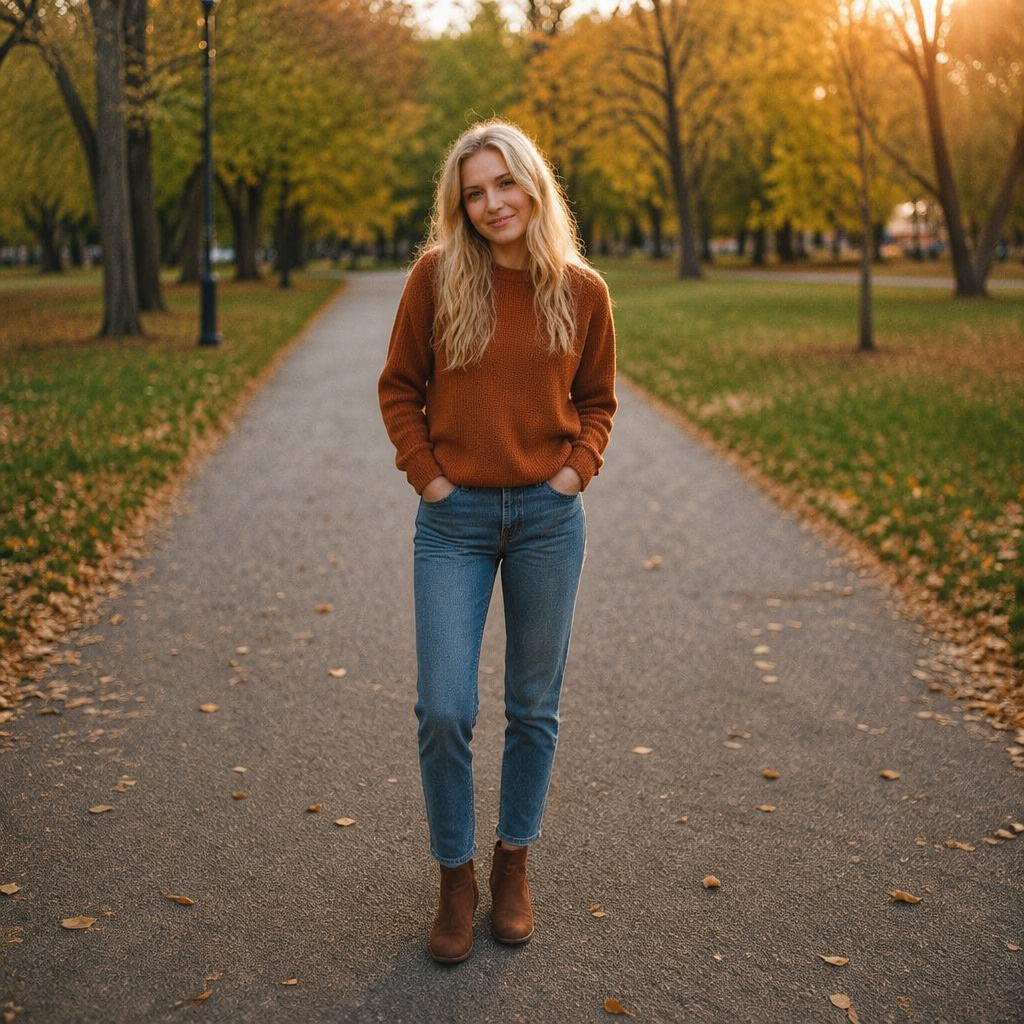
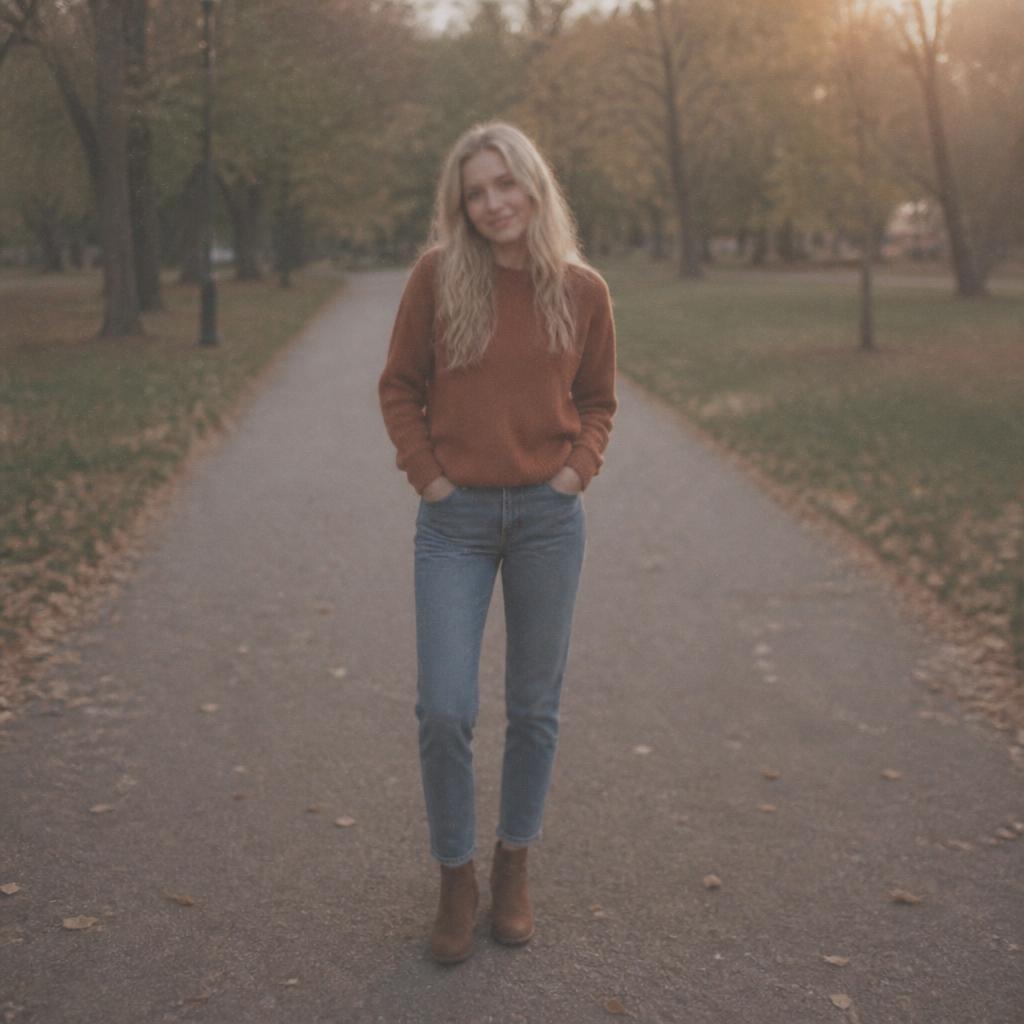
Use a portrait-focused enhancer when the face is large enough to inspect. Preserve facial proportions, asymmetry, expression, age cues and natural skin texture, then check eyes, teeth, hairline, ears and skin against the source before accepting the result.
Identity is more important than maximum sharpness
A portrait can tolerate small changes in background noise or color, but even subtle changes to eye shape, nose width, jawline or smile can make the subject look like someone else. That makes identity the first review criterion.
Compare the edited face with the source before admiring sharpness. If the face no longer feels immediately recognizable, the enhancement is too expensive in identity terms.
Natural skin should retain texture and asymmetry
Pores, freckles, fine lines, small scars and uneven tonal transitions are not defects by default. They are part of the real surface and often part of the person’s recognizable appearance.
An effective portrait enhancer cleans digital noise while keeping believable skin variation. Perfectly uniform skin is usually a sign that smoothing has gone too far.
Eyes are the first place to inspect
Small changes around the iris, lashes, eyelids and reflections have a large effect on perceived identity. AI systems can make eyes look impressively crisp while subtly inventing shapes that were not in the source.
Inspect both eyes separately and compare their asymmetry with the original. The goal is clearer evidence, not perfectly symmetrical or artificially bright eyes.
Hairlines, eyebrows and ears reveal over-generation
Hair contains repetitive fine structure that can invite invented strands. Eyebrows may become denser, hairlines may move, and ears can acquire altered edges when the system tries to reconstruct detail.
These areas are useful diagnostic regions because they often reveal identity drift before it becomes obvious at normal viewing size.
Low-light portraits need balanced enhancement
When a face is dark, lifting exposure can reveal noise and weak detail. The workflow should improve light, color and detail together rather than applying strong sharpening to a noisy base.
Keep the scene’s light direction intact. A face lit from one side should not become evenly illuminated if the original mood depends on that contrast.
Group photos require even more caution
Each face in a group is smaller and contains less information. Enhancement may work well for the closest people while inventing details on distant faces.
Review every visible person. A result is not acceptable simply because the central subject looks good if secondary faces changed identity.
A practical four-step workflow for enhance portrait without changing face
Diagnose the real limitation
For enhance portrait without changing face, decide whether the main problem is exposure, color, noise, blur, low resolution, weak facial detail or a combination. For enhance portrait without changing face, a precise diagnosis makes it easier to choose a focused SmartGeniusAI workflow instead of stacking unrelated corrections.
Use the cleanest source
Start enhance portrait without changing face from the largest, least-compressed original you have. During enhance portrait without changing face, screenshots and repeatedly saved messenger copies often remove fine information that would otherwise help the enhancer preserve natural texture and edges.
Make one controlled pass
Process enhance portrait without changing face once with the tool that best matches the dominant defect. Enhance portrait without changing face is easier to review when the source stays visible and you avoid chaining aggressive quality operations before understanding the first pass.
Inspect before continuing
Review the enhance portrait without changing face result at normal size and close zoom. For enhance portrait without changing face, confirm that the intended improvement is real while faces, text, geometry, material texture and the scene’s original lighting logic remain trustworthy.
How to choose the right source for enhance portrait without changing face
The source sets the practical ceiling for enhance portrait without changing face. AI can rebalance or reconstruct information, but a enhance portrait without changing face result cannot guarantee exact recovery of detail that the camera or scan never recorded.
For enhance portrait without changing face, begin with the original file when possible, keep the relevant subject large enough to inspect and avoid unnecessary filters before enhancement. In enhance portrait without changing face, compression, motion blur, clipped highlights, crushed shadows and tiny faces do not always make the photo unusable, but each one changes what a realistic improvement should look like.
- For enhance portrait without changing face, prefer the highest-quality original over screenshots or re-shared copies.
- Keep enough context to judge the lighting, edges and perspective relevant to this task.
- Avoid beauty filters or heavy sharpening before the enhancement step.
- Do not crop away regions you will need to verify after processing.
- Save the untouched original so the generated result always has a reliable reference.
What to inspect after enhance portrait without changing face
While reviewing enhance portrait without changing face, use two scales: at normal viewing size decide whether the photograph communicates more clearly and still feels like the same scene, then zoom in to inspect structures this workflow can accidentally reinterpret.
For enhance portrait without changing face, compare faces for identity, text and logos for factual accuracy, hair or foliage for texture, and straight lines or repeated patterns for geometry. When enhance portrait without changing face is used commercially, compare important colors and product features with a trusted reference instead of approving a result only because it looks attractive.
Common enhance portrait without changing face scenarios
| Scenario | Recommended approach |
|---|---|
| Close portrait | Enhance eyes, hair and noise; compare face geometry carefully. |
| Low-light selfie | Recover detail conservatively and protect skin tone. |
| Profile photo | Prioritize recognizable identity and natural texture over dramatic polish. |
| Group photo | Inspect every face; distant subjects contain less reliable information. |
| Older portrait | Preserve age lines and distinctive features instead of smoothing them away. |
Common mistakes when working on enhance portrait without changing face
A common enhance portrait without changing face mistake is treating every quality defect as the same problem. Before enhance portrait without changing face, diagnose the dominant limitation, then choose Enhance, Enhance Face, Restore, Sharpen, Unblur or Upscale according to what this source actually needs.
In enhance portrait without changing face, a stronger contrast curve, smoother surface or harder edge can feel impressive at first, yet the original may contain more truthful information. For enhance portrait without changing face, compare versions side by side and choose the one that improves readability without sacrificing reliable structure.
Repeated processing is another risk for enhance portrait without changing face because every pass can amplify artifacts from the previous version. Once enhance portrait without changing face gives you a strong result, branch from that file for experiments instead of repeatedly enhancing the same generated output.
How to decide whether the enhance portrait without changing face result is actually better
For enhance portrait without changing face, the destination changes the priority: a family photograph may value recognizable faces and atmosphere, a commercial image may demand accurate color and material, a social image may need clean detail at a small size, and an archival image may prioritize authenticity over modern sharpness.
Before keeping the enhance portrait without changing face result, ask whether the important subject is easier to read, whether meaningful information survived, and whether the image still behaves like one coherent photograph. When coherence fails during enhance portrait without changing face, another enhancement pass usually creates more risk than value.
Where enhance portrait without changing face fits in a larger editing workflow
When enhance portrait without changing face is only one step and the photograph also needs a new background, wardrobe or pose, make the major semantic transformation first and use the appropriate enhancement afterward to polish the final version.
If the source is too weak for another SmartGeniusAI tool to work reliably, use only the minimum enhance portrait without changing face correction needed to create a stable base. For enhance portrait without changing face, keep milestone versions—source, quality pass, major edit and final polish—so a later artifact does not force you to rebuild the entire project.
Try enhance portrait without changing face with SmartGeniusAI
Upload a clear source image, run the workflow that matches this quality problem and compare the result with the original before continuing to another edit.
Final review checklist for enhance portrait without changing face
- In this enhance portrait without changing face result, exposure is more readable without destroying highlights or intended shadows.
- For enhance portrait without changing face, color and white balance remain believable for the specific subject and scene.
- The enhance portrait without changing face noise reduction preserves real skin, hair, fabric or material texture.
- Edge definition in enhance portrait without changing face improves without visible bright or dark sharpening halos.
- Faces in the enhance portrait without changing face result remain recognizable and keep expression, age and natural asymmetry.
- Text, logos and product details remain faithful to the source where factual accuracy matters for enhance portrait without changing face.
- The enhance portrait without changing face result still looks coherent at the size where its intended audience will view it.
Frequently asked questions
Will AI change the person’s face?
A portrait-focused workflow should aim to preserve identity and facial geometry, but every generated result still needs visual verification.
Should wrinkles and freckles disappear?
Not automatically. They are real identity and age cues unless the user intentionally asks to remove them.
What if the face is very small?
A tiny face contains too little reliable information for strong enhancement. Use a better source or accept limited improvement.
Is portrait enhancement the same as beauty retouching?
No. Enhancement should improve readability and noise while preserving the person rather than reshaping or beautifying the face.
What areas should I compare most closely?
Eyes, teeth, lips, eyebrows, hairline, ears, skin texture and overall facial proportions are the most useful checkpoints.
Final takeaway
How to Enhance Portrait Photos Without Changing the Face works best as a preservation-first quality workflow. For enhance portrait without changing face, fix the limitation that prevents the photograph from communicating clearly, keep the source available as evidence and stop when the image becomes cleaner without losing identity, geometry, material character or the original scene logic.
For enhance portrait without changing face, the strongest result is the version that solves this technical problem while still feeling like the photograph you started with.