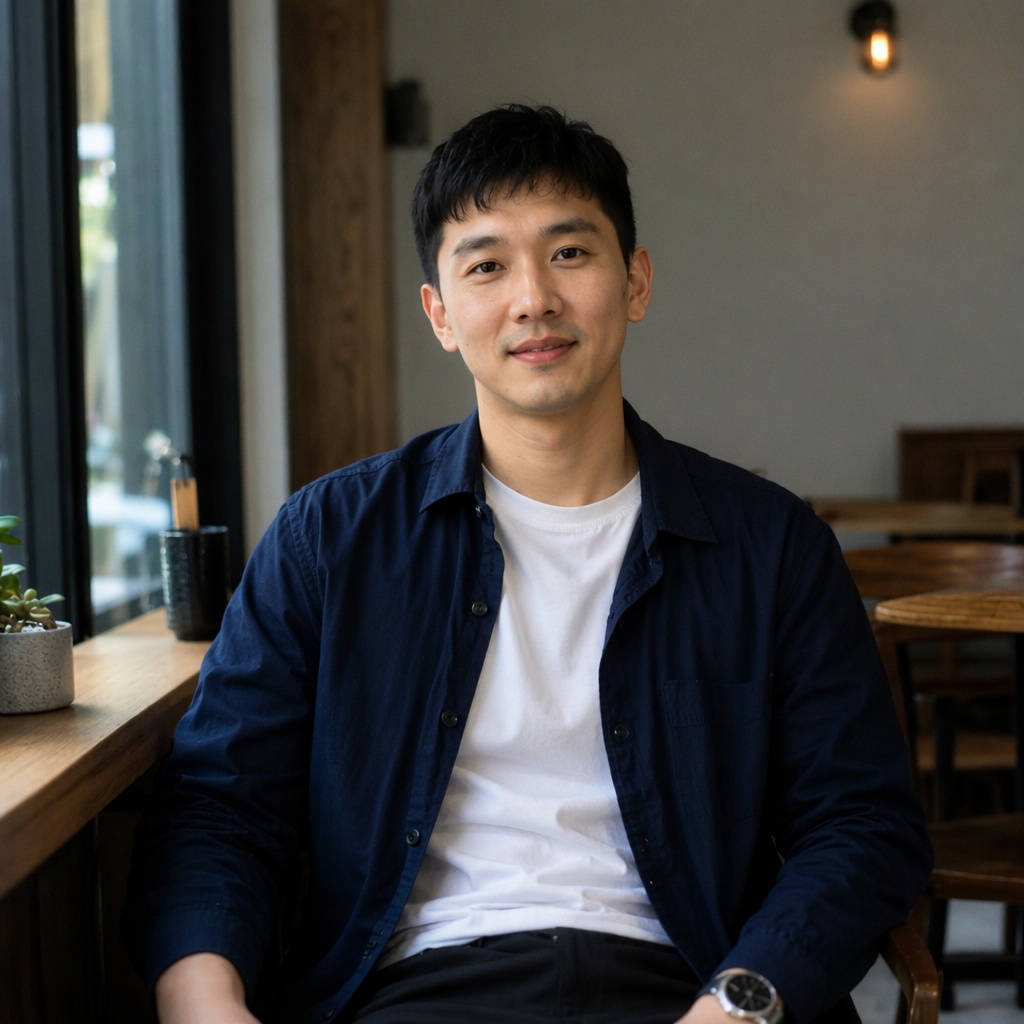
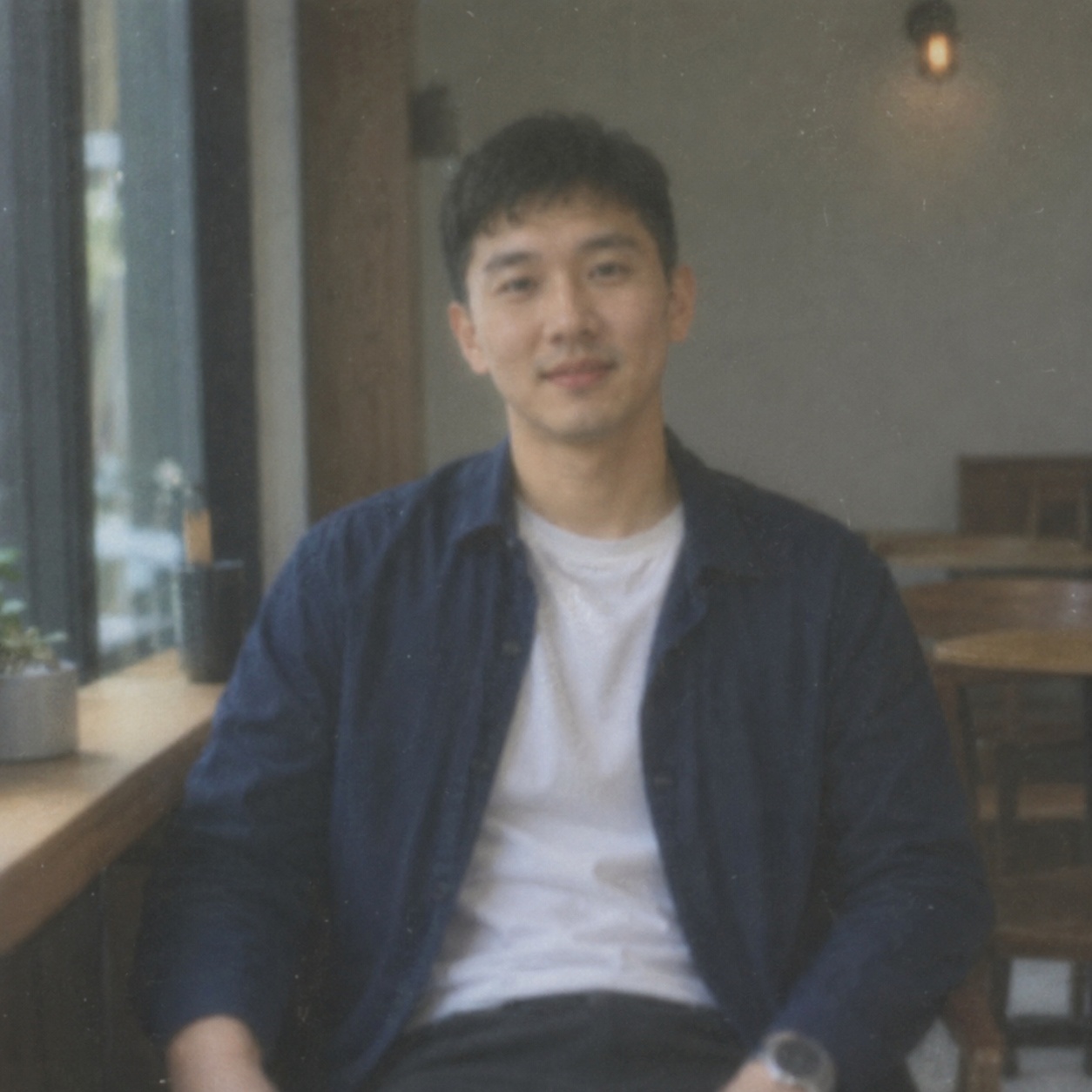
01
Enhance facial detail naturally: clarify the eyes, eyebrows and hair, reduce noise, and preserve identity, expression, skin texture and lighting.

PORTRAIT · FACE ENHANCE
Make a portrait clearer and more polished without an obvious filter effect. AI refines eyes, hair and small details, reduces digital noise, and aims to preserve natural skin texture and the person’s identity.
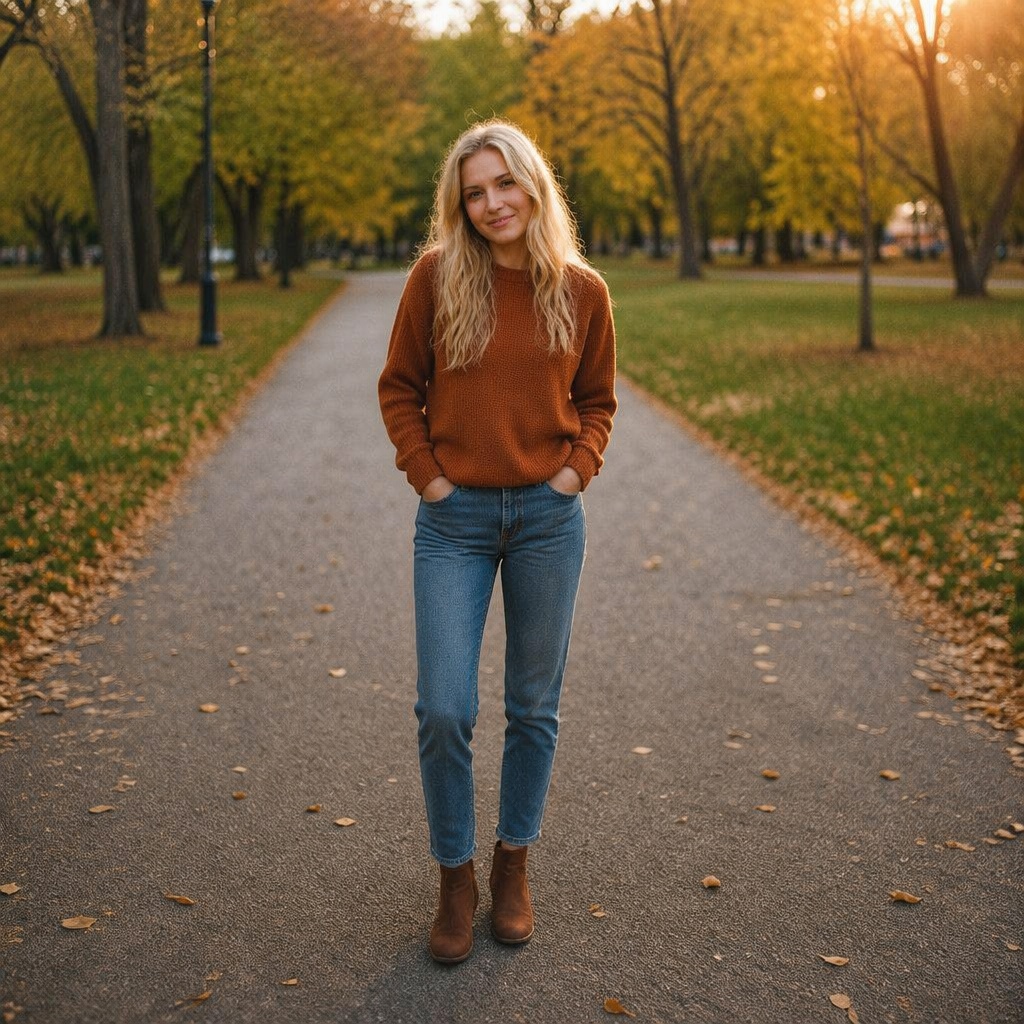
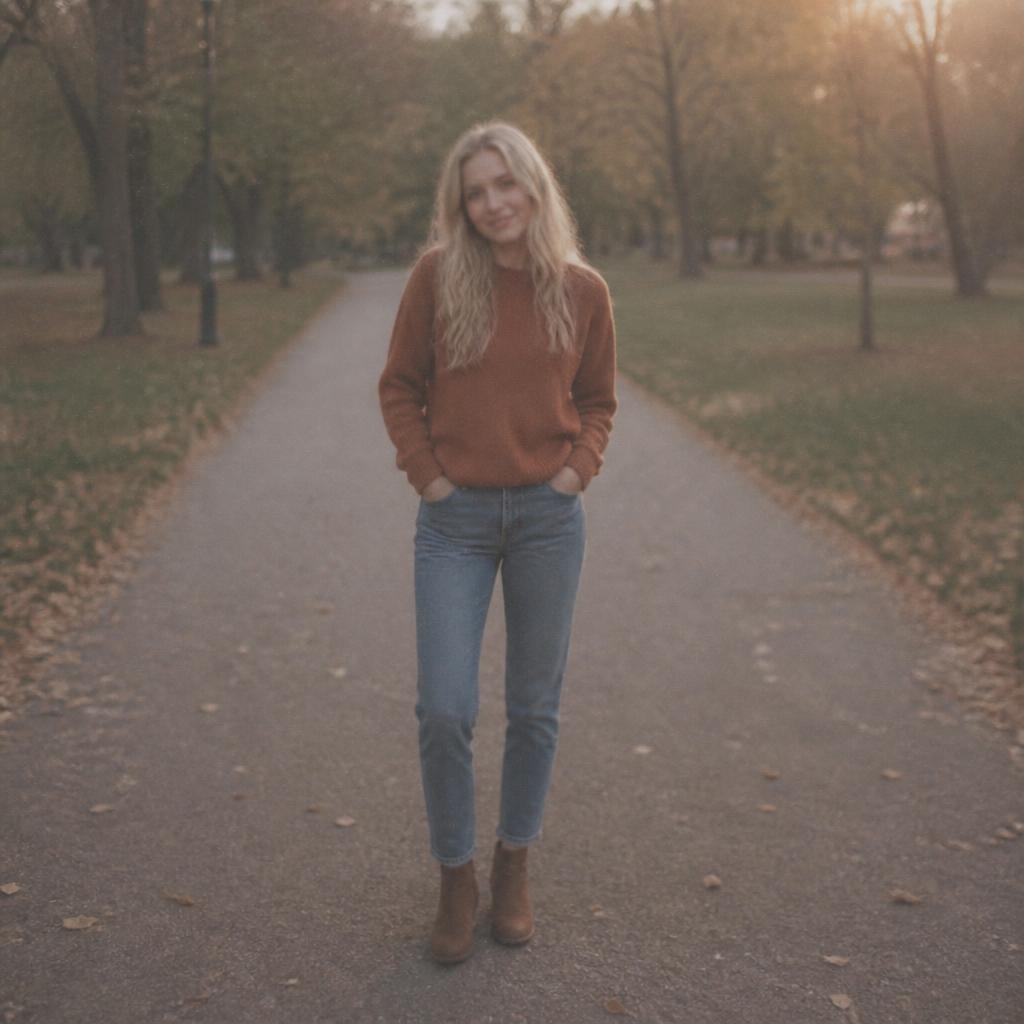
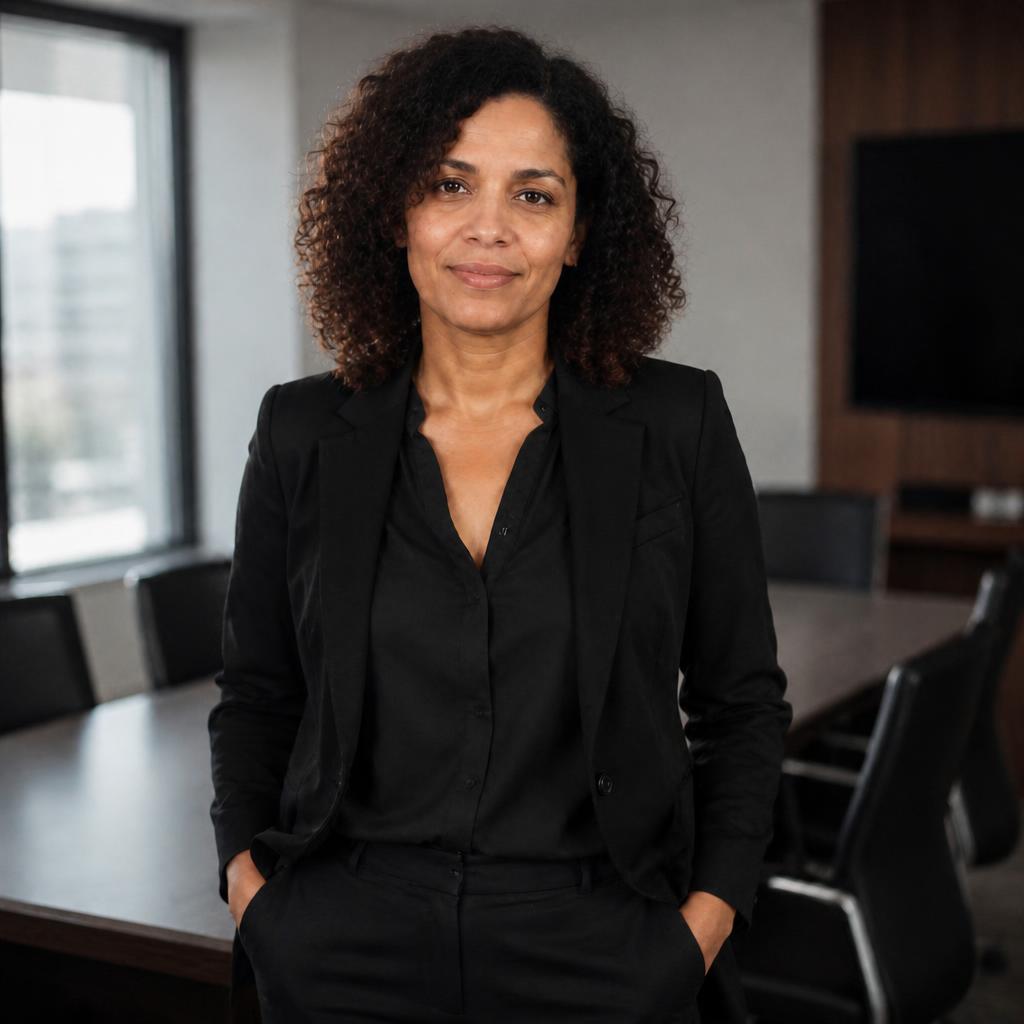
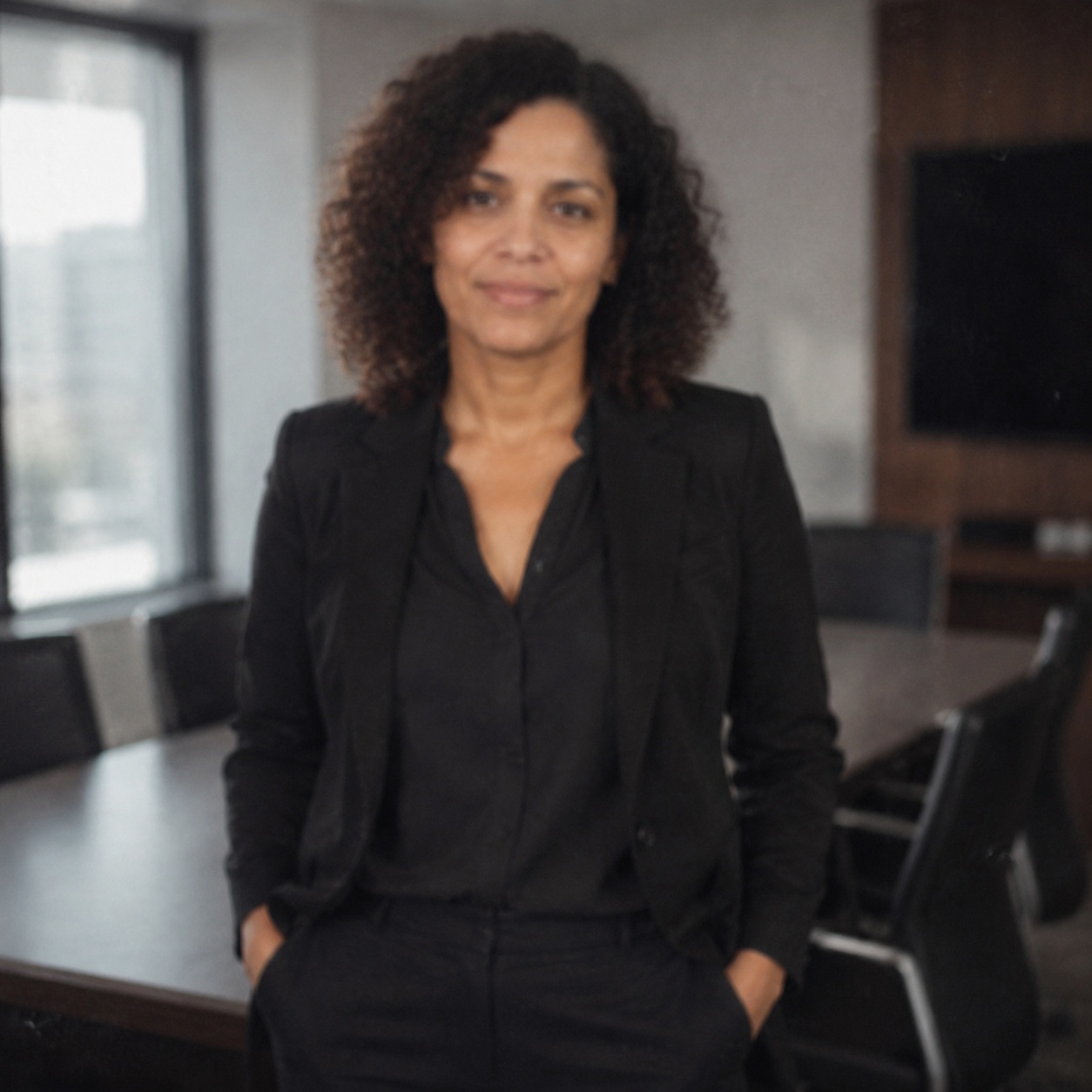
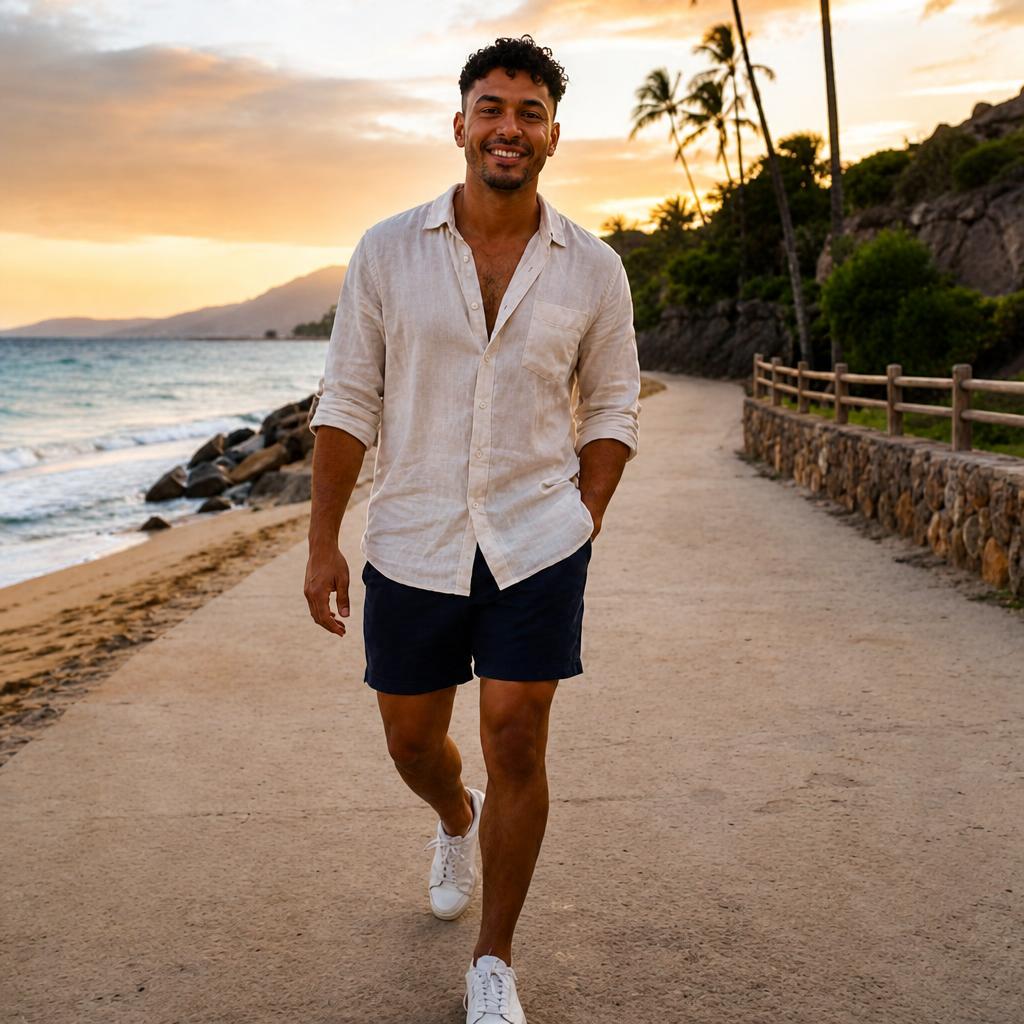
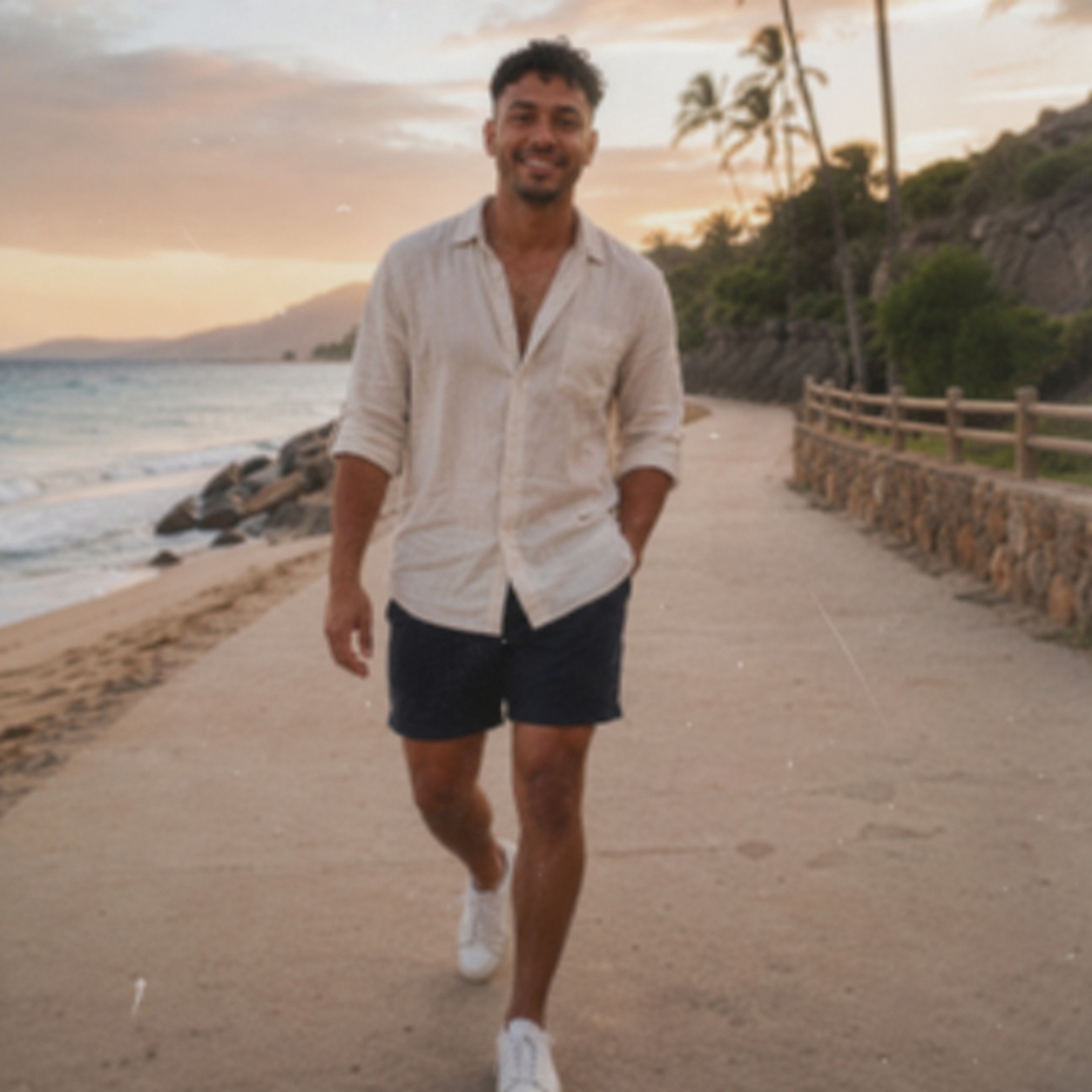
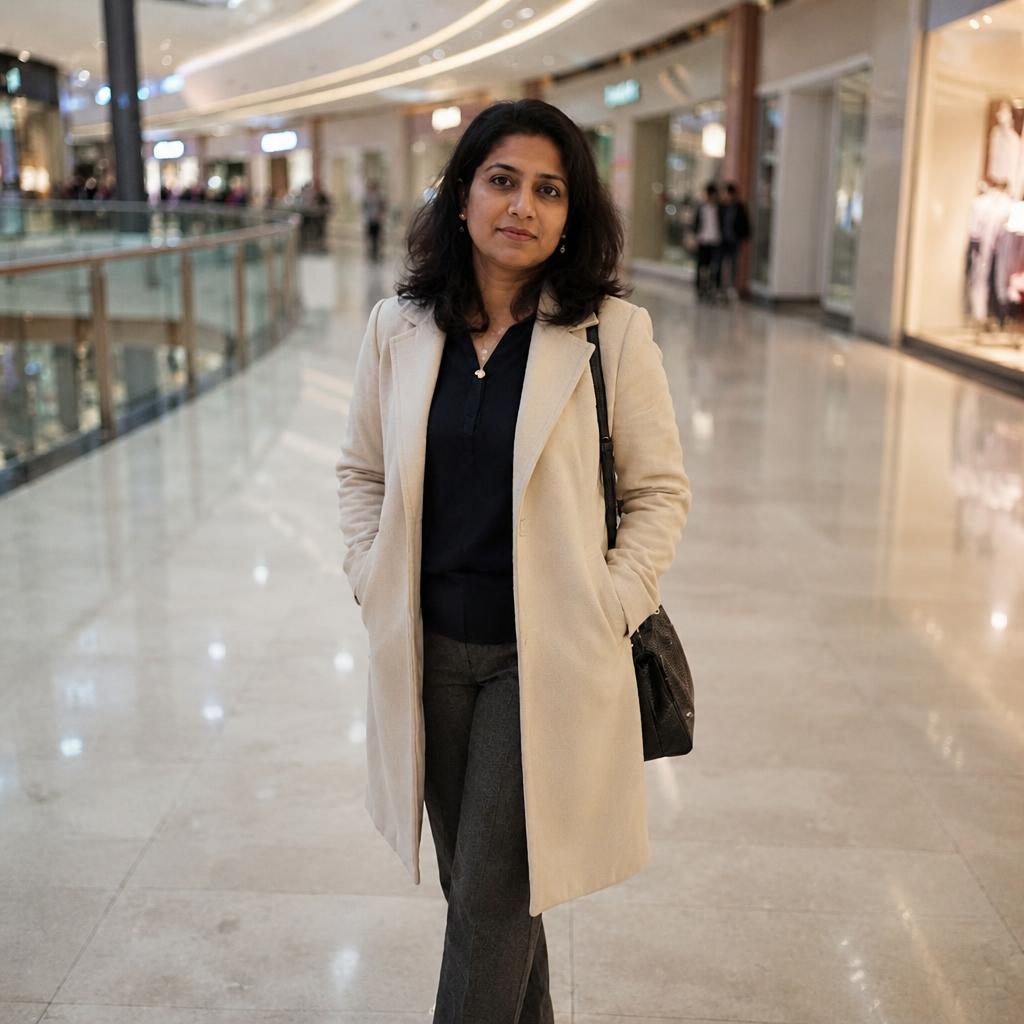
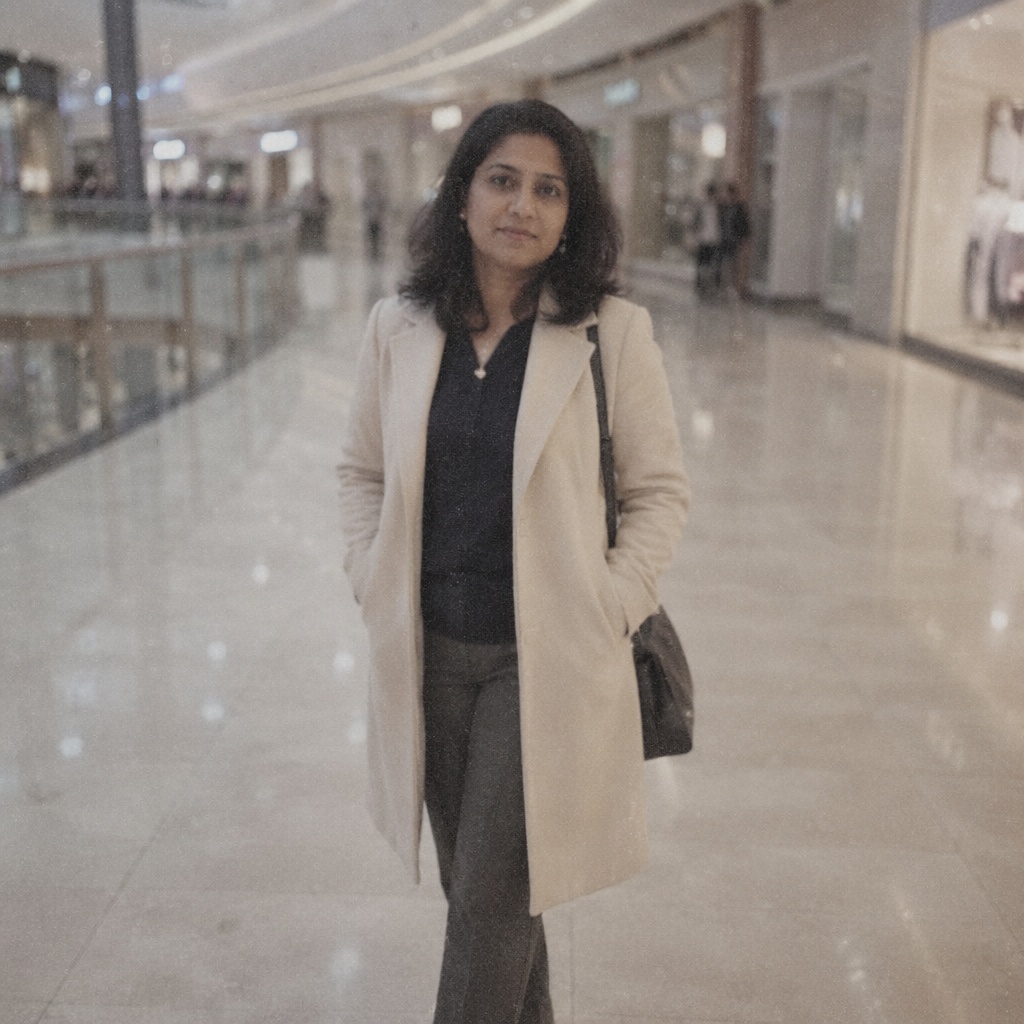
BEFORE / AFTER
Compare the source with the processed version. Every example below demonstrates this focused workflow rather than generic photo enhancement.
WORKFLOW
Make a portrait clearer and more polished without an obvious filter effect. AI refines eyes, hair and small details, reduces digital noise, and aims to preserve natural skin texture and the person’s identity.
Refines visible eye detail without changing face shape or expression.
Improves the readability of hair, eyebrows, and small portrait detail.
Pores, freckles, fine lines, and gradual tonal transitions should not turn into plastic skin.
Age, face geometry, asymmetry, emotion, pose, clothing, and lighting remain tied to the source.
HOW IT WORKS
Use the best available JPEG, PNG, or WebP up to 20 MB. Better source quality gives the model more reliable information.
This page calls the workflow that matches its intent instead of sending every task through one generic enhancement command.
Inspect detail with the slider, download the result, or continue editing in the full Editor.
LIMITS
ENHANCE TOOLS
AI PHOTO ENHANCEMENT
Enhance Face is a portrait-focused AI Enhance profile that improves the readability of eyes, hair, and fine detail while reducing digital noise.
The prompt explicitly locks identity, age, face geometry, expression, natural skin texture, lighting, pose, clothing, and background so the result does not become a beautification filter.
For visible blur use Unblur; for broad whole-image improvement use the parent One-click Enhance.
FAQ
The workflow is designed to preserve identity, proportions and expression, but every generated result should still be checked closely.
It may reduce noise, but the prompt can explicitly ask to preserve freckles, fine lines and other real skin details.
Only to a limited extent. A larger, less compressed source gives the model more reliable information.
No. Enhancement refines visible portrait detail; unblurring is intended for camera shake, motion blur or missed focus.
Use the largest available JPEG, PNG or WEBP file and avoid screenshots or repeatedly compressed copies.
Zoom in on the eyes, teeth, hairline, ears and skin, then confirm that the face still matches the original person.
Upload an image above, run the focused workflow, and compare the result with the original.
Guest AI edits are unavailable. A new account created after the offer started gets one successful free edit with any editor tool, including Premium. Further edits require tokens. This is one account-wide attempt, not one per page.
Further AI edits use tokens at the tool rate. Technical failures should not consume a free attempt. Switching project modes does not reset used attempts. Purchased tokens and permanent Premium remain intact; Premium unlocks after a purchase.