01
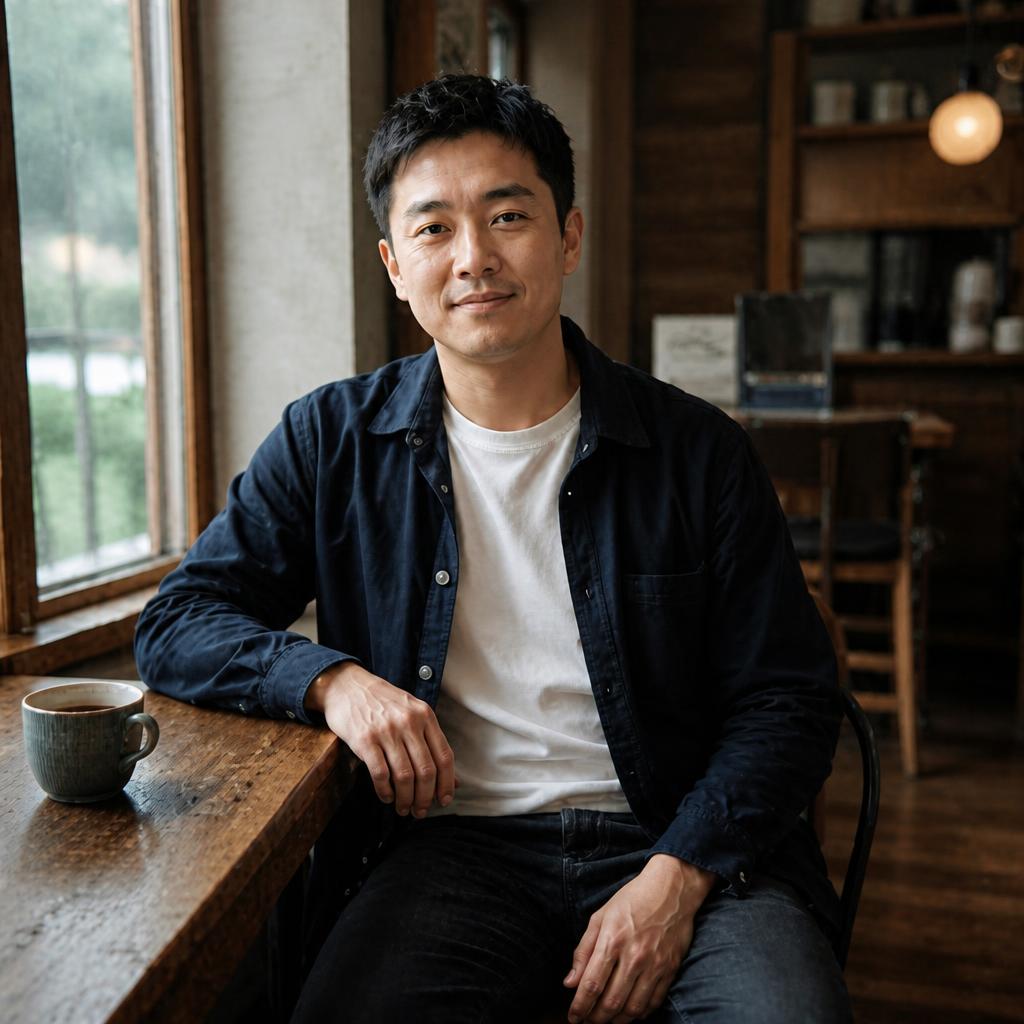
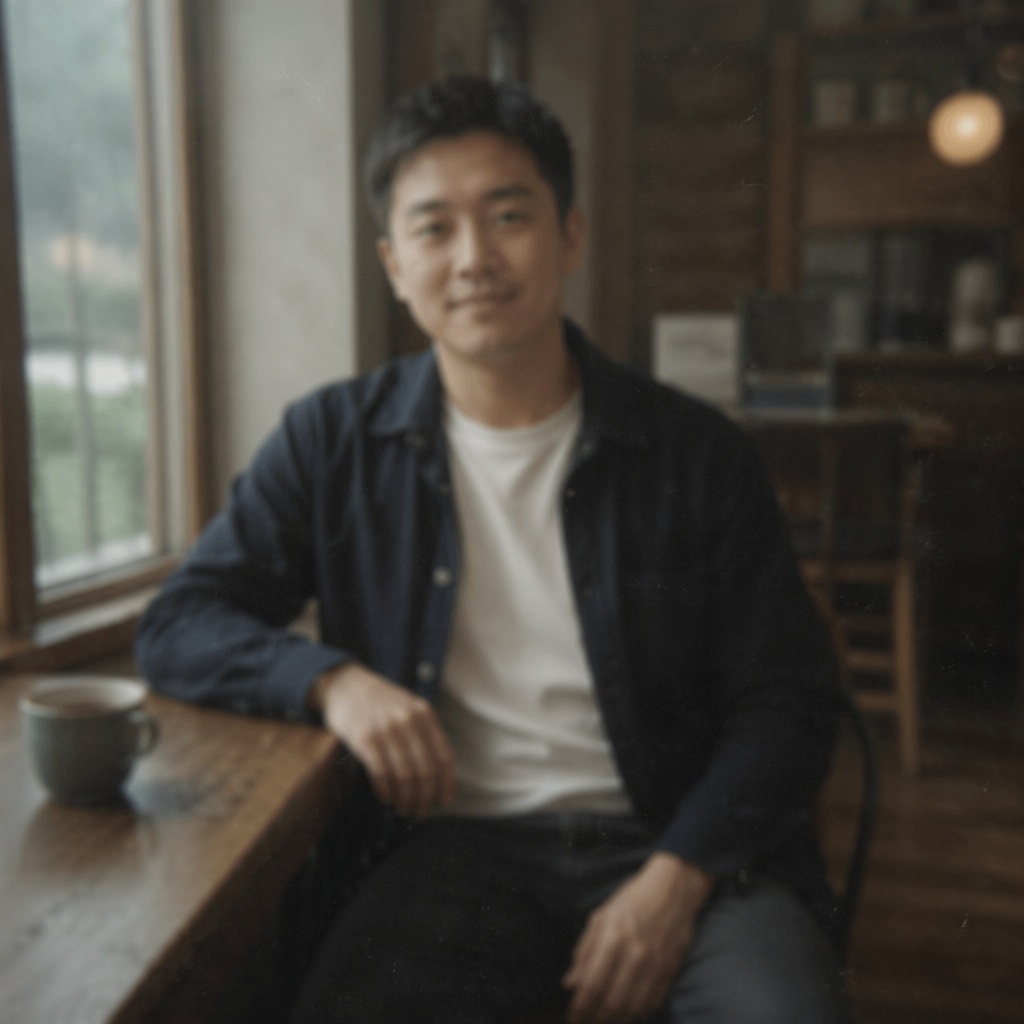
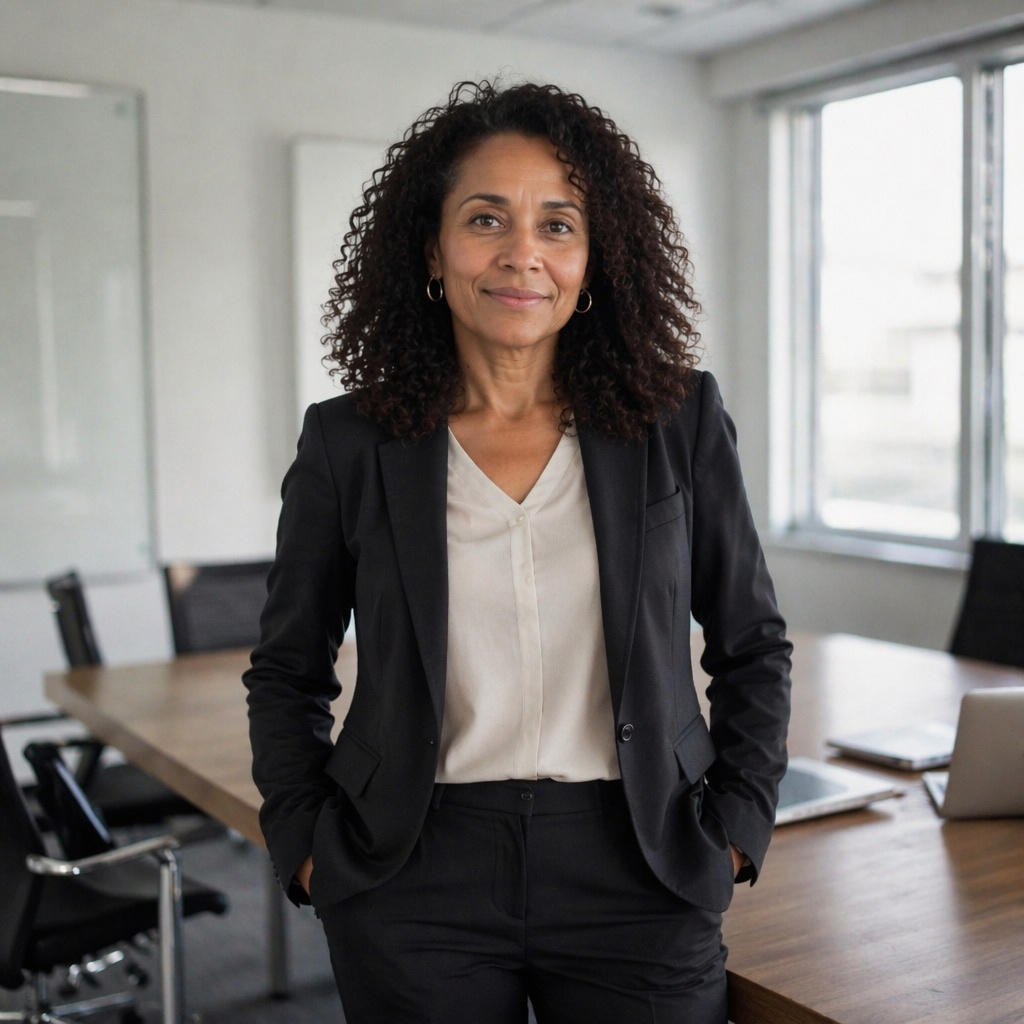
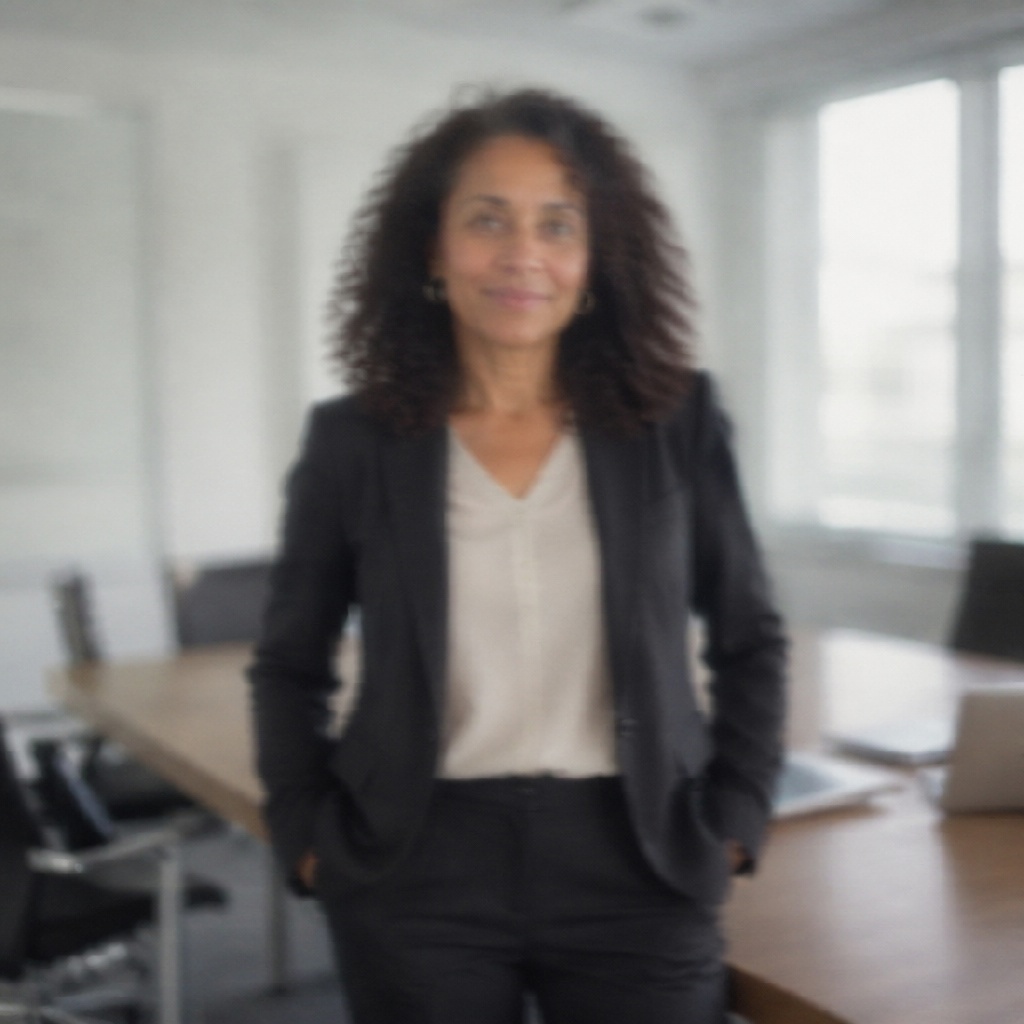
Reduce mild camera shake in this photo, restore natural edge definition, preserve faces, colors and composition, and avoid double contours.

UNBLUR · AI RECOVERY
Improve a frame affected by mild camera shake, subject movement or soft focus. AI analyzes the blur pattern and restores the readability of details while preserving the composition, color and main objects.
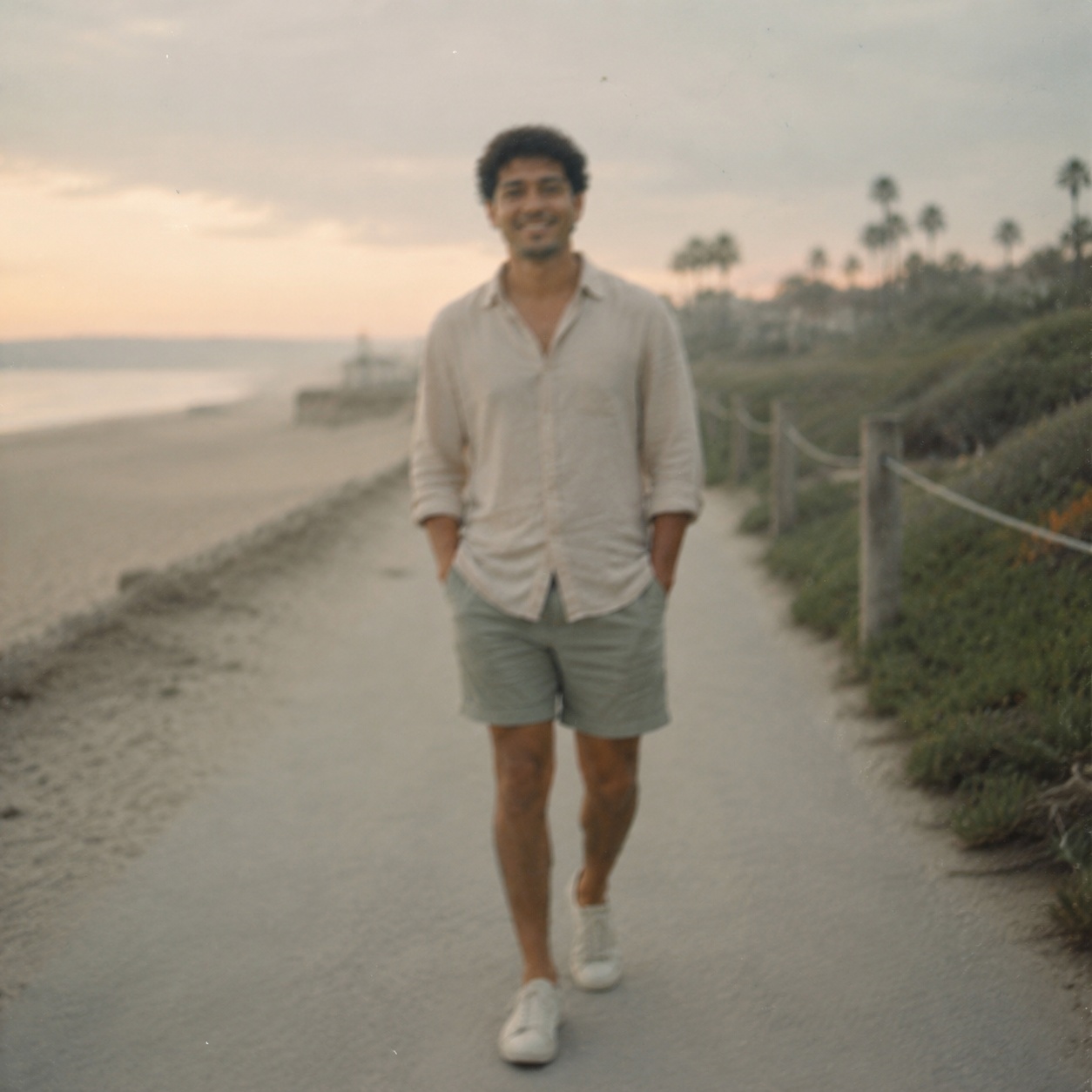
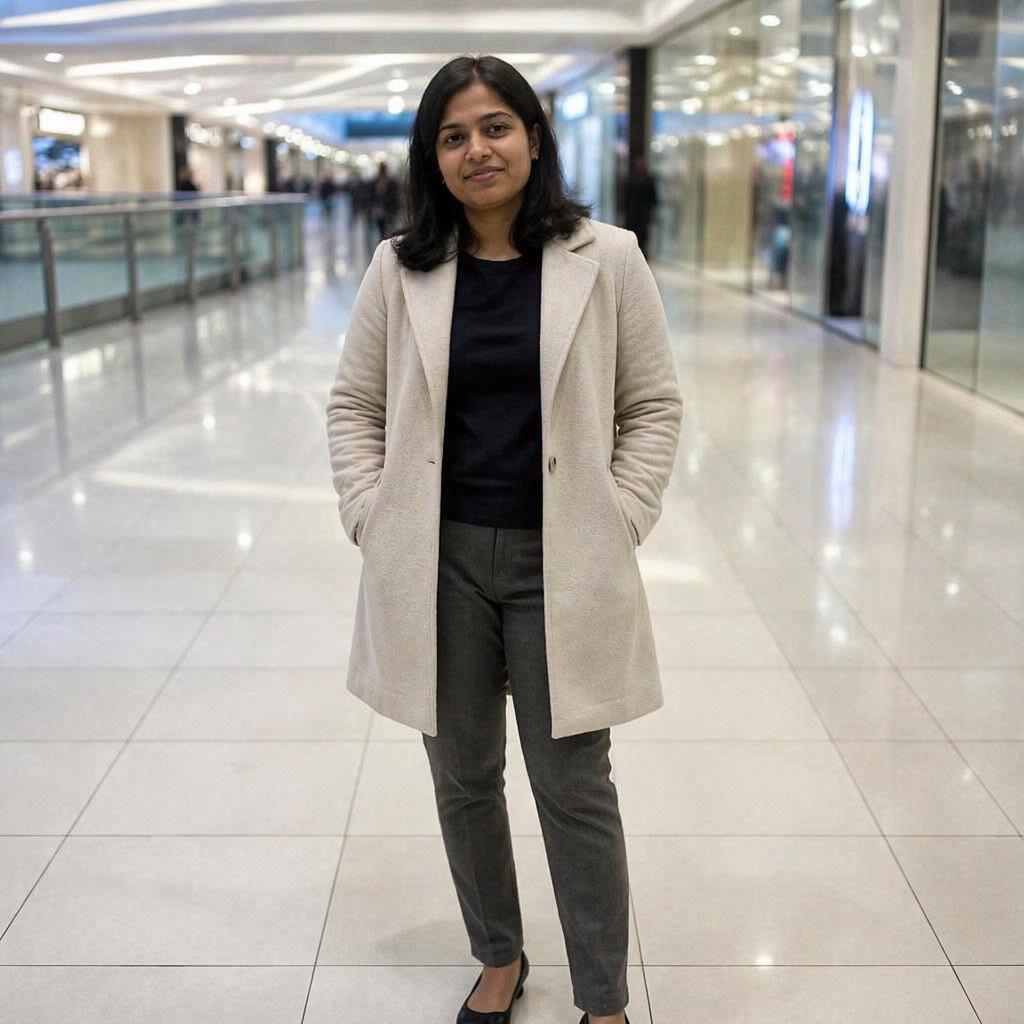
BEFORE / AFTER
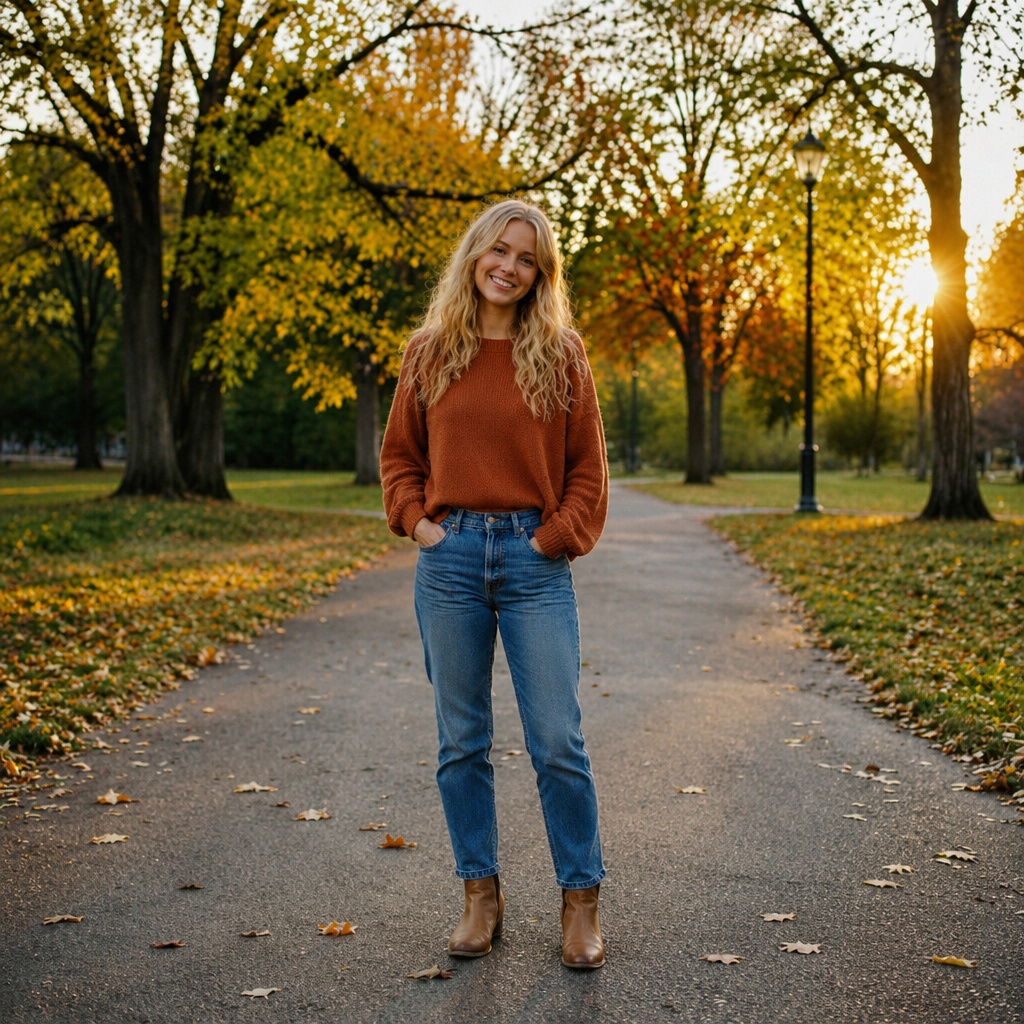
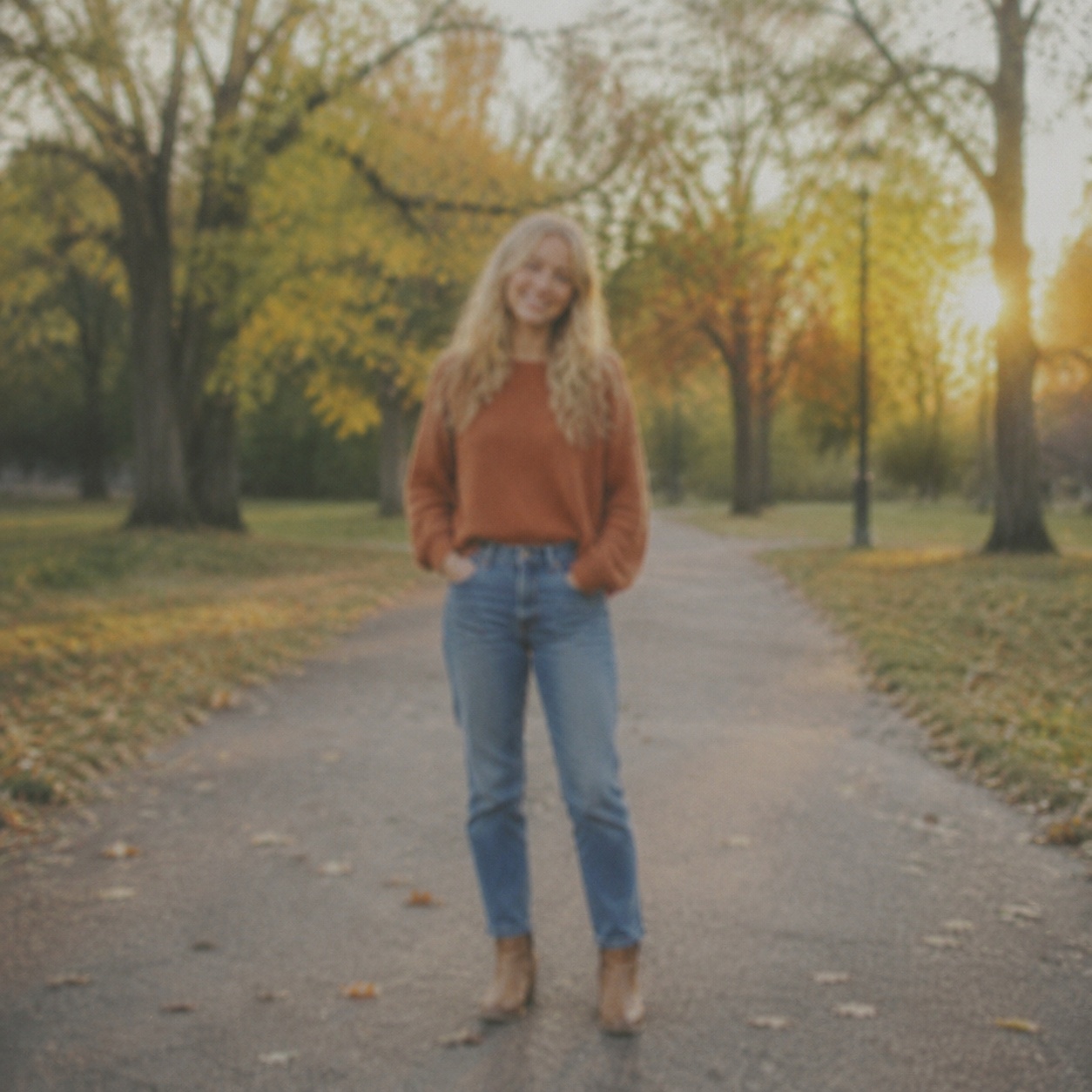
Compare the source with the processed version. Every example below demonstrates this focused workflow rather than generic photo enhancement.


WORKFLOW
Improve a frame affected by mild camera shake, subject movement or soft focus. AI analyzes the blur pattern and restores the readability of details while preserving the composition, color and main objects.
AI reduces moderate smearing caused by subject or camera movement.
It restores edge readability without intentionally redesigning the scene.
It refines detail that is still partly present in the source.
The workflow explicitly avoids inventing plates, text, faces, or objects that cannot be verified from the source.
HOW IT WORKS
Use the best available JPEG, PNG, or WebP up to 20 MB. Better source quality gives the model more reliable information.
This page calls the workflow that matches its intent instead of sending every task through one generic enhancement command.
Inspect detail with the slider, download the result, or continue editing in the full Editor.
LIMITS
ENHANCE TOOLS
AI PHOTO ENHANCEMENT
Unblur on this page is specifically intended for moderate camera shake, motion blur, and soft focus.
It is not ordinary sharpening: AI tries to reduce smearing and restore readability in existing structure while preserving the scene, color, and recognizable subjects.
If the photo is merely a little soft without visible smear, use Sharpen; if it is small but otherwise clear, use Upscale.
FAQ
No. Results depend on how much original structure remains; severe blur requires generated estimation.
No. Generated letters and numbers can be plausible but incorrect and should not be used as evidence.
They can occur when the estimated blur direction does not fully match the source or when the blur is too severe.
A very light finishing pass may help, but heavy sharpening can emphasize reconstruction artifacts.
Moderate blur can improve, but identity, eyes, teeth and hair should always be compared carefully with the original.
Yes. Save the AI result separately and preserve the untouched original for reference.
Upload an image above, run the focused workflow, and compare the result with the original.
Guest AI edits are unavailable. A new account created after the offer started gets one successful free edit with any editor tool, including Premium. Further edits require tokens. This is one account-wide attempt, not one per page.
Further AI edits use tokens at the tool rate. Technical failures should not consume a free attempt. Switching project modes does not reset used attempts. Purchased tokens and permanent Premium remain intact; Premium unlocks after a purchase.