01
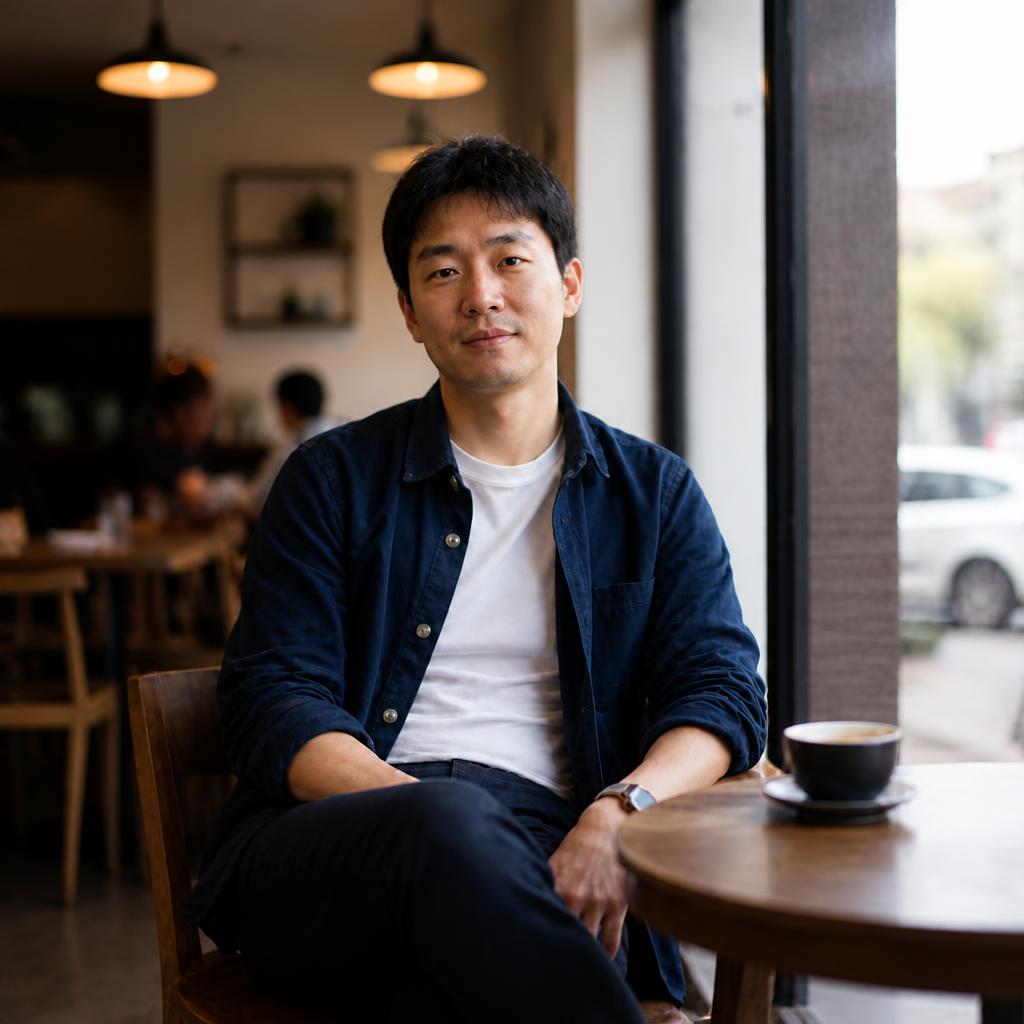
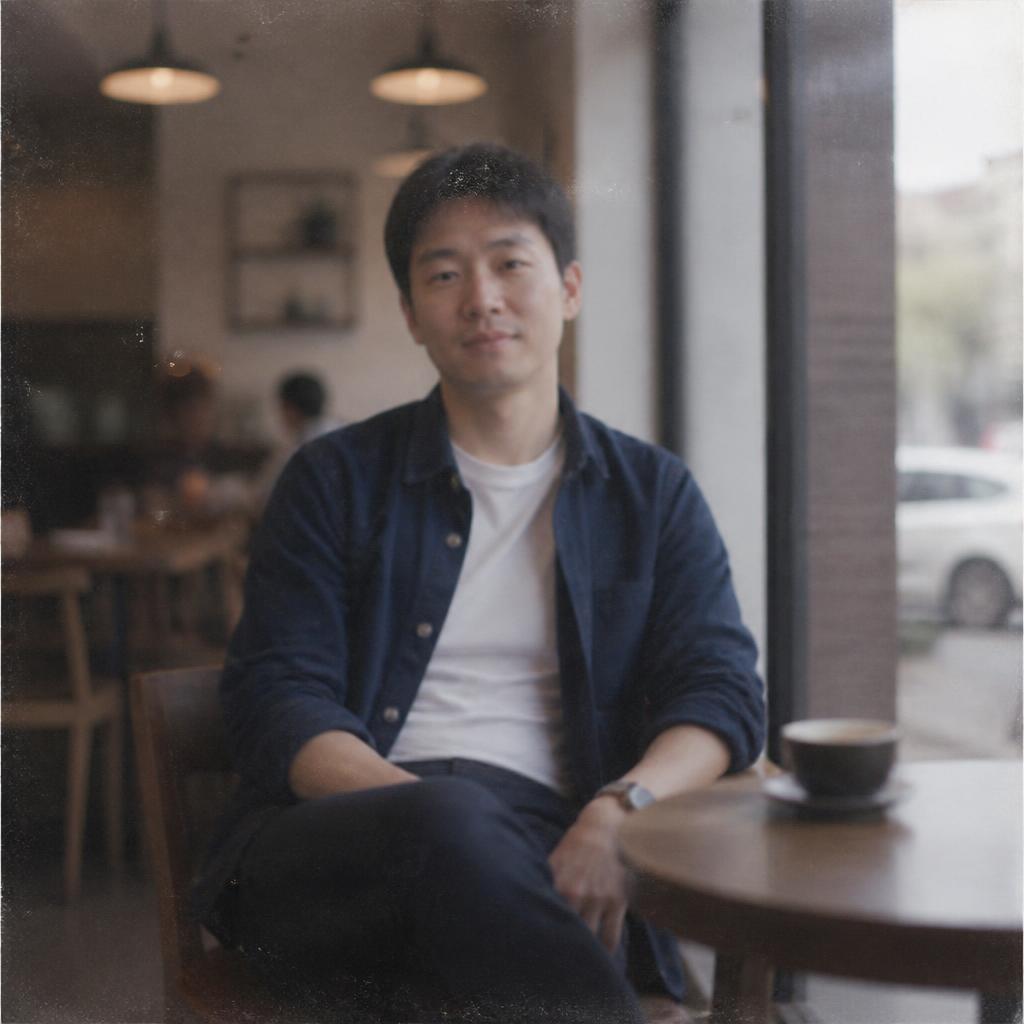
Upscale this image to a larger resolution, refine natural edges and texture, preserve exact composition, colors and object proportions, and avoid oversharpening.

UPSCALE · SEEDVR2
Create a larger version of a photograph for publishing, printing or further editing. AI increases the pixel count and refines edges and textures while aiming to preserve the original colors, composition and object shapes.
BEFORE / AFTER
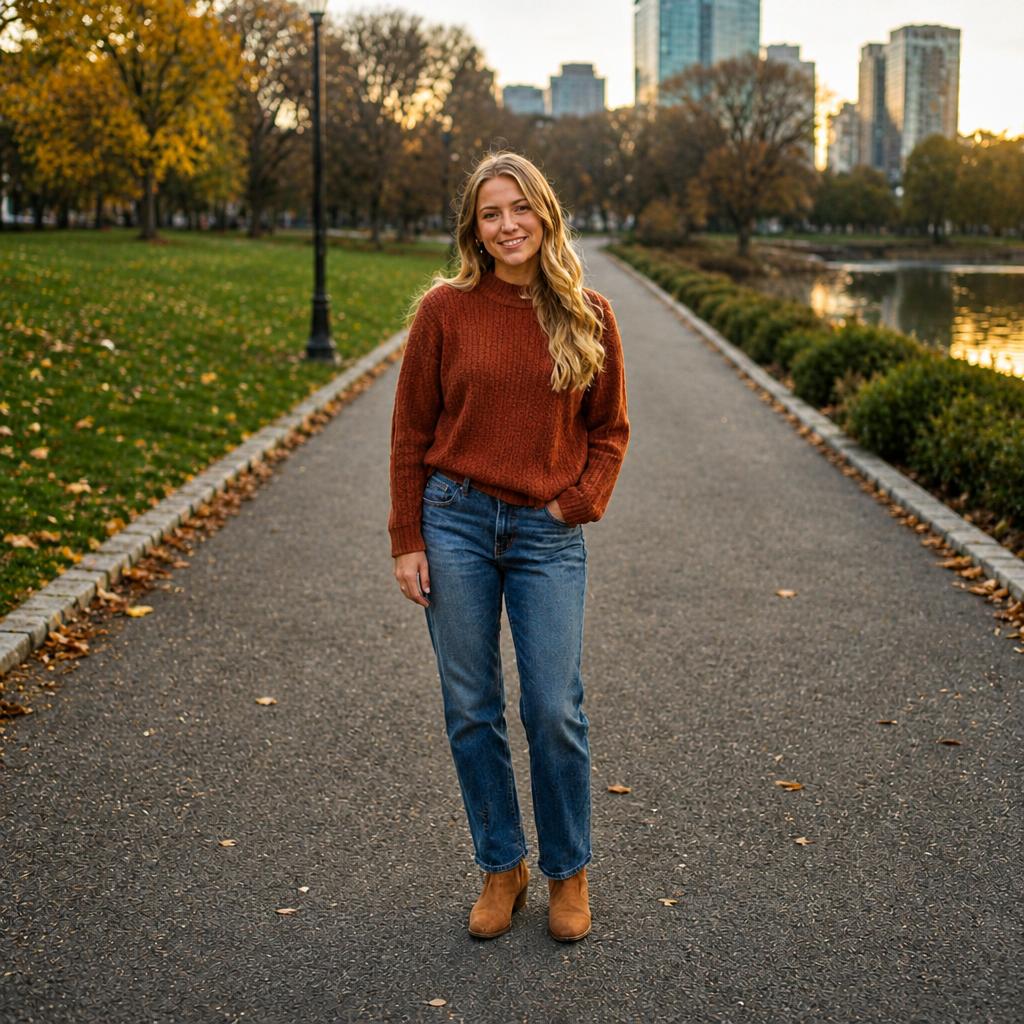
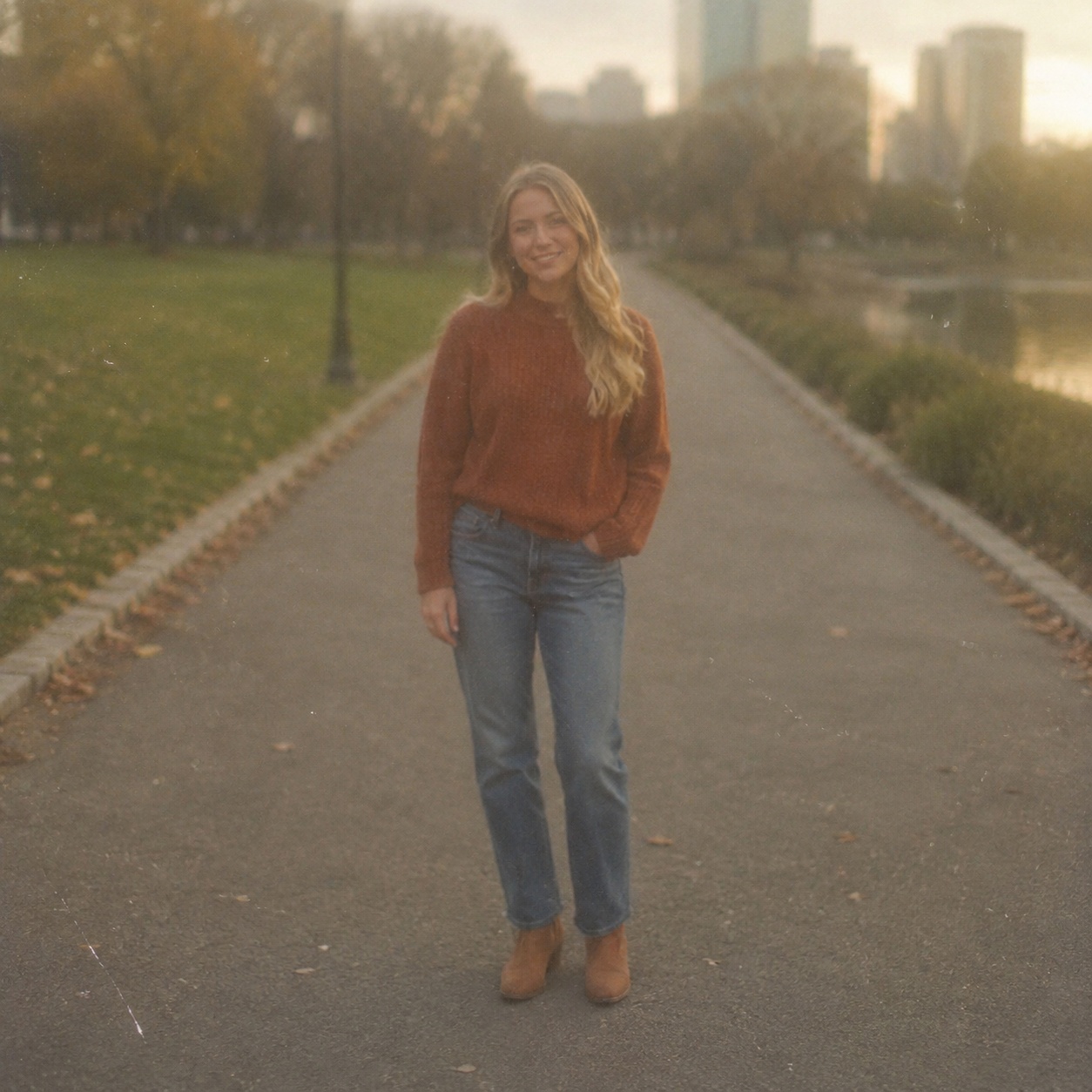
Compare the source with the processed version. Every example below demonstrates this focused workflow rather than generic photo enhancement.
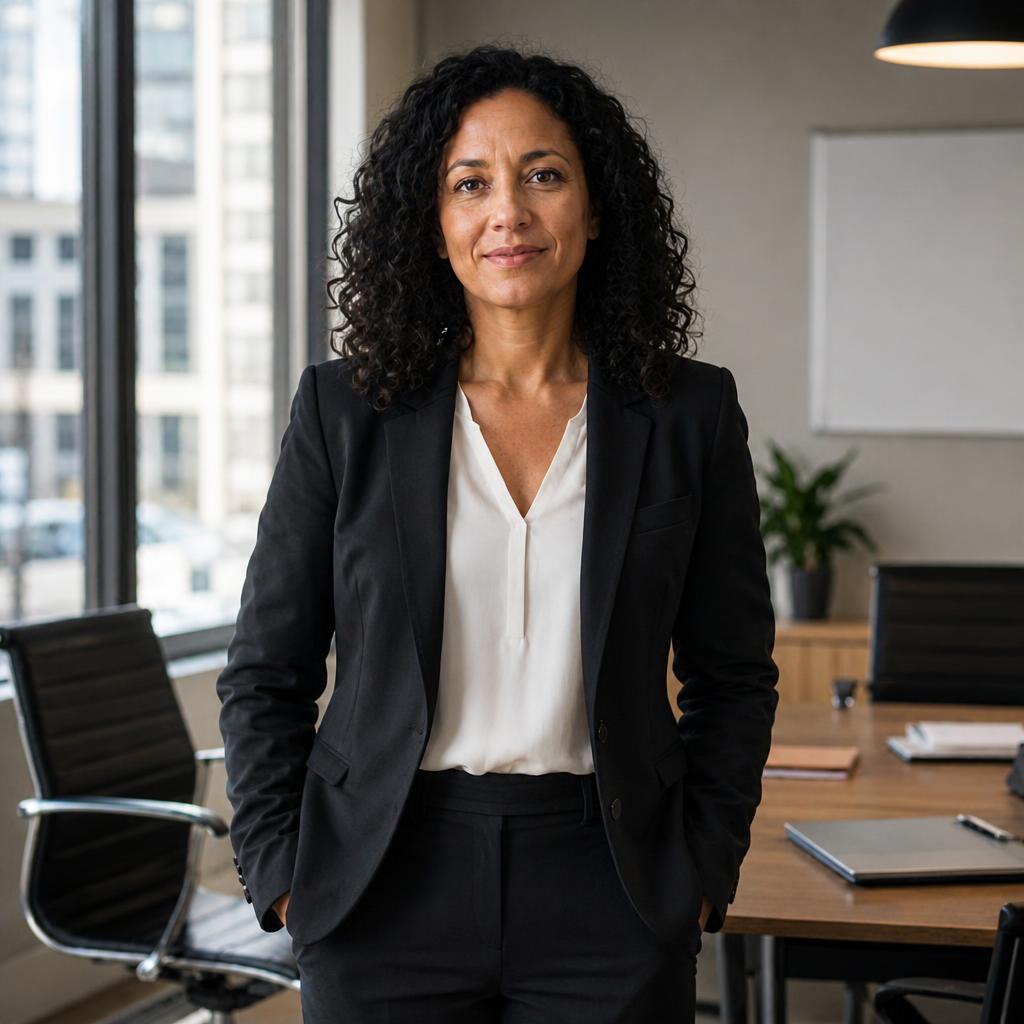
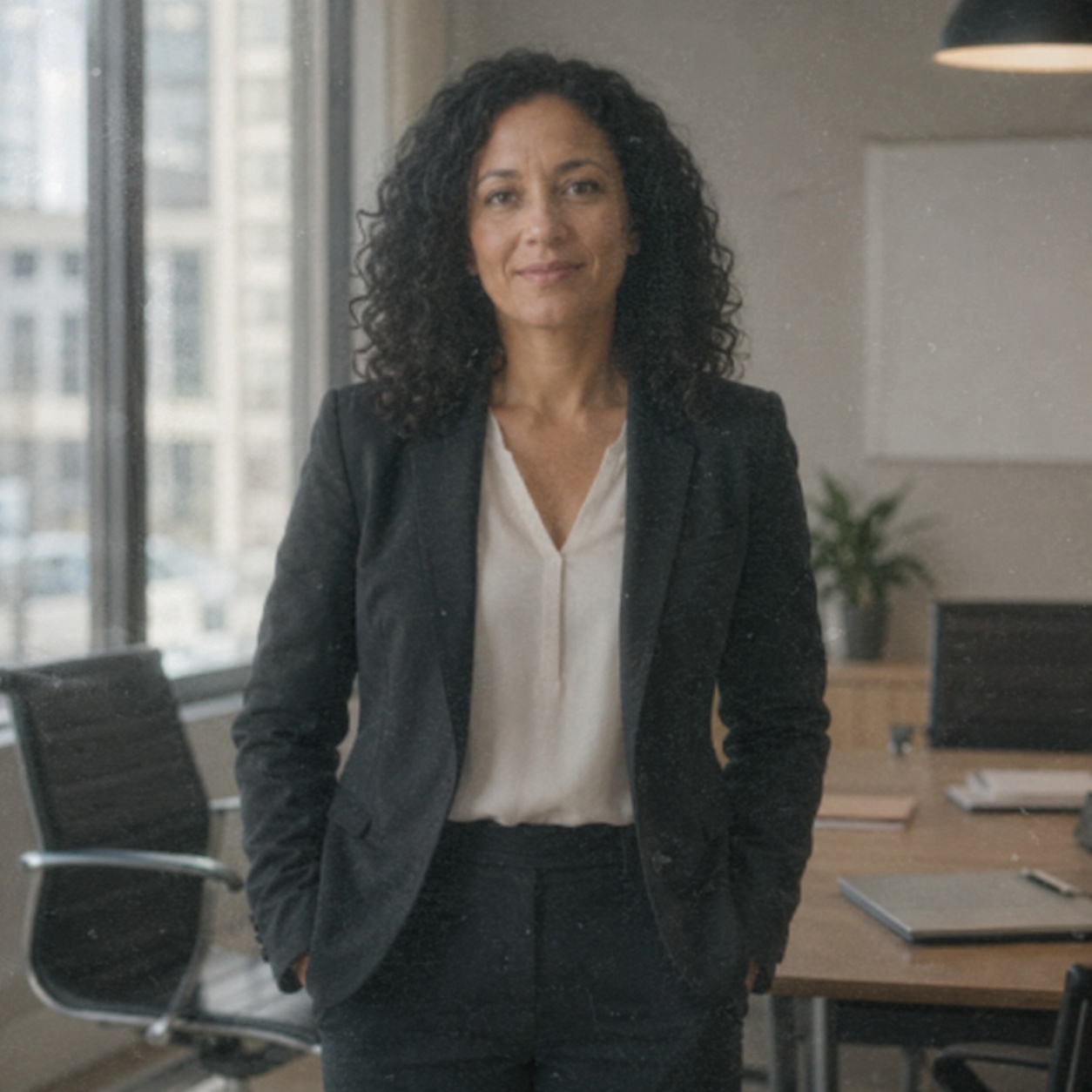
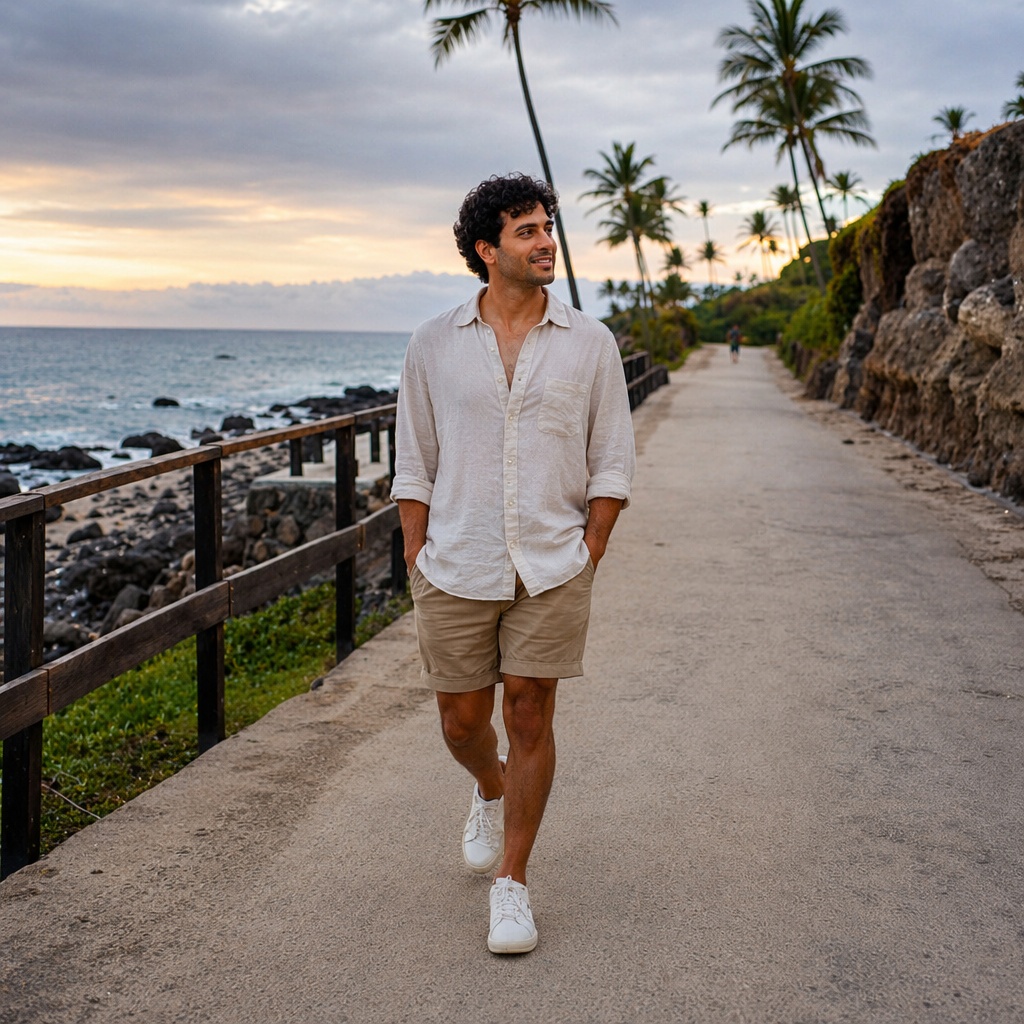
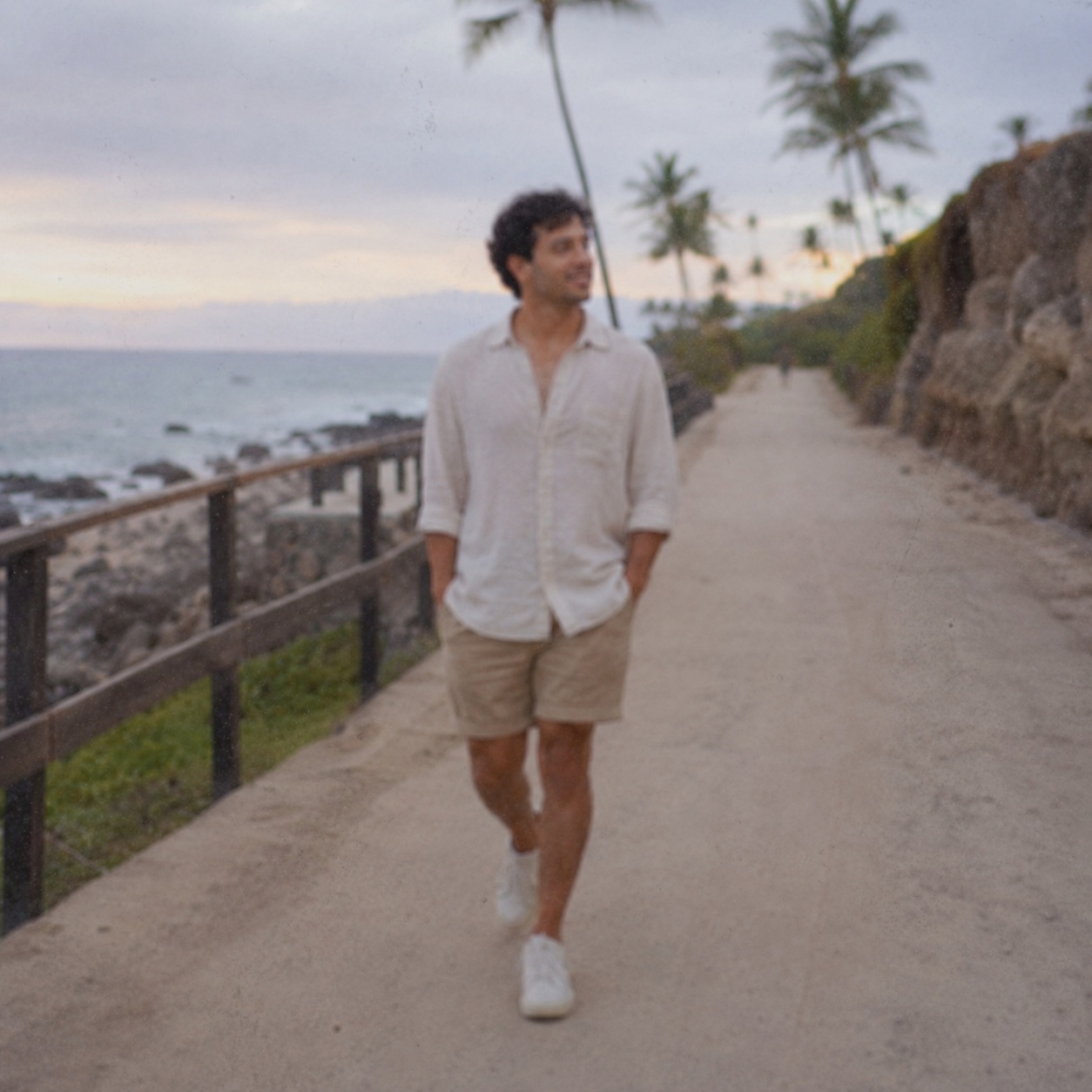
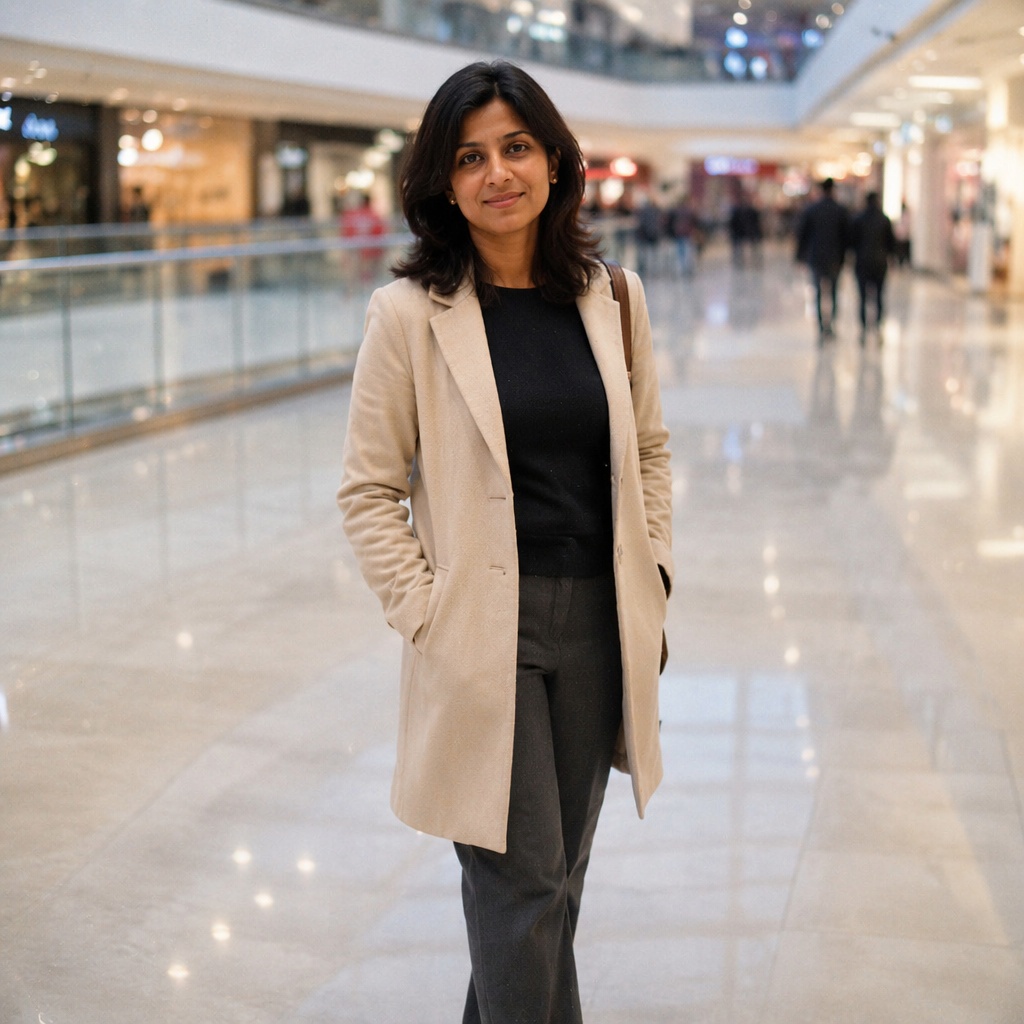
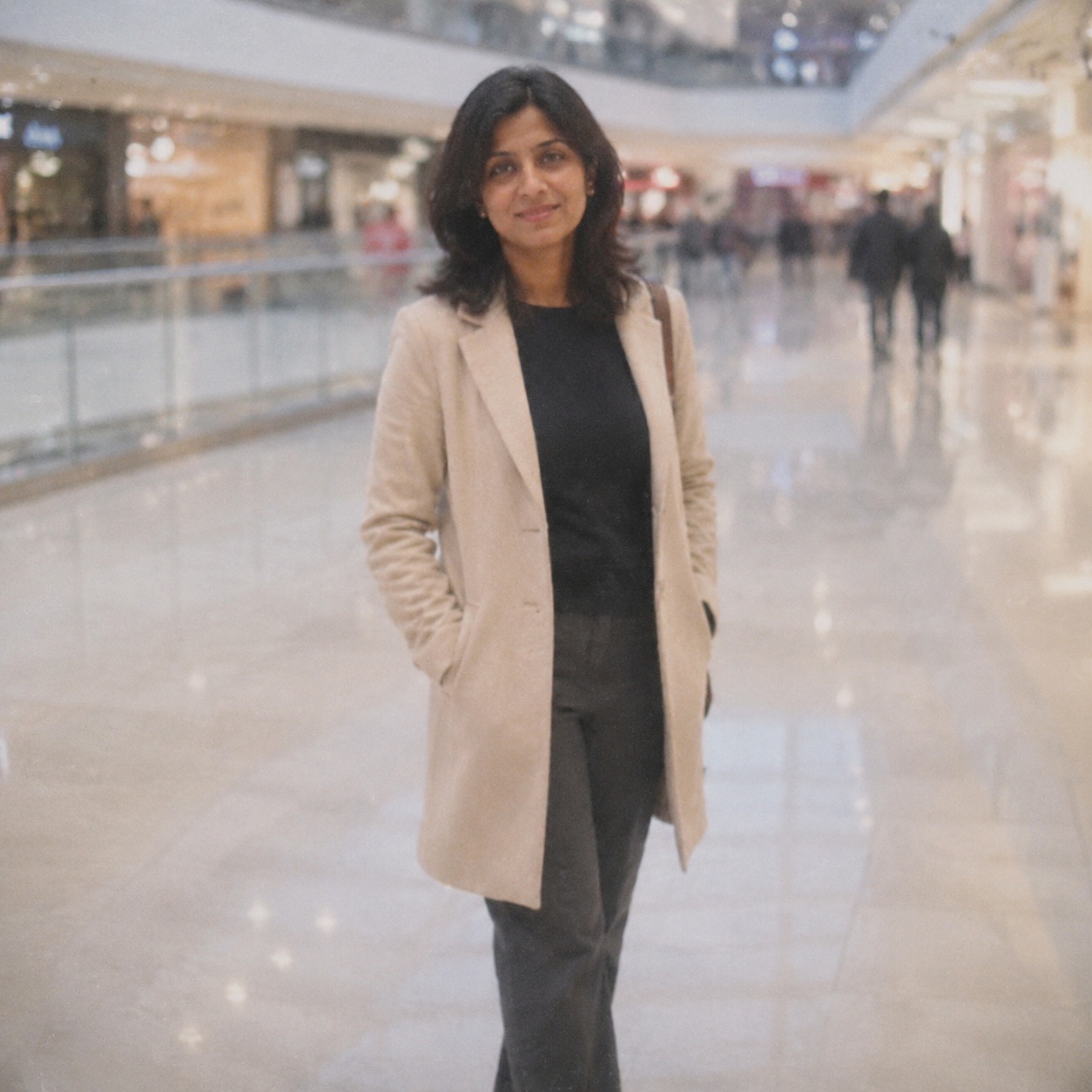
WORKFLOW
Create a larger version of a photograph for publishing, printing or further editing. AI increases the pixel count and refines edges and textures while aiming to preserve the original colors, composition and object shapes.
SeedVR2 creates a higher-resolution version for web, print, or further editing.
Choose the target resolution directly in the Hero; 4K matches the Editor default.
Object shape, framing, and overall color should stay as close to the source as possible.
The model refines edges and texture, but missing source information cannot be recovered as fact.
HOW IT WORKS
Use the best available JPEG, PNG, or WebP up to 20 MB. Better source quality gives the model more reliable information.
This page calls the workflow that matches its intent instead of sending every task through one generic enhancement command.
Inspect detail with the slider, download the result, or continue editing in the full Editor.
LIMITS
ENHANCE TOOLS
AI PHOTO ENHANCEMENT
The AI Upscaler on this page uses the Editor’s dedicated SeedVR2 workflow rather than ordinary browser resizing.
Its job is to increase image resolution and refine edges and textures while preserving composition, proportions, color, and recognizable objects.
For blur recovery, controlled sharpening, old-photo repair, or portrait detail, use the dedicated focused clusters.
FAQ
It estimates edge and texture structure instead of only interpolating new pixels, but estimated detail is not guaranteed to be original.
Usually not convincingly. Very large output requires enough reliable information in the source.
They can change, especially when small or compressed, so compare them with the original asset.
Usually upscale first, then apply restrained finishing sharpness to the final-size image.
It should preserve them, but always compare white balance, saturation and contrast with the source.
Use the largest original JPEG, PNG or WEBP available rather than a screenshot or repeatedly saved copy.
Upload an image above, run the focused workflow, and compare the result with the original.
Guest AI edits are unavailable. A new account created after the offer started gets one successful free edit with any editor tool, including Premium. Further edits require tokens. This is one account-wide attempt, not one per page.
Further AI edits use tokens at the tool rate. Technical failures should not consume a free attempt. Switching project modes does not reset used attempts. Purchased tokens and permanent Premium remain intact; Premium unlocks after a purchase.