

01
Restore this old family photograph: reduce scratches, dust and stains, improve faded contrast, and preserve every face, garment and historical detail.

RESTORE · AI CORRECTION
Bring family archive photos back into focus without complex manual restoration. AI reduces visible scratches and dust, improves faded contrast and refines detail while aiming to preserve faces, clothing and the historical character of the image.
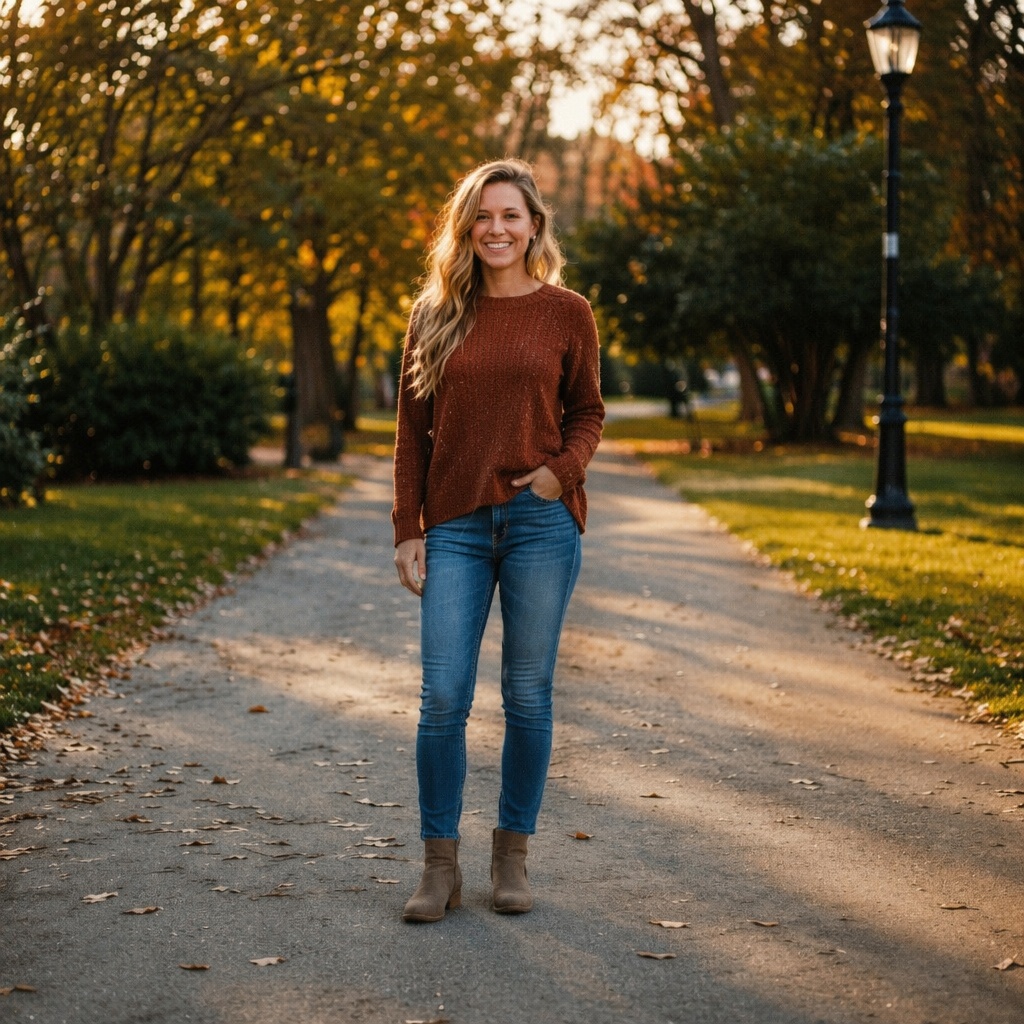
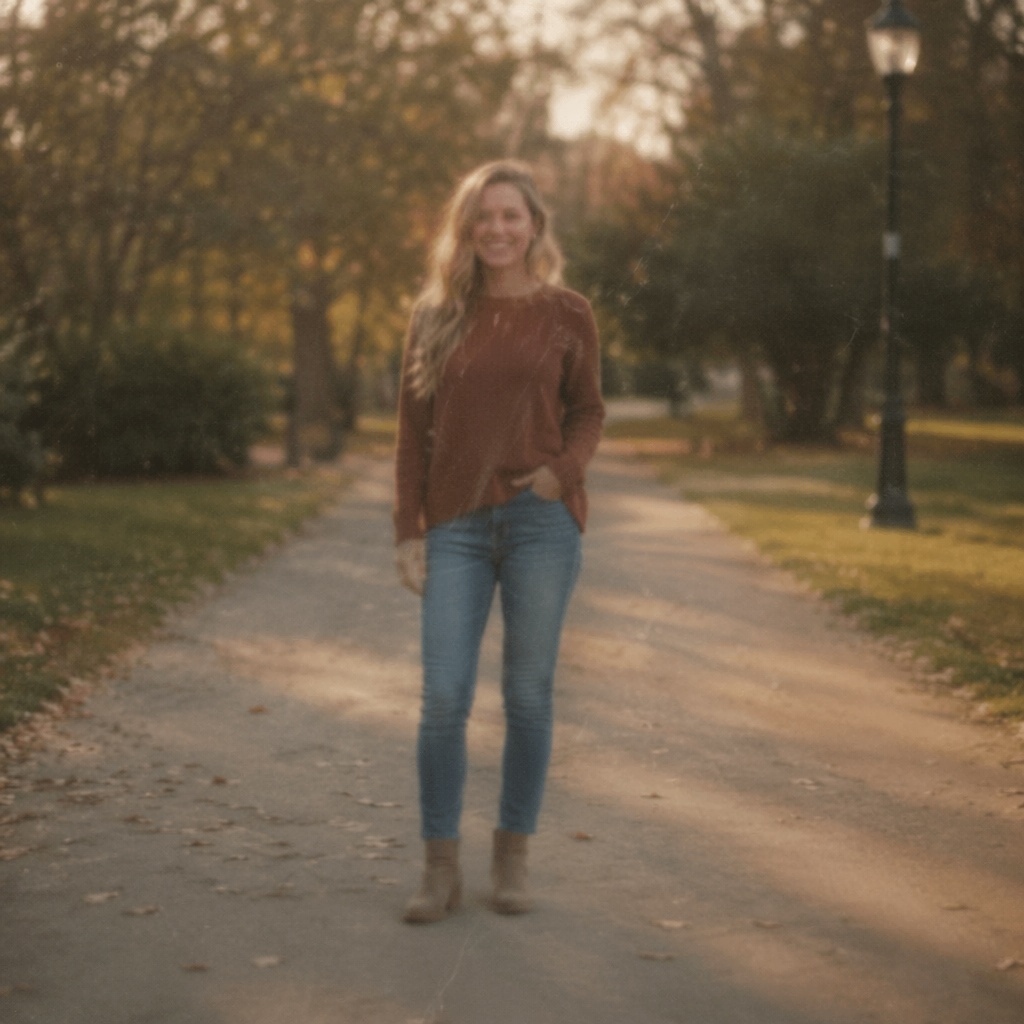
BEFORE / AFTER
Compare the source with the processed version. Every example below demonstrates this focused workflow rather than generic photo enhancement.



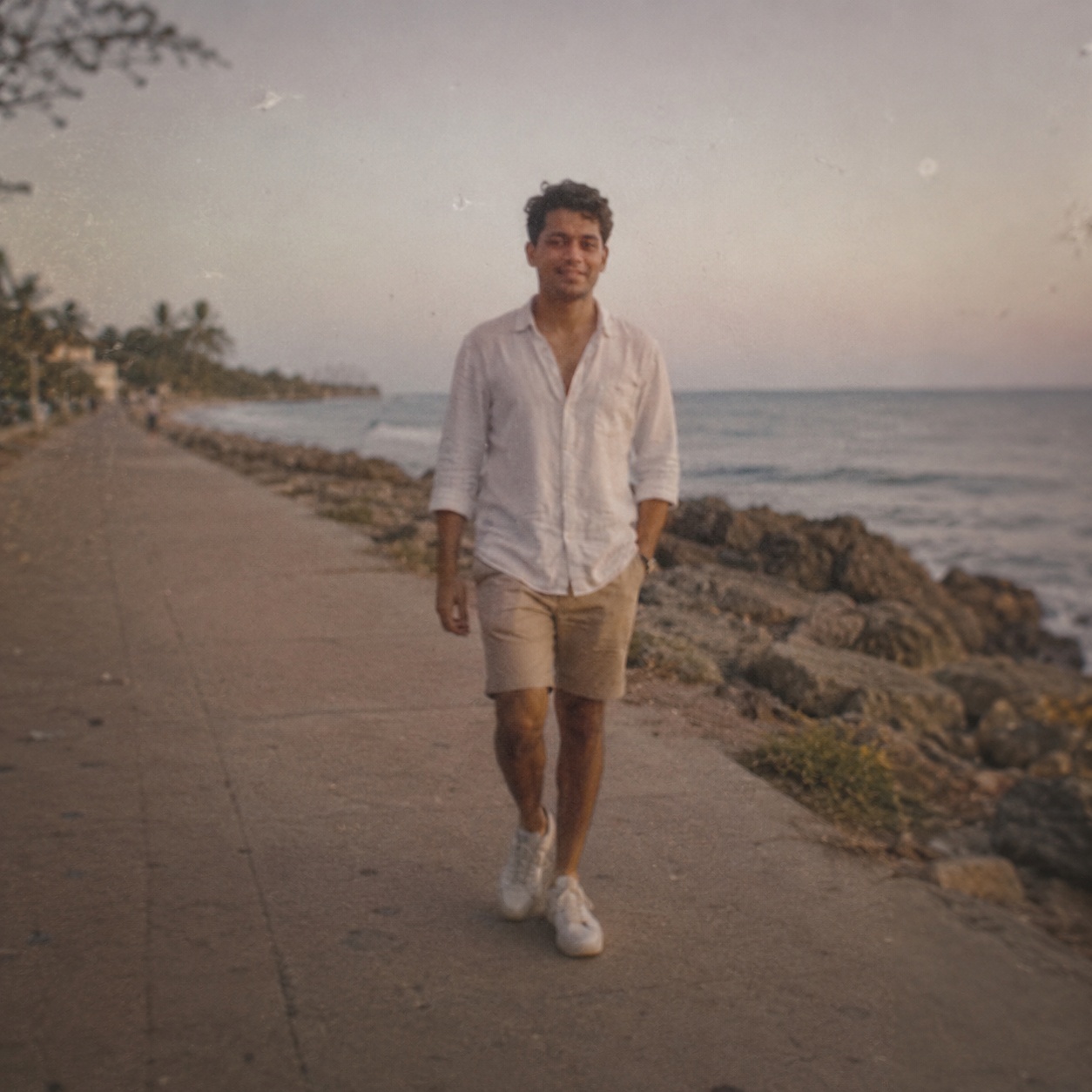

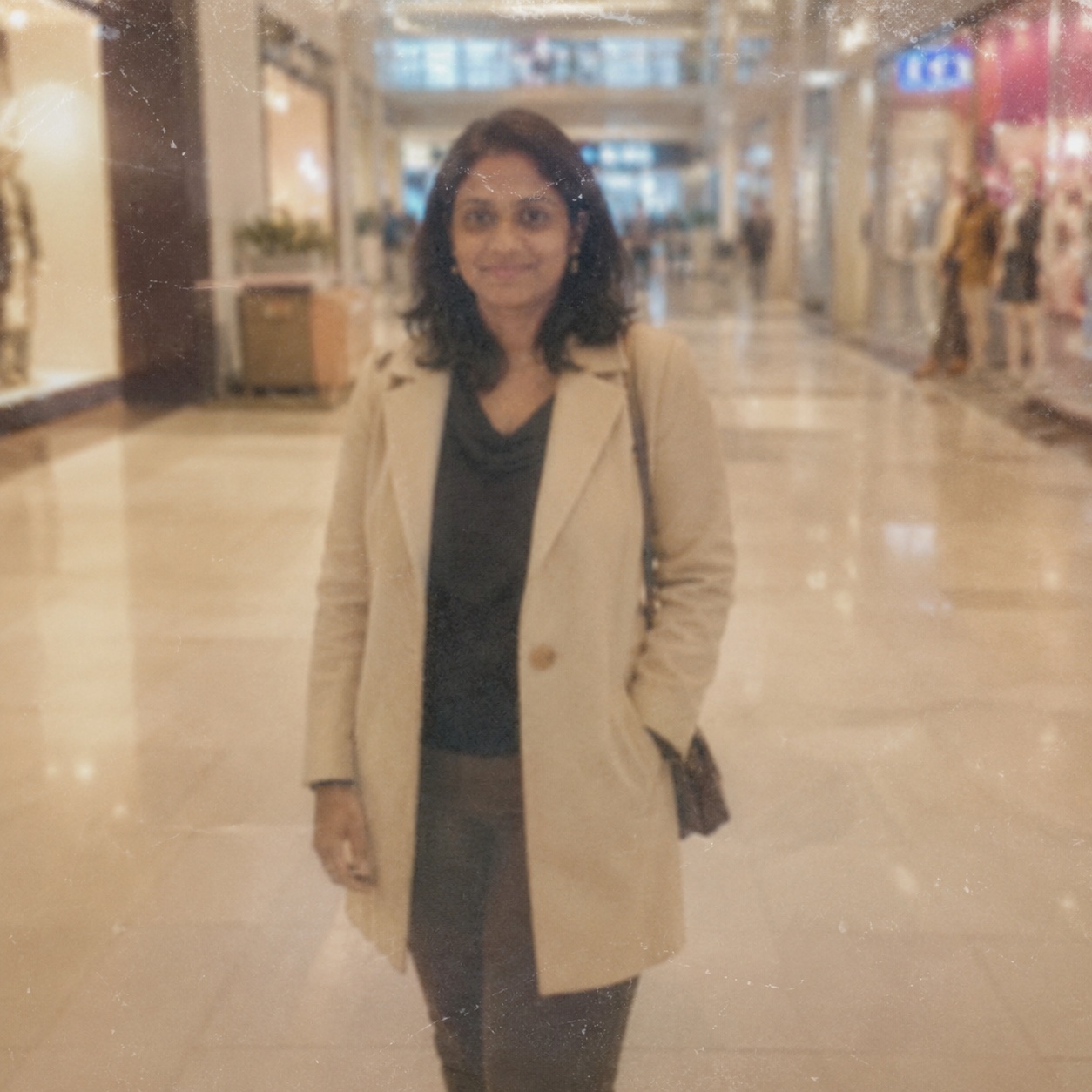
WORKFLOW
Bring family archive photos back into focus without complex manual restoration. AI reduces visible scratches and dust, improves faded contrast and refines detail while aiming to preserve faces, clothing and the historical character of the image.
The page uses the Editor’s real `repair-photo` preset for old and damaged photographs.
AI cleans surface defects and conservatively reconstructs small damaged areas.
It improves tonal balance and detail readability without forcing colorization.
Faces, clothing, era, composition, and photographic character should be preserved.
HOW IT WORKS
Use the best available JPEG, PNG, or WebP up to 20 MB. Better source quality gives the model more reliable information.
This page calls the workflow that matches its intent instead of sending every task through one generic enhancement command.
Inspect detail with the slider, download the result, or continue editing in the full Editor.
LIMITS
ENHANCE TOOLS
AI PHOTO ENHANCEMENT
Restore Old Photo uses the current Editor’s dedicated AI Correction `repair-photo` preset rather than generic One-click Enhance.
It is intended for scratches, dust, creases, stains, tears, fading, and weak tonal separation in old photographs.
Treat the result as a restored interpretation: completely lost historical detail cannot be guaranteed as factual recovery.
FAQ
It can estimate a plausible fill, but the result is generated and should not be treated as historical fact.
Not unless the selected workflow or prompt requests color. For faithful restoration, ask to preserve monochrome.
A flat, high-resolution scan without glare usually produces the most reliable result.
It should not. Moderate grain helps preserve the photographic character and prevents an artificial plastic look.
AI may produce incorrect letters or numbers, so important writing must be verified against another source.
Yes. Always preserve the untouched scan and save the AI-restored image as a separate version.
Upload an image above, run the focused workflow, and compare the result with the original.
Guest AI edits are unavailable. A new account created after the offer started gets one successful free edit with any editor tool, including Premium. Further edits require tokens. This is one account-wide attempt, not one per page.
Further AI edits use tokens at the tool rate. Technical failures should not consume a free attempt. Switching project modes does not reset used attempts. Purchased tokens and permanent Premium remain intact; Premium unlocks after a purchase.