Transparent result
The surroundings become transparent while the main subject remains as a standalone image.

BACKGROUND · AI SCENE EDITOR
Separate a person, product or object from its surroundings and create a clean transparent cutout. This workflow does not generate a new scene — it removes the background.
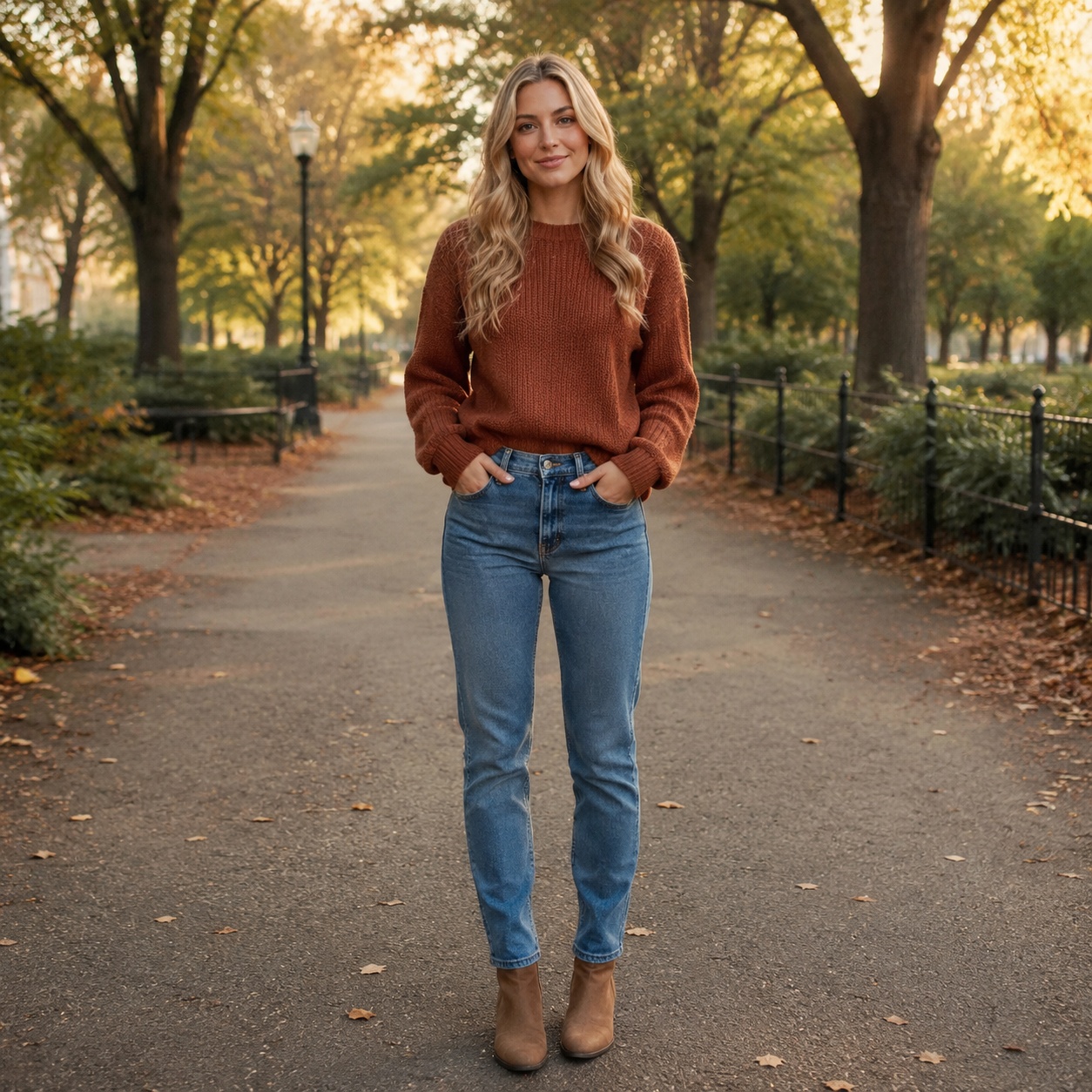

TRANSPARENT OUTPUT
The surroundings become transparent while the main subject remains as a standalone image.
The remover aims to preserve hair, small protrusions and the natural shape of the subject.
Open the cutout in the Editor, place it on white, or use it in another design.
BEFORE / AFTER
Do not inspect only the center of the subject. Look closely at hair, fur, thin details, openings, translucent materials and contact areas.


EDGE CHECK
Hair, fur, glass, mesh and translucent fabric partially mix with the original surroundings. After automatic removal, zoom into the result and inspect the contour.
USE CASES
Create a standalone subject for a layout or composition.
Prepare a product for a white background or another commercial scene.
Separate a person before building a new setting or graphic.
Use the cutout in another photo or advertising layout.
CHOOSE OUTPUT
Remove the surroundings and keep a cutout.
Create a neutral white background immediately.
Choose a scene or describe your own background.
FAQ
Yes. The background remover returns a PNG with transparency around the main subject.
It can work when the group is clearly separated from the surroundings. Check gaps between people and overlapping edges after processing.
Remove Background focuses on a clean cutout. If you need a natural shadow on a finished white or studio backdrop, use the corresponding background workflow.
Start with a sharp image and inspect the result at high zoom. Semi-transparent edge detail is always the most demanding area.
Yes. Open the result in the Editor and continue with a background tool or use the cutout in another design.
TRY IT
Upload a source image in the tool above, review the Before / After result, and continue in the Editor when you need more adjustments.
Guest AI edits are unavailable. A new account created after the offer started gets one successful free edit with any editor tool, including Premium. Further edits require tokens. This is one account-wide attempt, not one per page.
Further AI edits use tokens at the tool rate. Technical failures should not consume a free attempt. Switching project modes does not reset used attempts. Purchased tokens and permanent Premium remain intact; Premium unlocks after a purchase.