Studio Background AI Tool Online | SmartGeniusAI
AI Background Changer · SmartGeniusAI

Create a clean studio background with AI

Upload a photo and create studio-style backgrounds with soft shadows, controlled light and a polished portrait or product look. SmartGeniusAI keeps the workflow focused, realistic and ready for the editor.

AI-poweredNo PhotoshopMobile readyStudio background
Open editor
📸
Upload photo
PNG, JPEG, WEBP up to 20 MB
Click or drag a file here
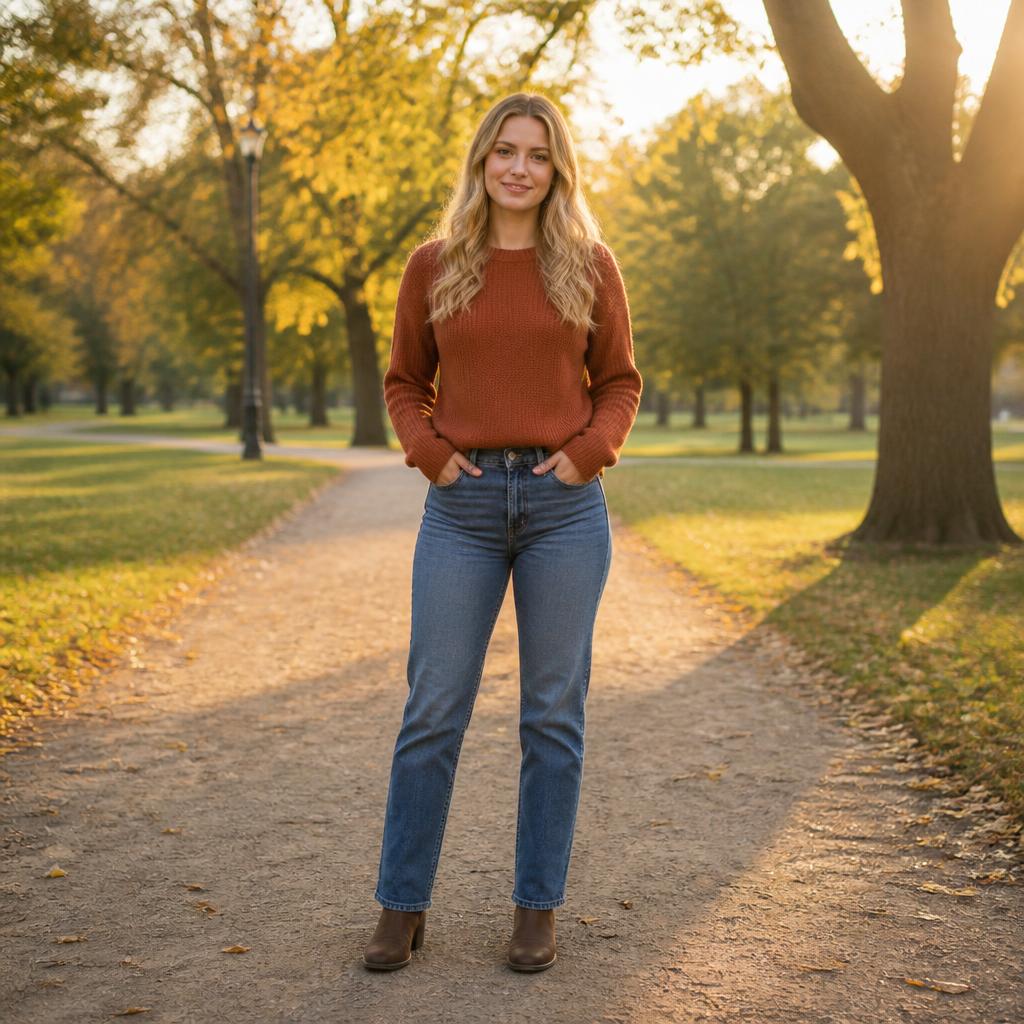
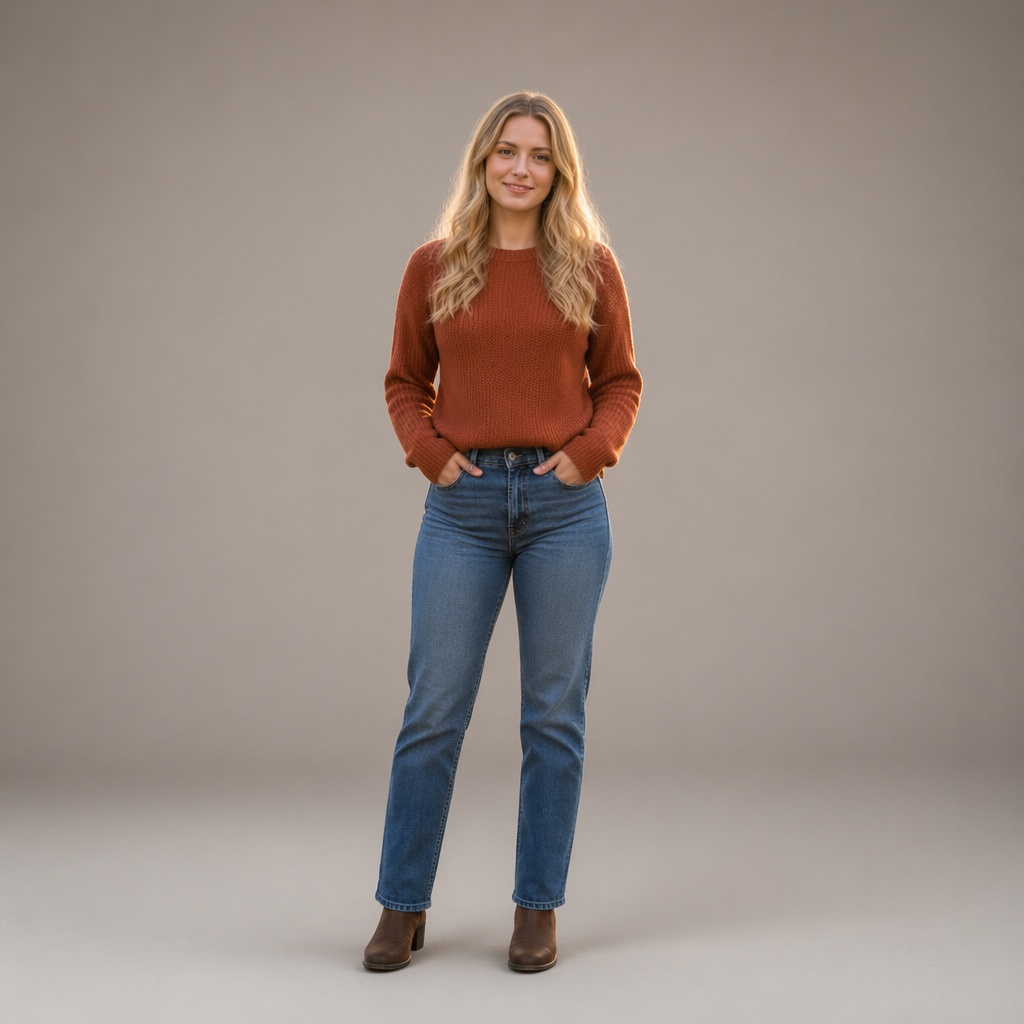
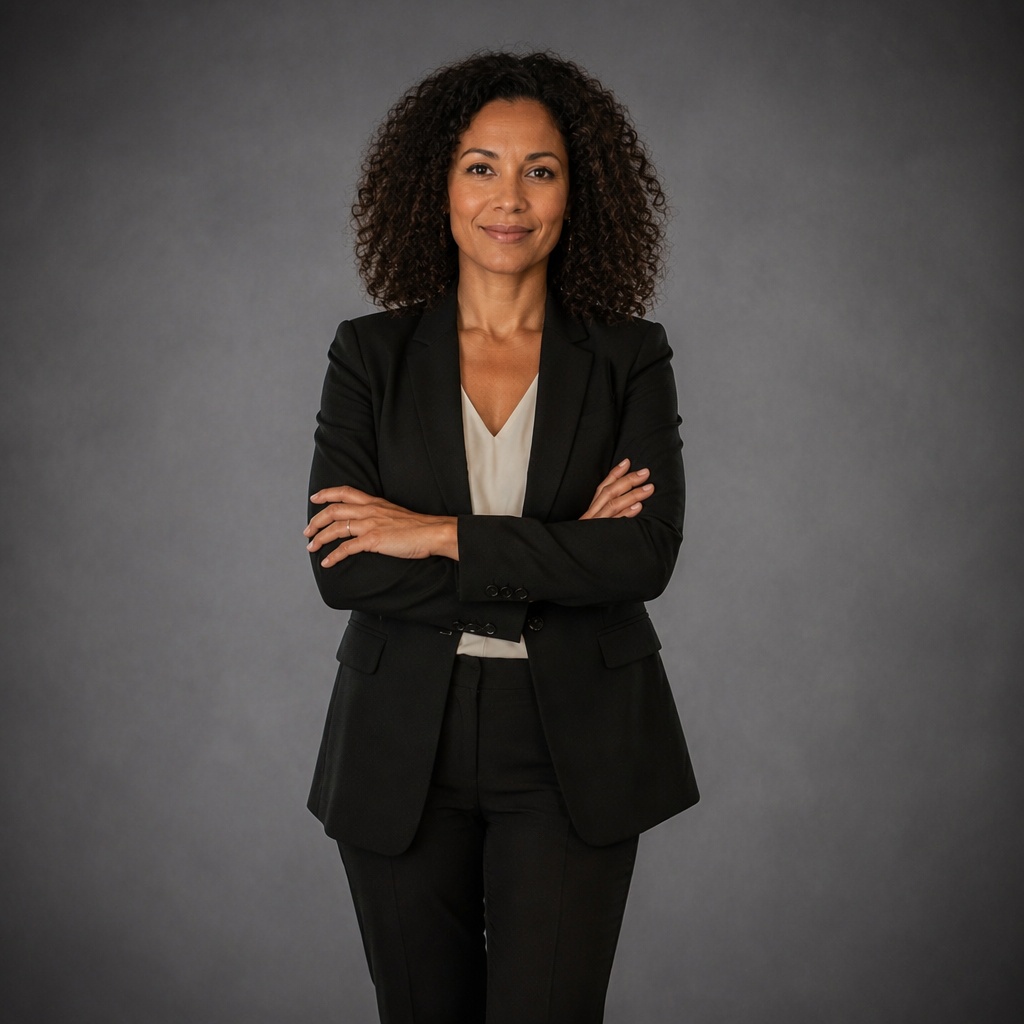
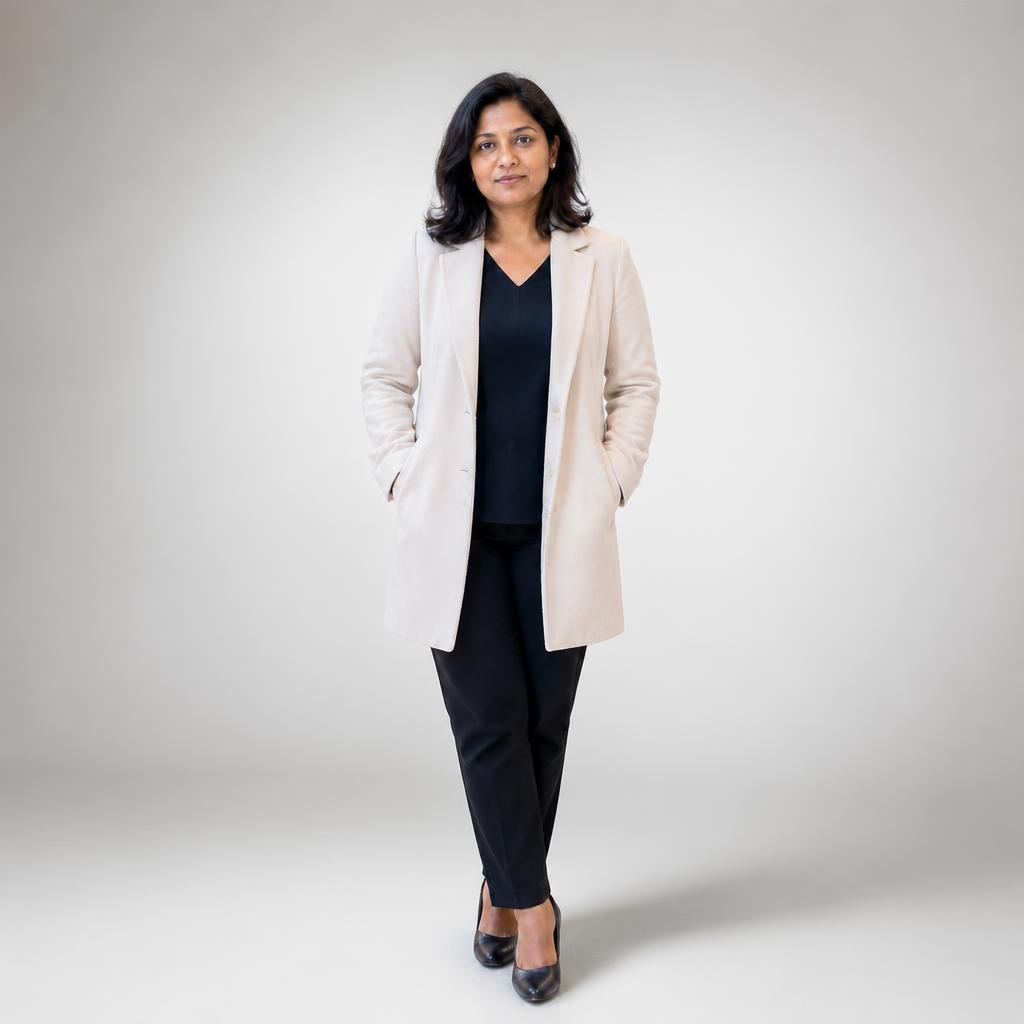
studio background before AI editing example 1 studio background after AI editing example 1
BeforeAfter
Drag over the image to compare before and after
WorkflowStudio background
ToolAI Background Changer
Best forstudio-style backgrounds with soft shadows, controlled light and a polished portrait or product look
ResultUpload a photo and create studio-style backgrounds with soft shadows, controlled light and a polished portrait or product look. SmartGeniusAI keeps the workflow focused, realistic and ready for the editor.

Studio background examples

Upload a photo and create studio-style backgrounds with soft shadows, controlled light and a polished portrait or product look. SmartGeniusAI keeps the workflow focused, realistic and ready for the editor.

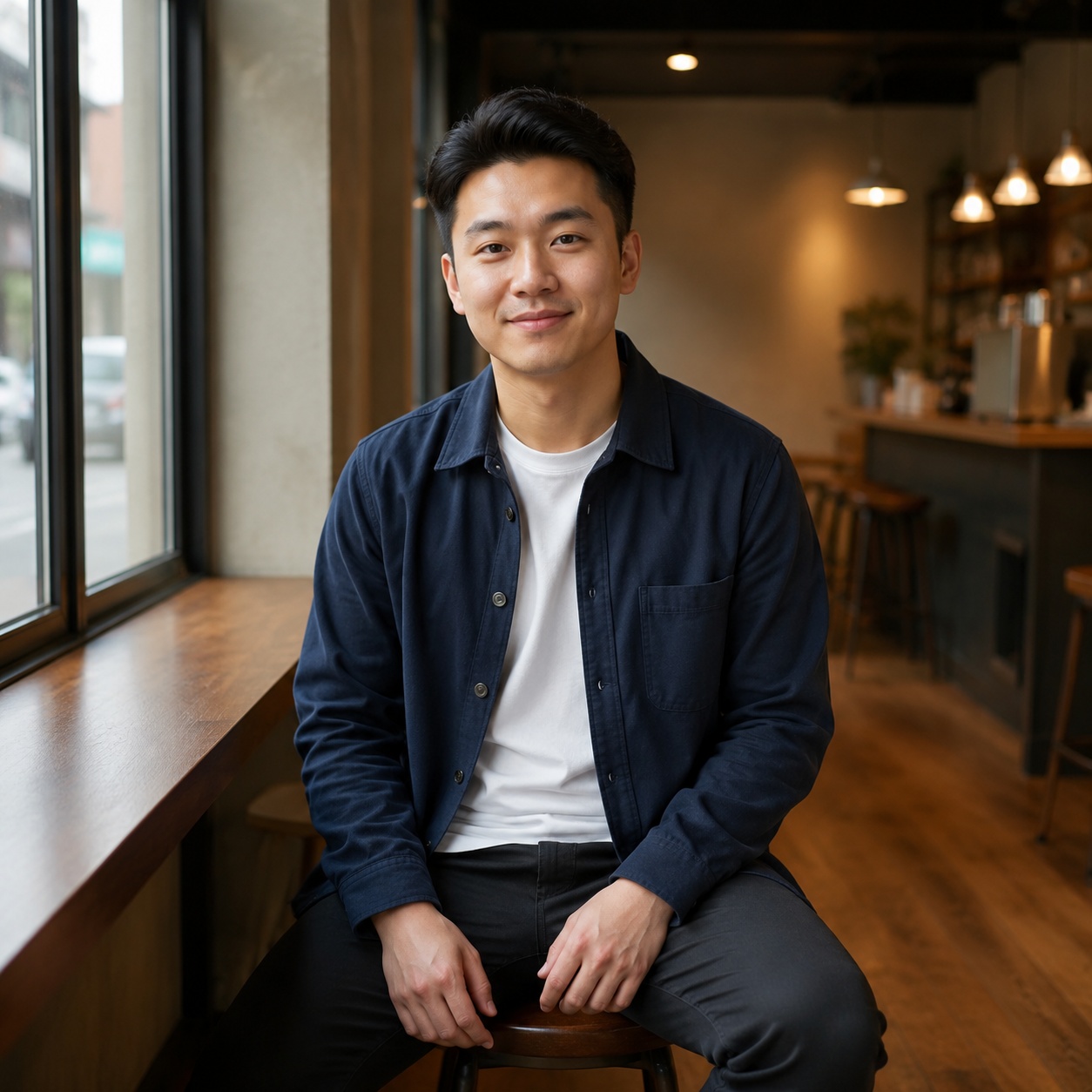
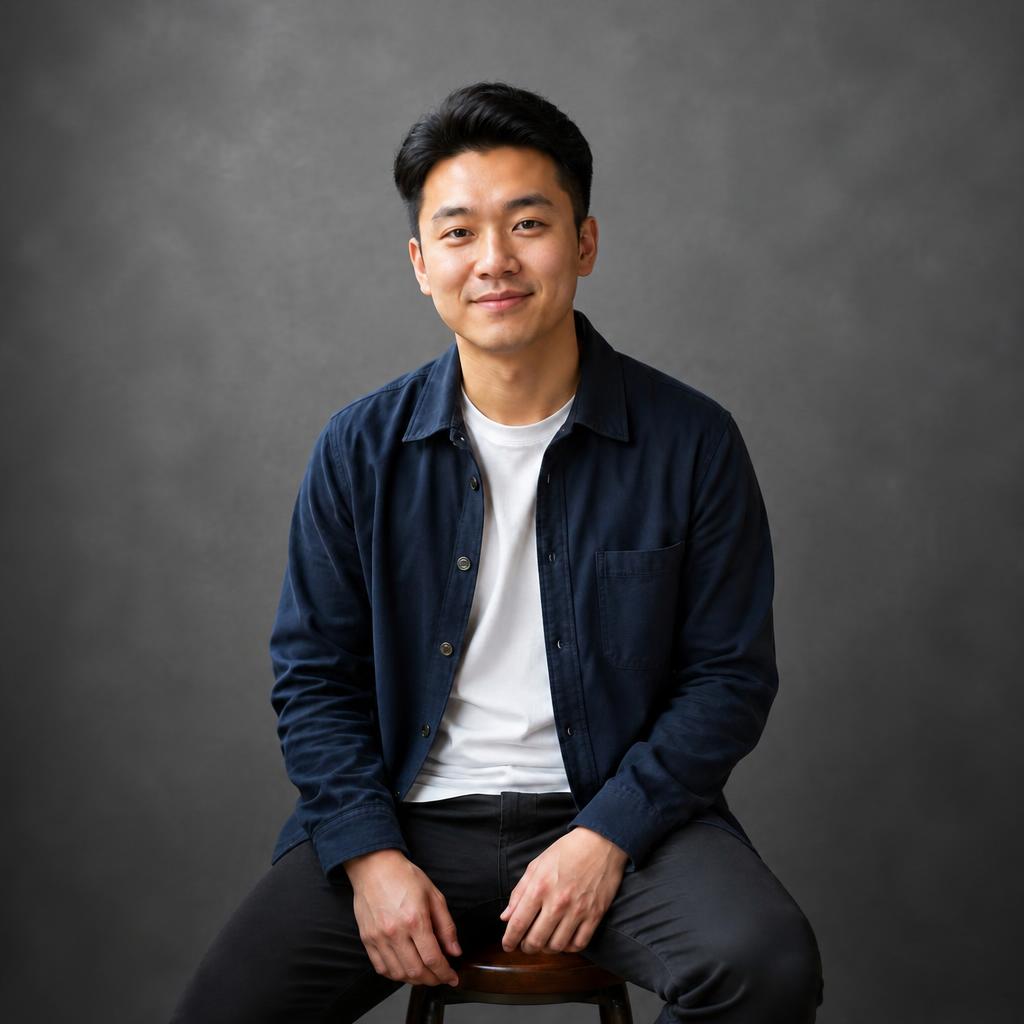
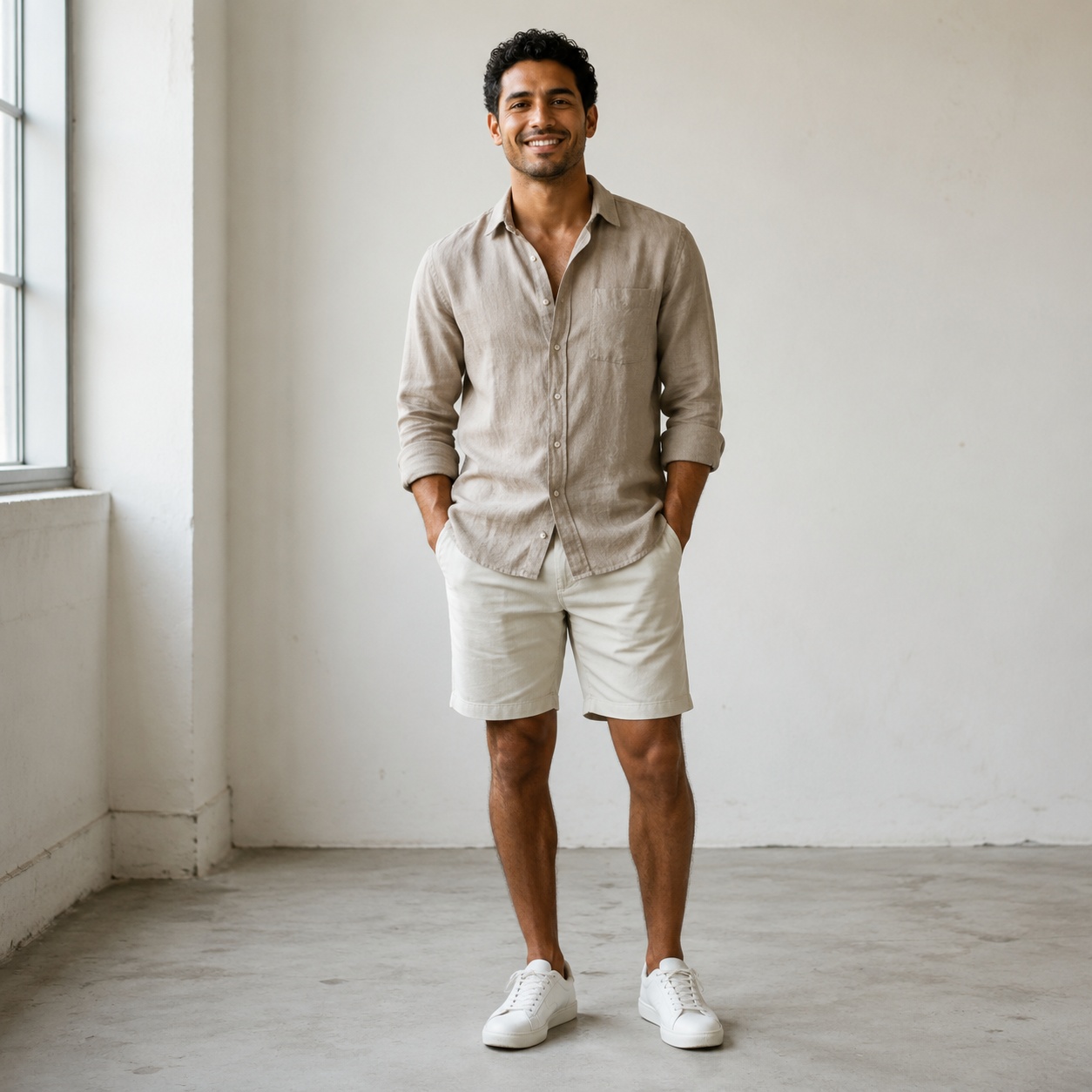
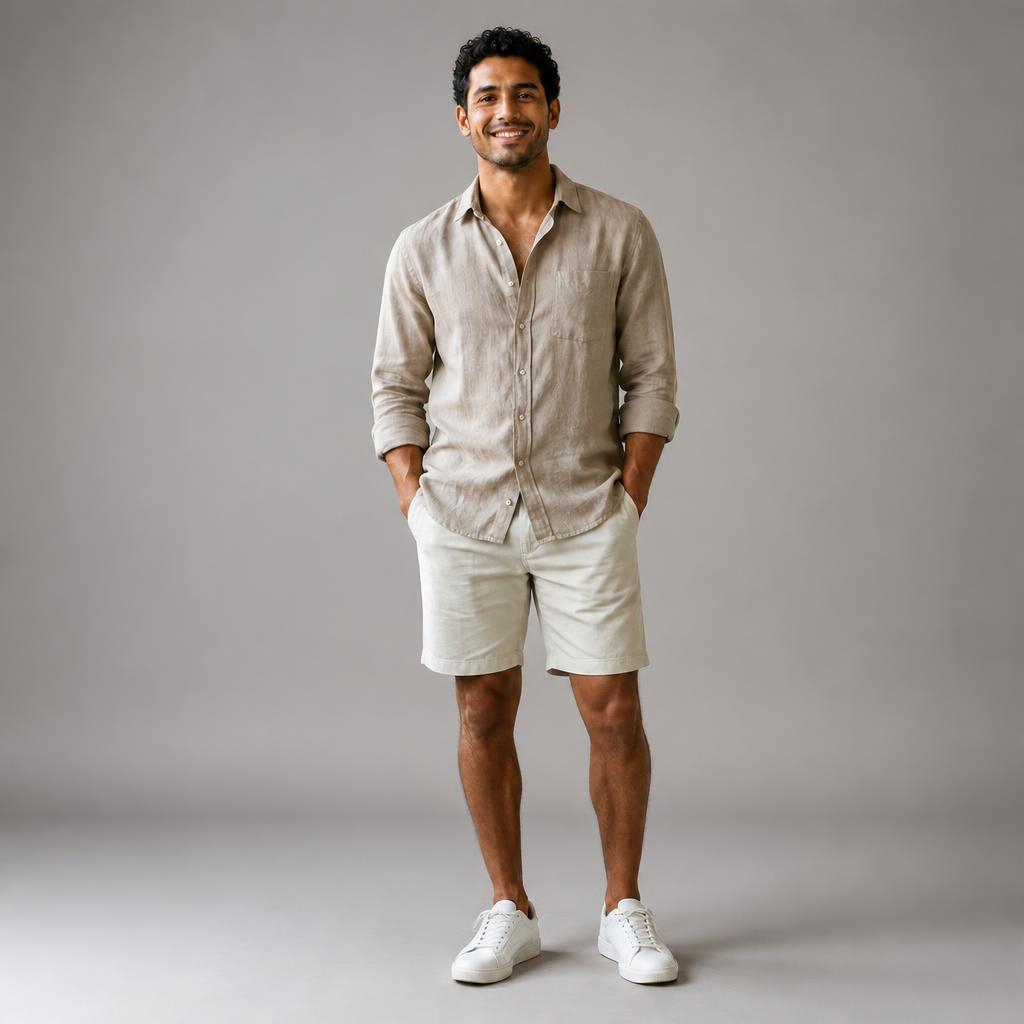
studio background before AI editing example 2 studio background after AI editing example 2
BeforeAfter
Create studio-style backgrounds with soft shadows, controlled light and a polished portrait or product look, keeping the face, light and camera angle natural.
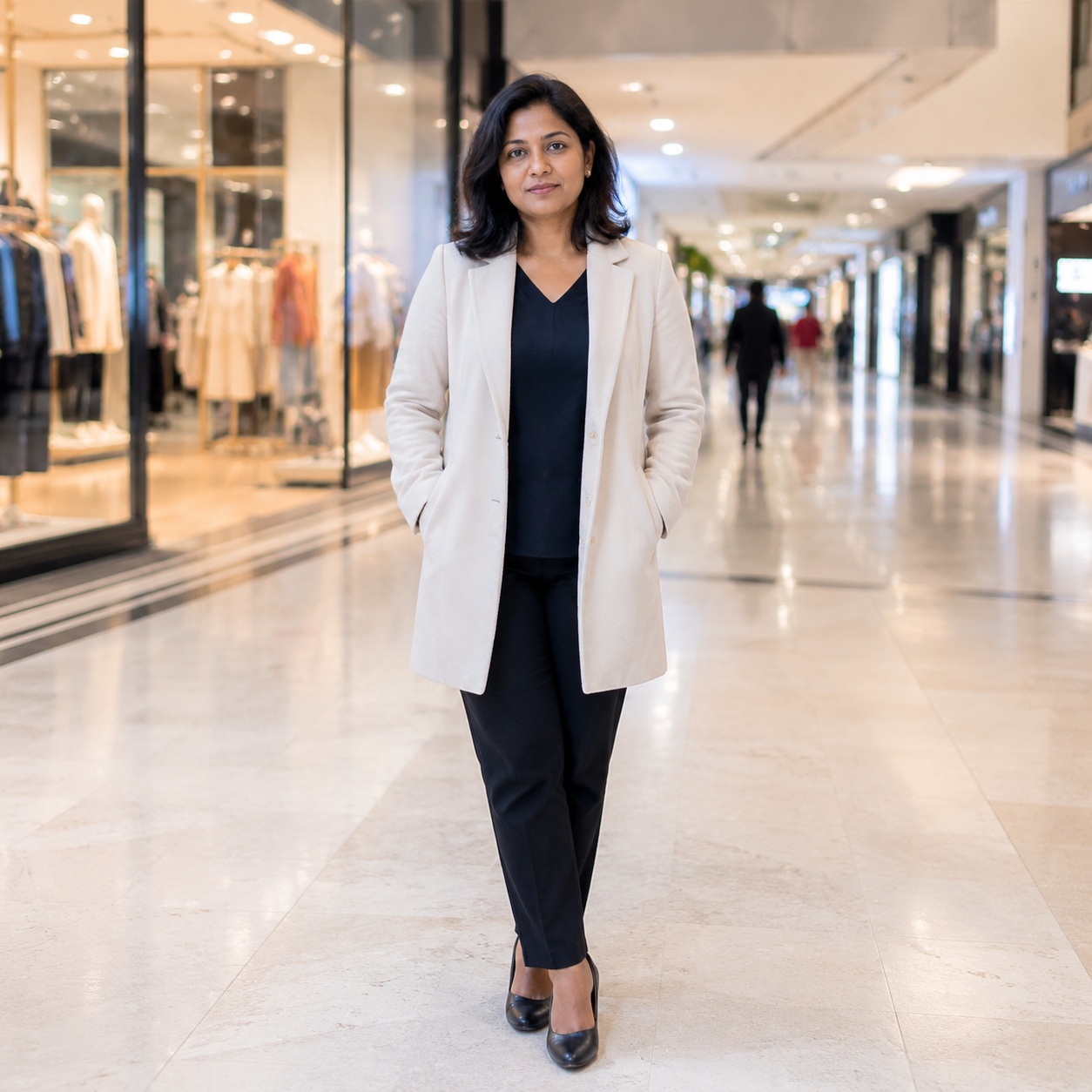
studio background before AI editing example 3 studio background after AI editing example 3
BeforeAfter
Make a clean studio background result for a social profile photo.
studio background before AI editing example 4 studio background after AI editing example 4
BeforeAfter
Generate a realistic version with clear edges and natural lighting.
studio background before AI editing example 5 studio background after AI editing example 5
BeforeAfter
Keep the original style, but make the final image better suited for publishing.

How the studio background workflow works

Upload a clear photo

Choose an image where edges and lighting are easy to read.

Set the visual direction

Use this workflow when you need studio-style backgrounds with soft shadows, controlled light and a polished portrait or product look, not a generic filter.

Review the result

Check subject separation, scene mood and the overall realism before downloading.

What the studio background tool changes

Upload a photo and create studio-style backgrounds with soft shadows, controlled light and a polished portrait or product look. SmartGeniusAI keeps the workflow focused, realistic and ready for the editor.

The studio background workflow is designed for users who already have a useful source photo but need a more suitable final version. It focuses on studio-style backgrounds with soft shadows, controlled light and a polished portrait or product look, so the output feels intentional instead of randomly edited.

Best photos for studio background

The studio background workflow is designed for users who already have a useful source photo but need a more suitable final version. It focuses on studio-style backgrounds with soft shadows, controlled light and a polished portrait or product look, so the output feels intentional instead of randomly edited.

For stronger results, start with a photo where the main subject is visible, the image is not heavily blurred and the lighting gives AI enough information. Details such as edges, lighting and subject separation are important because they help the model keep the result believable.

Keep the request simple. If you also need a new background, different clothes or extra retouching, create the studio background result first and then continue with another SmartGeniusAI tool.

Before publishing, zoom in and check the practical details: edges, face consistency, texture, shadows and whether the final image still matches the original camera perspective.

Studio background details

For stronger results, start with a photo where the main subject is visible, the image is not heavily blurred and the lighting gives AI enough information. Details such as edges, lighting and subject separation are important because they help the model keep the result believable.

EdgesKeep edges readable so the edit has enough structure.
LightingGood lighting helps the result stay natural.
Subject SeparationReview subject separation closely before using the image.
Scene MoodThe final version should respect scene mood from the source photo.

Best use cases for studio background

Social content

Create a more useful version for posts, covers, avatars and profile visuals.

Business visuals

Prepare images for ads, landing pages, product cards or portfolio previews.

Creative testing

Compare several directions before arranging a new shoot or manual retouching.

Personal edits

Try a new look quickly while keeping the original photo recognizable.

Get another version without slow manual editing

Manual way

Keep the request simple. If you also need a new background, different clothes or extra retouching, create the studio background result first and then continue with another SmartGeniusAI tool.

SmartGeniusAI

Before publishing, zoom in and check the practical details: edges, face consistency, texture, shadows and whether the final image still matches the original camera perspective.

What to avoid

Avoid very blurry photos where edges cannot be understood.
Do not combine studio background, a new background and major style changes in one attempt.
Be careful with heavy shadows, strong color lights and cropped important details.
If the first version looks unnatural, use a simpler source image or a more specific direction.

Studio background prompt ideas

Studio background prompt ideas 1

Create studio-style backgrounds with soft shadows, controlled light and a polished portrait or product look, keeping the face, light and camera angle natural.

Studio background prompt ideas 2

Make a clean studio background result for a social profile photo.

Studio background prompt ideas 3

Generate a realistic version with clear edges and natural lighting.

Studio background prompt ideas 4

Keep the original style, but make the final image better suited for publishing.

Frequently asked questions

How does studio background work?

Upload a photo and SmartGeniusAI opens the matching AI Background Changer workflow with the right editing context.

What photos work best for studio background?

Clear, well-lit images with visible details usually work best. Avoid heavy blur, extreme crops and hidden key areas.

Will the original person stay recognizable?

The workflow is designed to preserve identity and style, but you should review the final details before publishing.

Can I use it on a phone?

Yes. The page is mobile-friendly, and upload opens the online editor with the selected workflow.

Can I continue editing after this result?

Yes. You can continue with background, clothing, correction, enhancement and other SmartGeniusAI tools.

What if the first result is not perfect?

Try a clearer source photo, simplify the request or generate another variation.

Try the tool online

Upload a photo and test the result inside SmartGeniusAI.

SmartGeniusAI · AI Background Changer