Primary listing image
Create a neutral visual base for an Ozon card.

OZON · CLEAN LISTING BASE
Prepare a clean Ozon product image with bright surroundings, balanced centering, a natural shadow and faithful product details. The focus is a clear Ozon listing base rather than broad advertising creative.
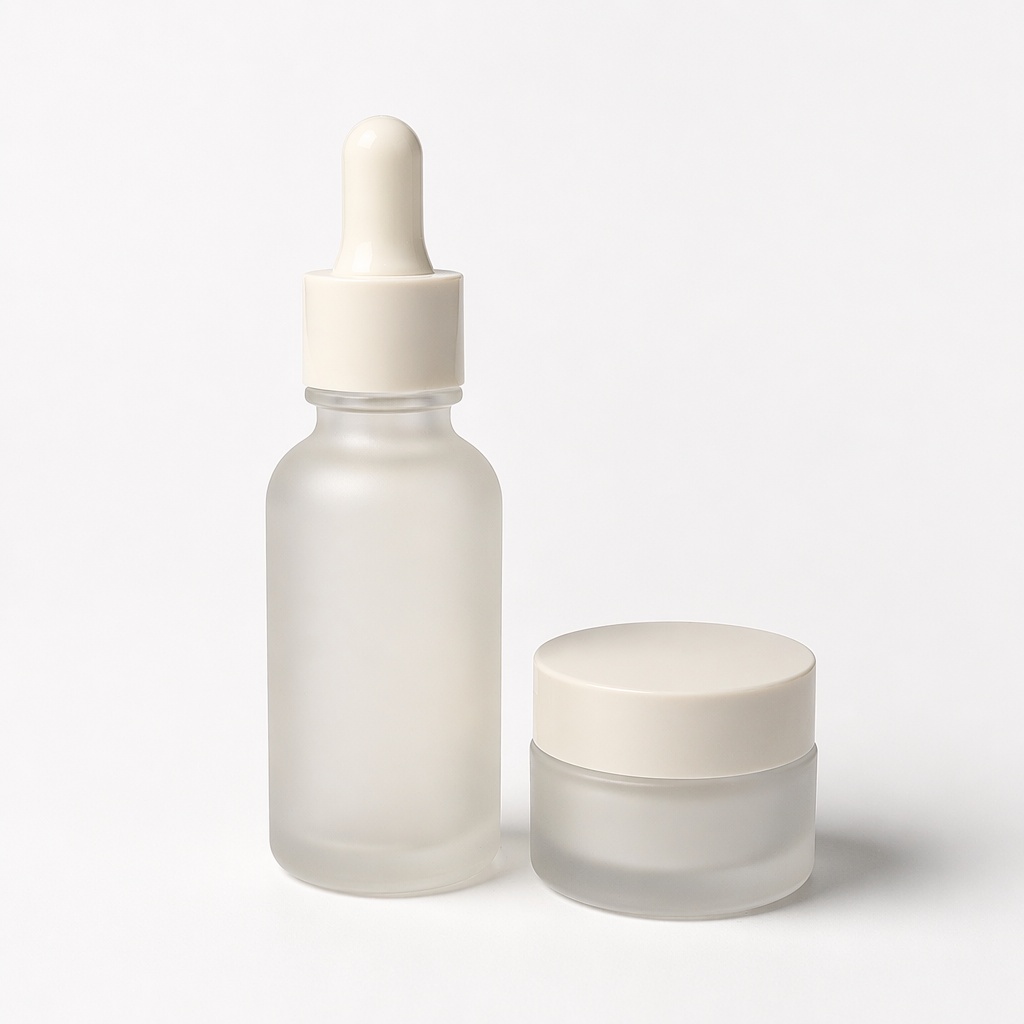
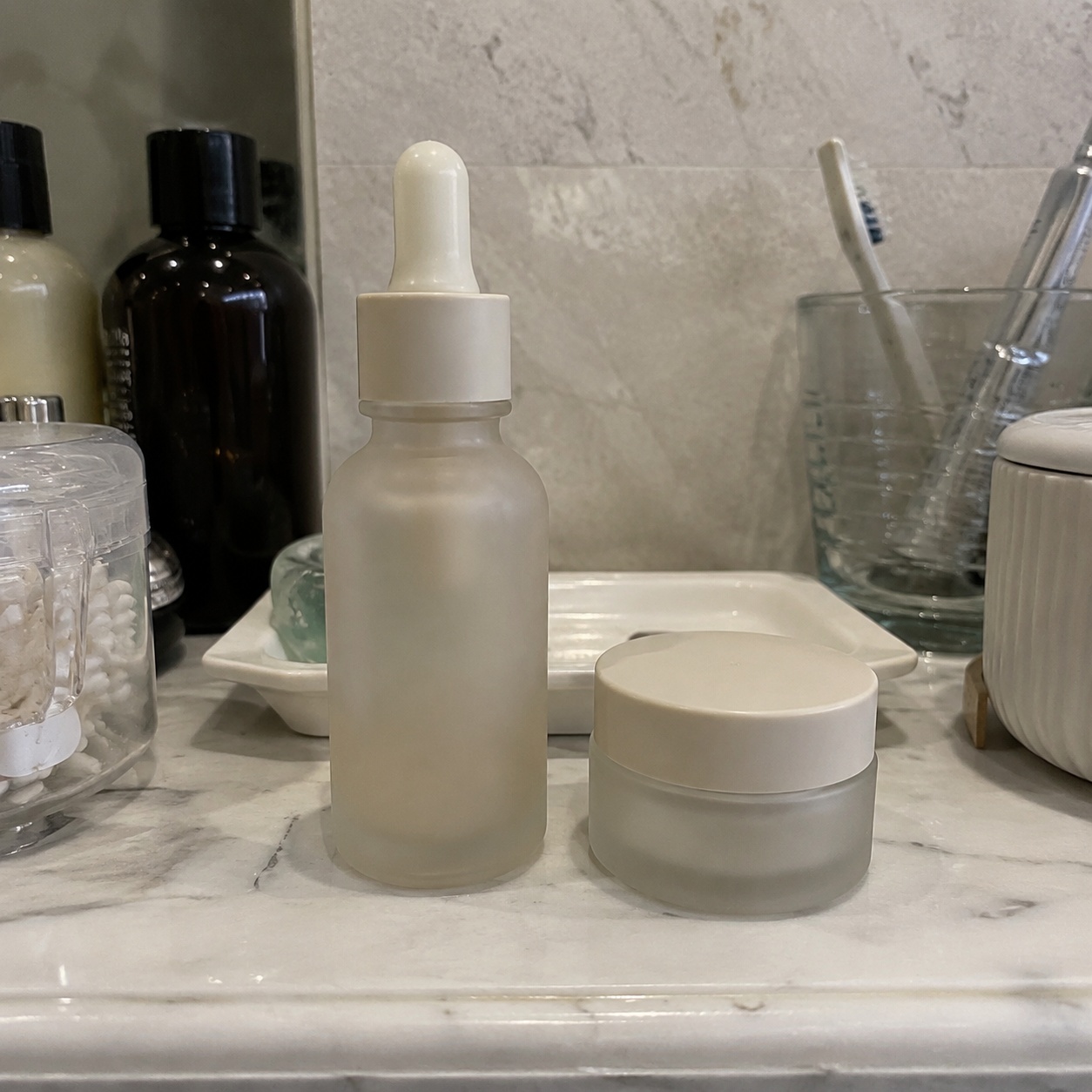
WHAT YOU GET
Ozon Photo prioritizes a clean, bright listing image, while Marketplace Photo is designed as a platform-neutral catalog base.
The product is easy to understand without decorative clutter.
Neutral light helps preserve real color and material.
A soft contact shadow avoids a pasted cut-out look.
BEFORE / AFTER
Compare the source photos with clean product-listing versions prepared for Ozon.
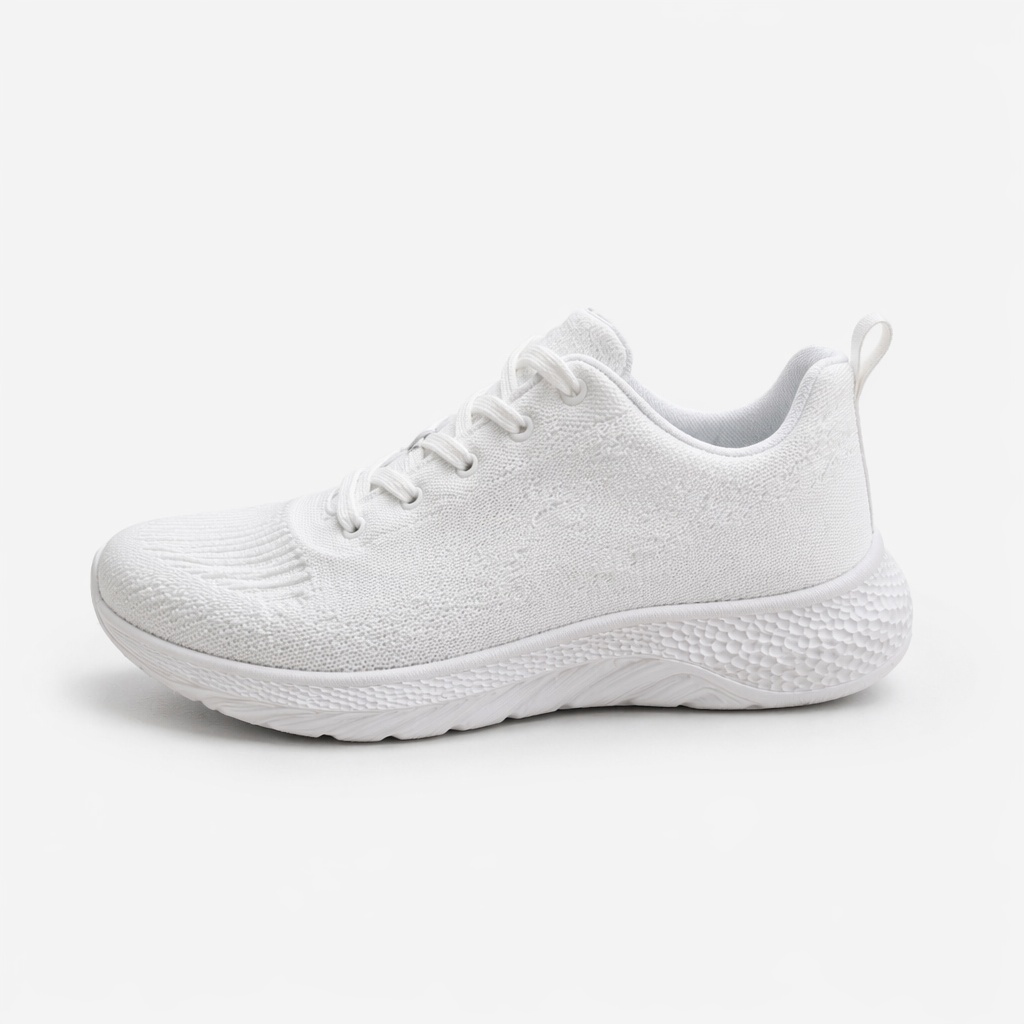
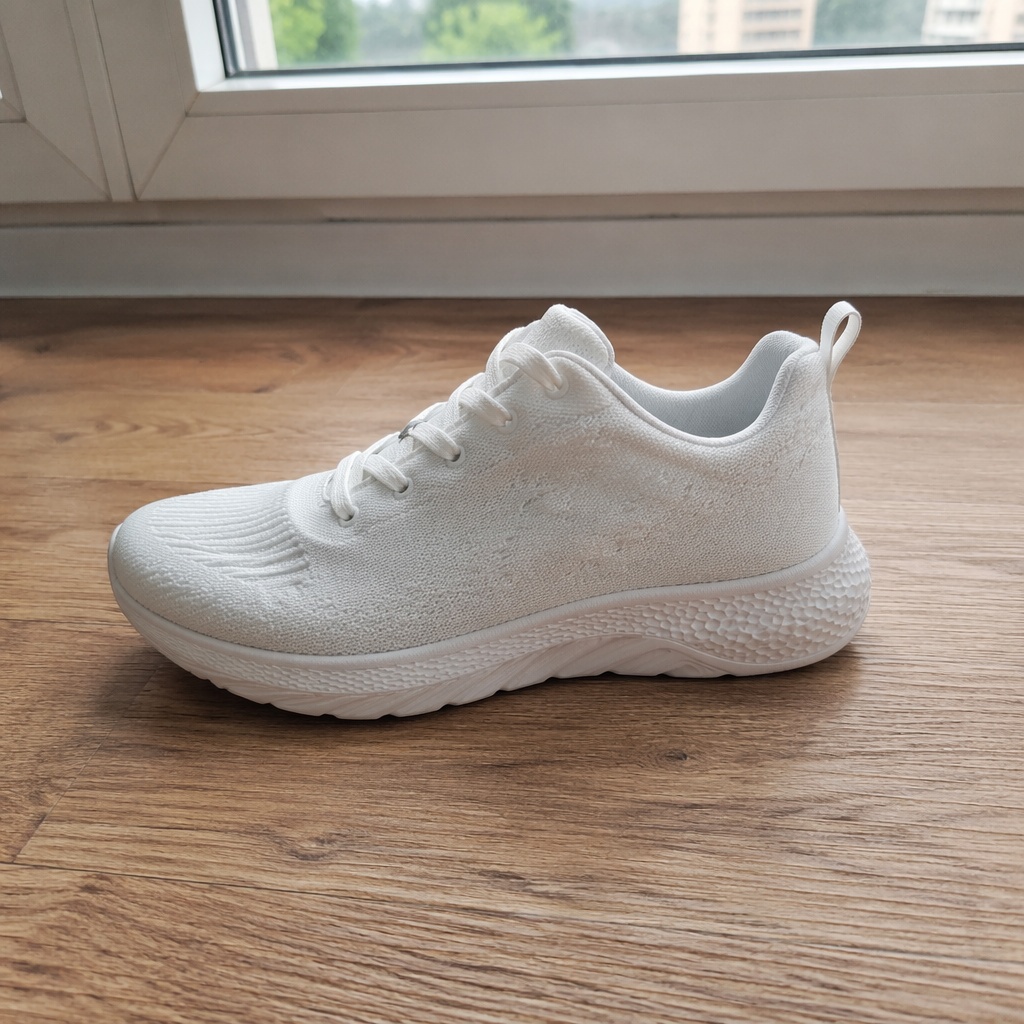
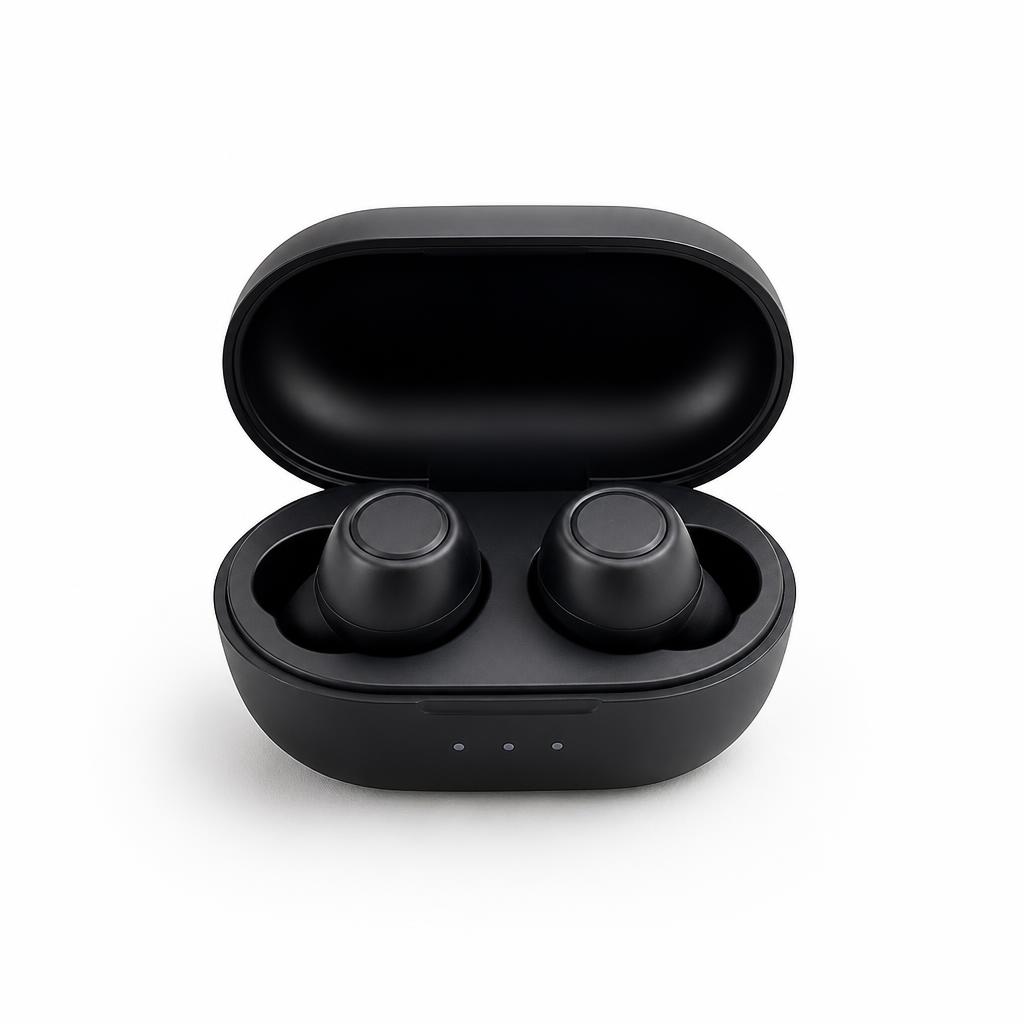
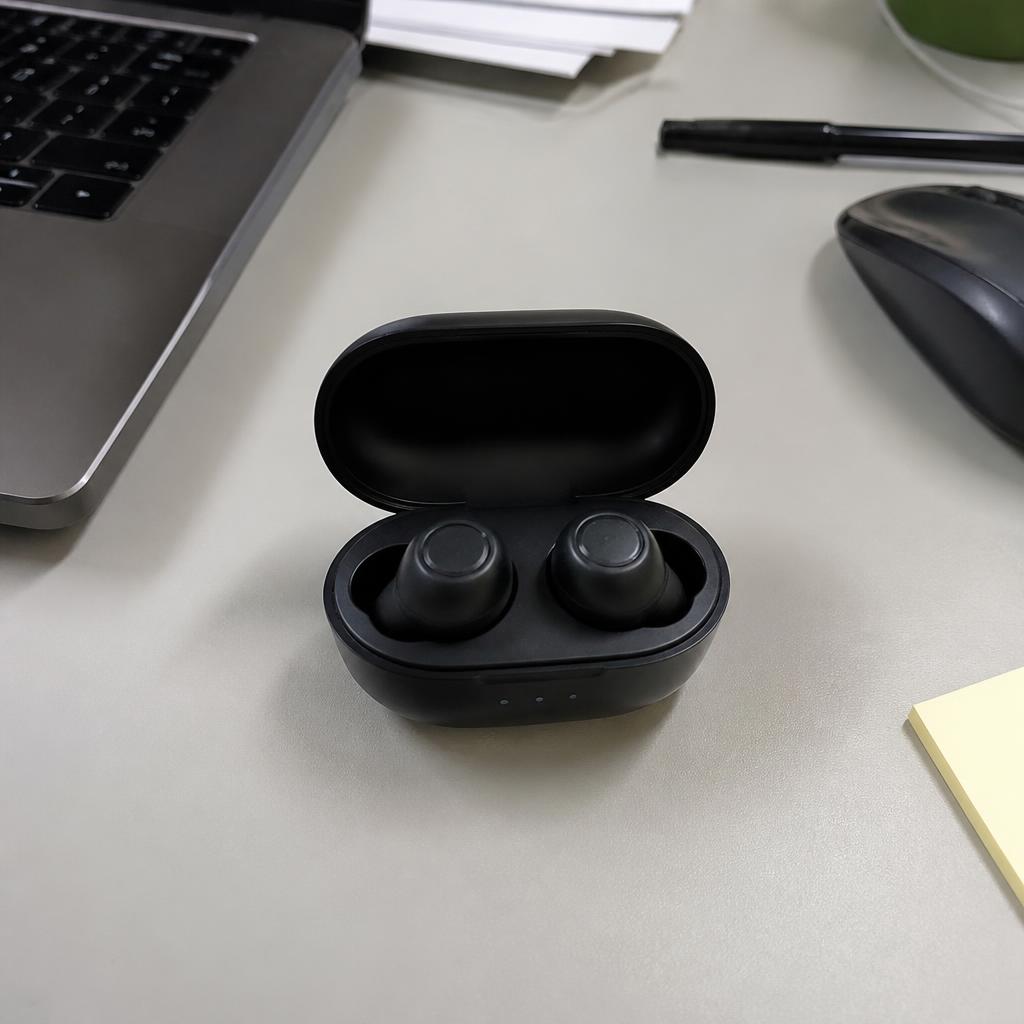
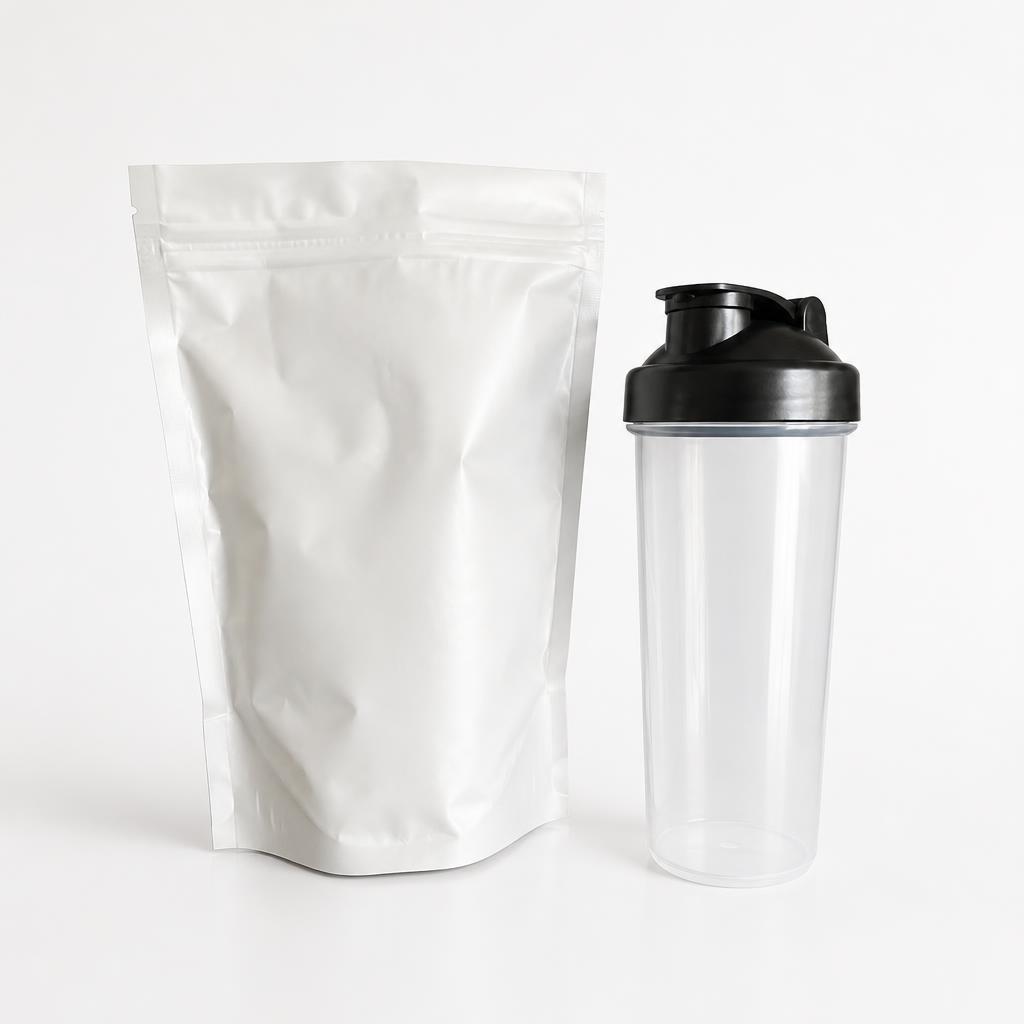
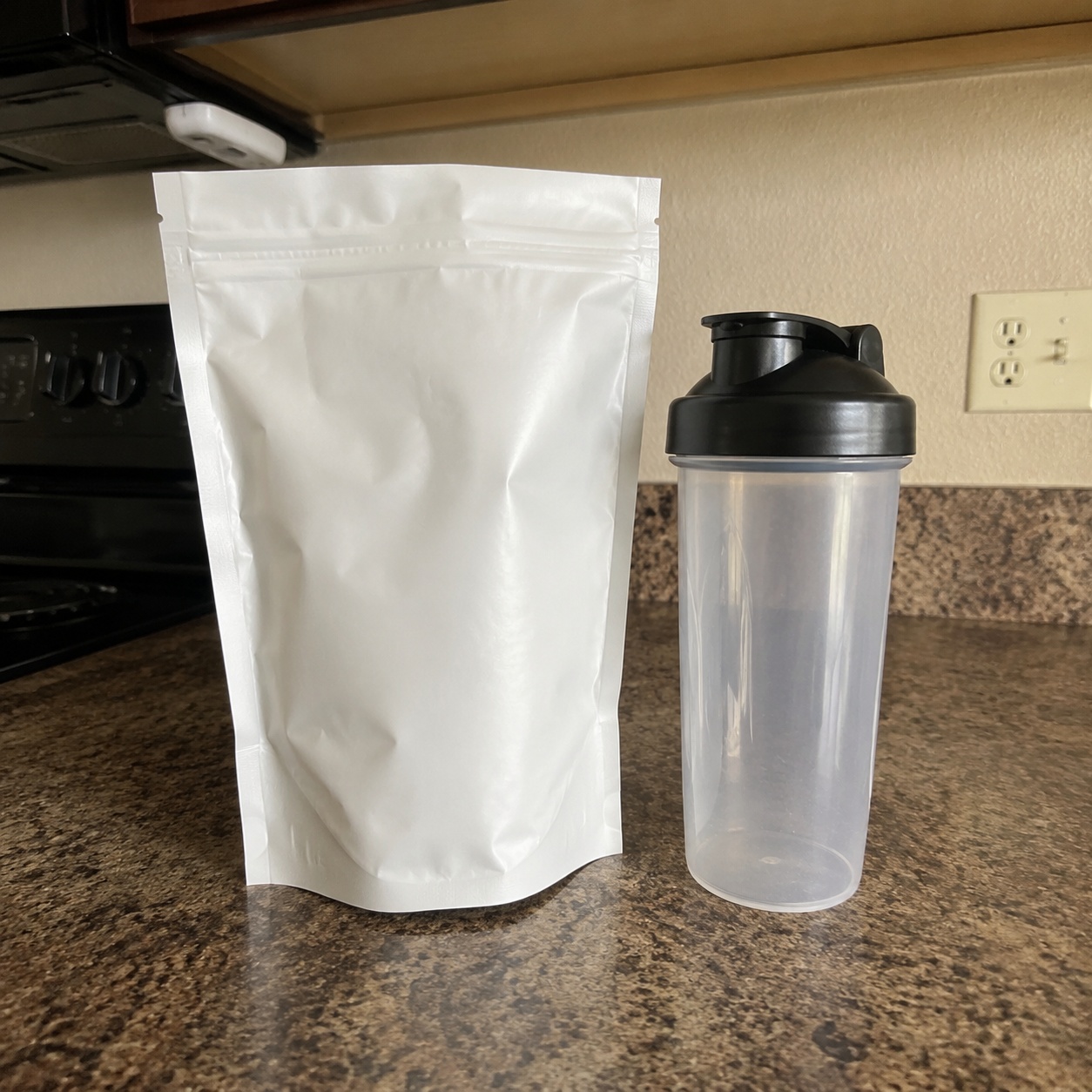
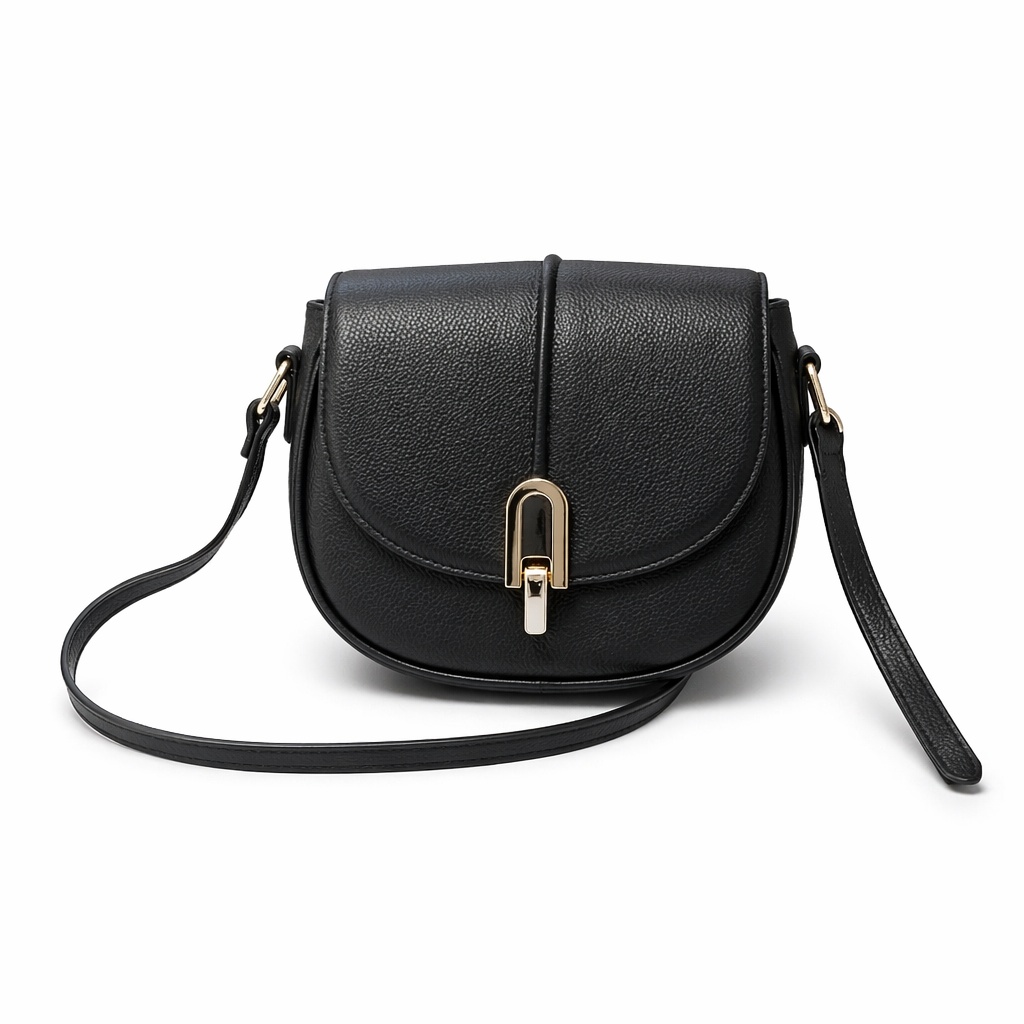
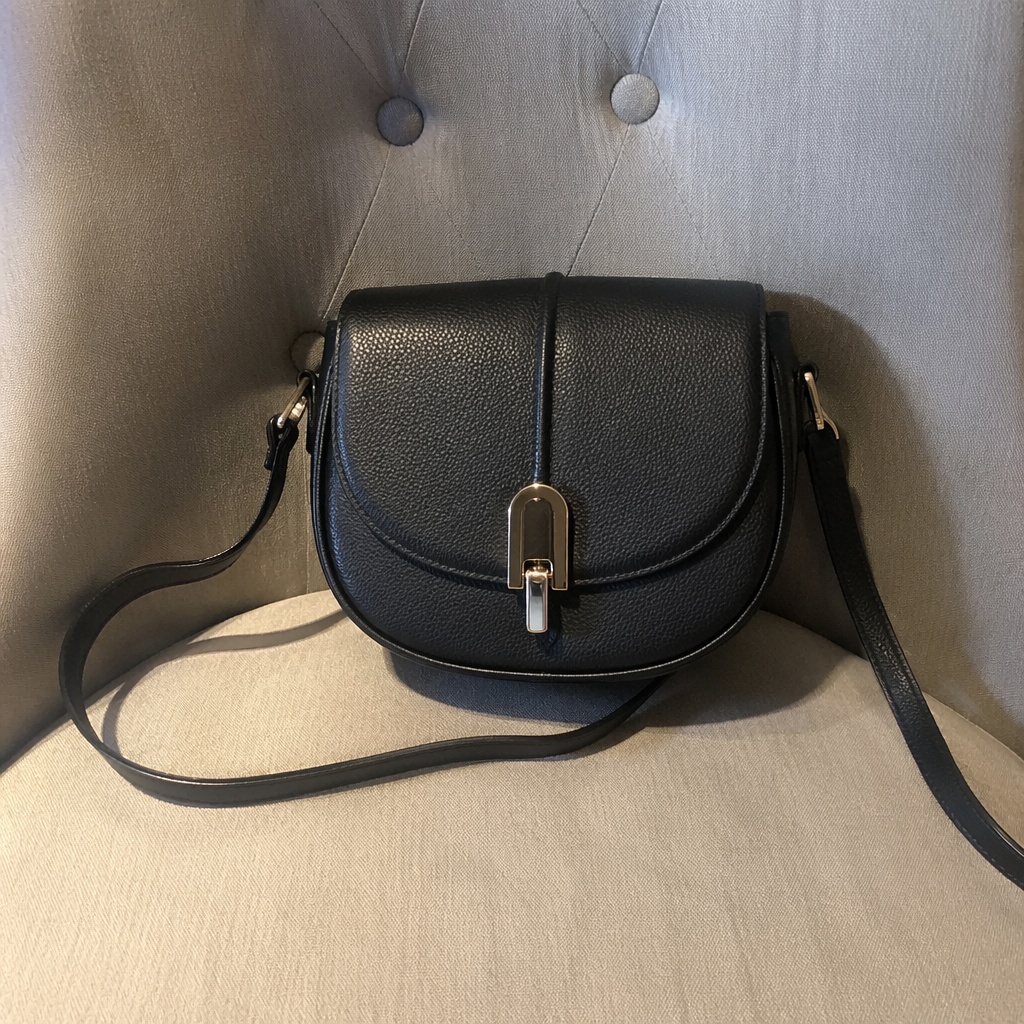
A focused visual base for an Ozon product listing.
A different job: mood, props, lighting and commercial storytelling.
USE CASES
Ozon Photo prioritizes a clean, bright listing image, while Marketplace Photo is designed as a platform-neutral catalog base.
Create a neutral visual base for an Ozon card.
Align scale and spacing across multiple products.
Show included pieces clearly without inventing items.
Bring older mixed source photos into one coherent style.
PRODUCT CREATIVE
Prepare a clean Ozon product image with bright surroundings, balanced centering, a natural shadow and faithful product details. The focus is a clear Ozon listing base rather than broad advertising creative.
Prepare a clean Ozon product image on a bright background. Keep the product unchanged.
Center the item with clear margins and natural perspective.
Add a soft product shadow while preserving original material and color.
Match the scale, background, light and margins of the rest of the series.
FAQ · OZON
Clear boundaries around the task, product accuracy, and what happens after generation.
Ozon Photo emphasizes a bright Ozon listing base; Wildberries Photo emphasizes a fast-to-read primary image. Marketplace Photo remains the neutral catalog option.
No. It prepares the product visual; current platform requirements should be reviewed separately.
The product lock asks the model to preserve visible packaging and markings.
Yes. Use matching scale, margins, background and lighting across the series.
Use the separate Advertising Product Photo page for stronger commercial art direction.
SMARTGENIUSAI · PRODUCT CREATIVE
Create a clean Ozon listing base and verify the product details before publishing.
Guest AI edits are unavailable. A new account created after the offer started gets one successful free edit with any editor tool, including Premium. Further edits require tokens. This is one account-wide attempt, not one per page.
Further AI edits use tokens at the tool rate. Technical failures should not consume a free attempt. Switching project modes does not reset used attempts. Purchased tokens and permanent Premium remain intact; Premium unlocks after a purchase.