
Add a Friend to a Photo with AI
Create a believable shared moment by adding a friend beside you on a walk, at a café, on vacation or during an event.
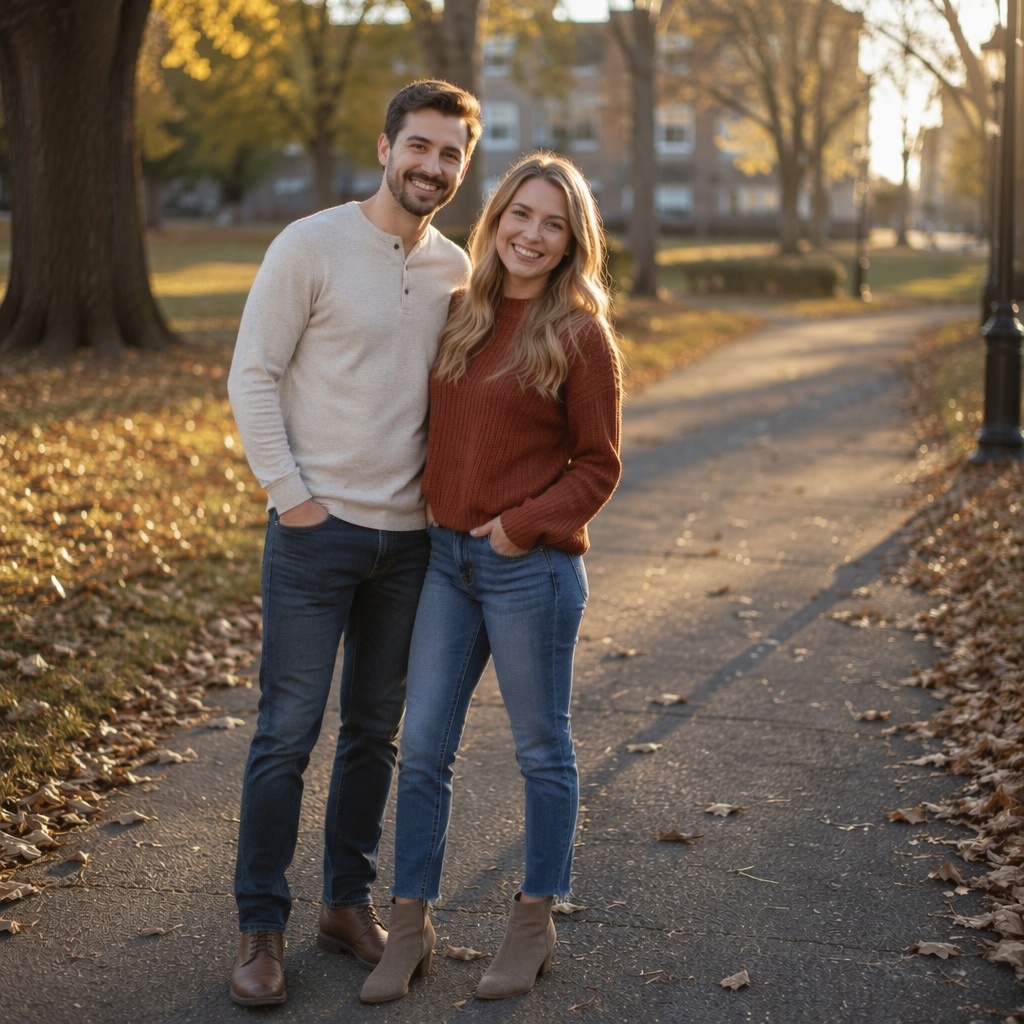
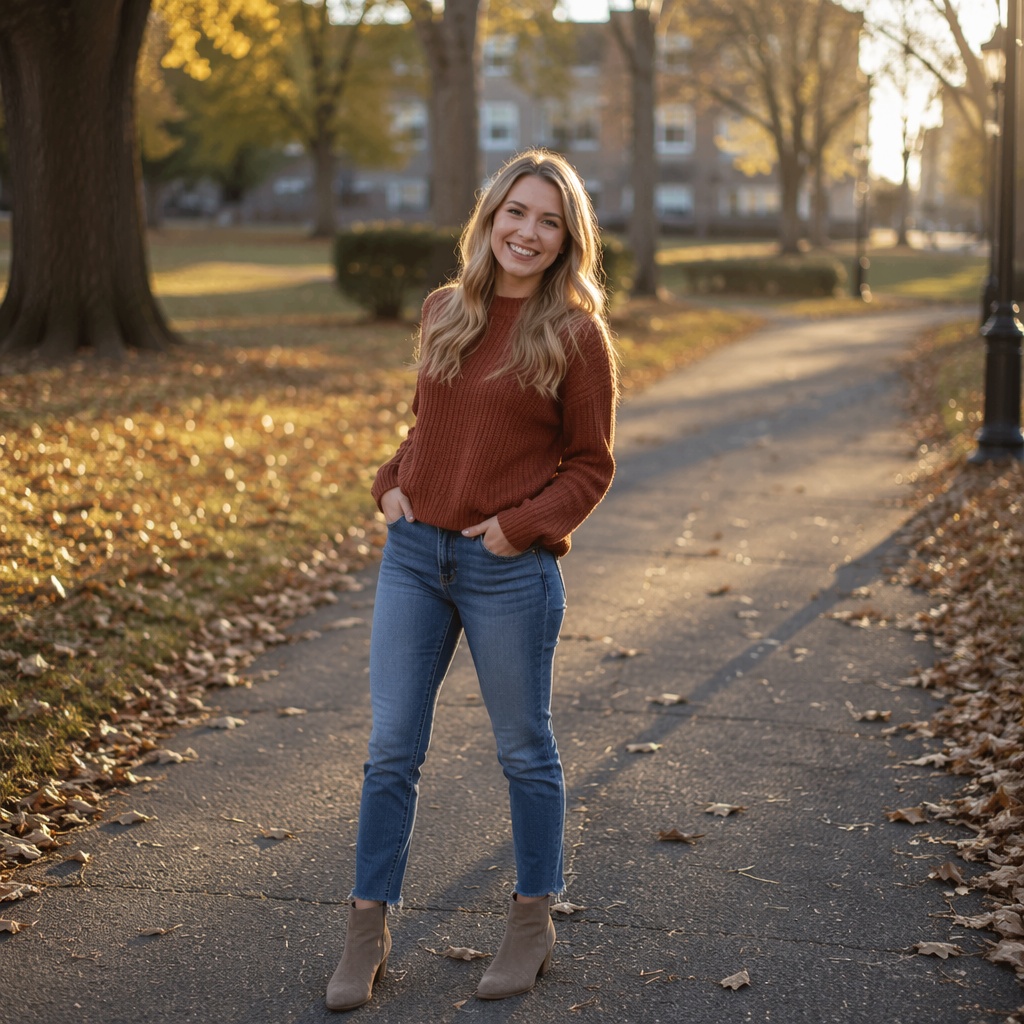
Examples of photos with a friend
Look at spacing, gaze direction, hand placement and shared shadows between both people.
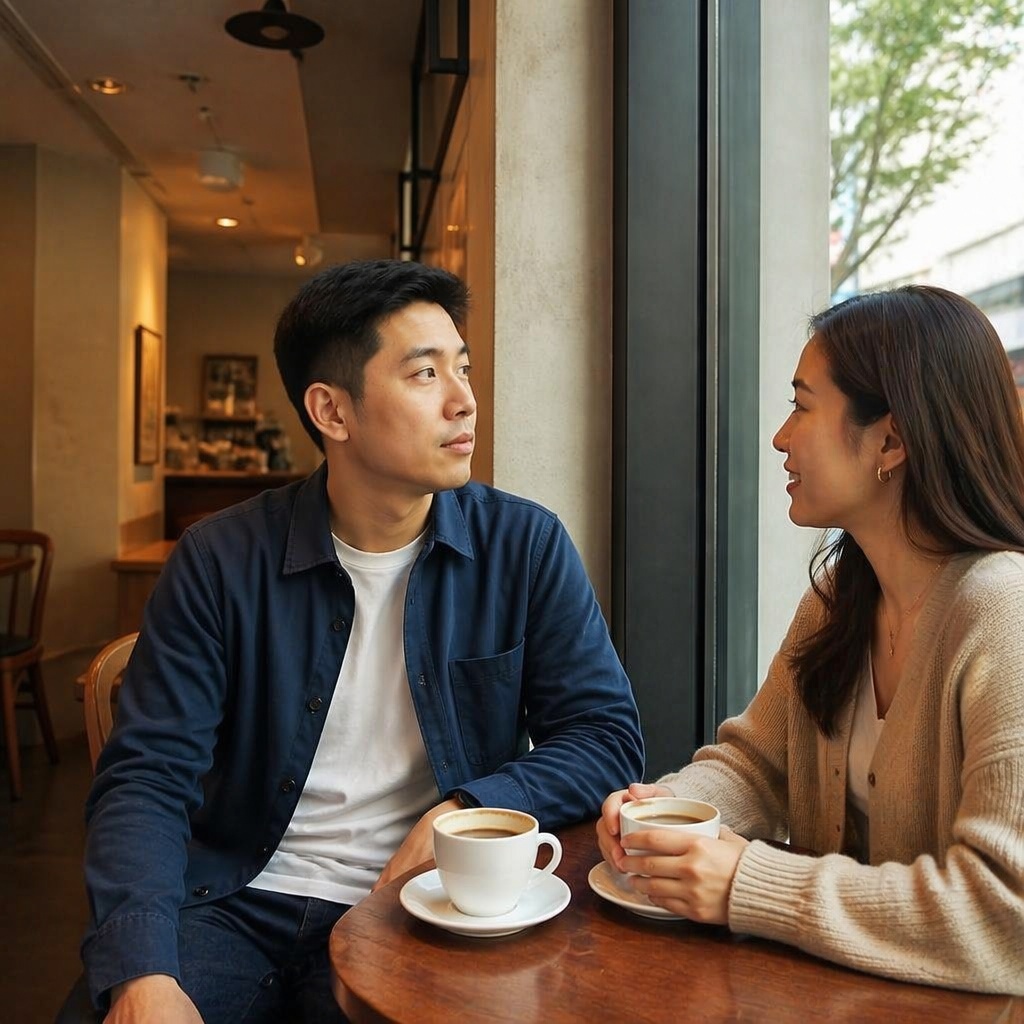
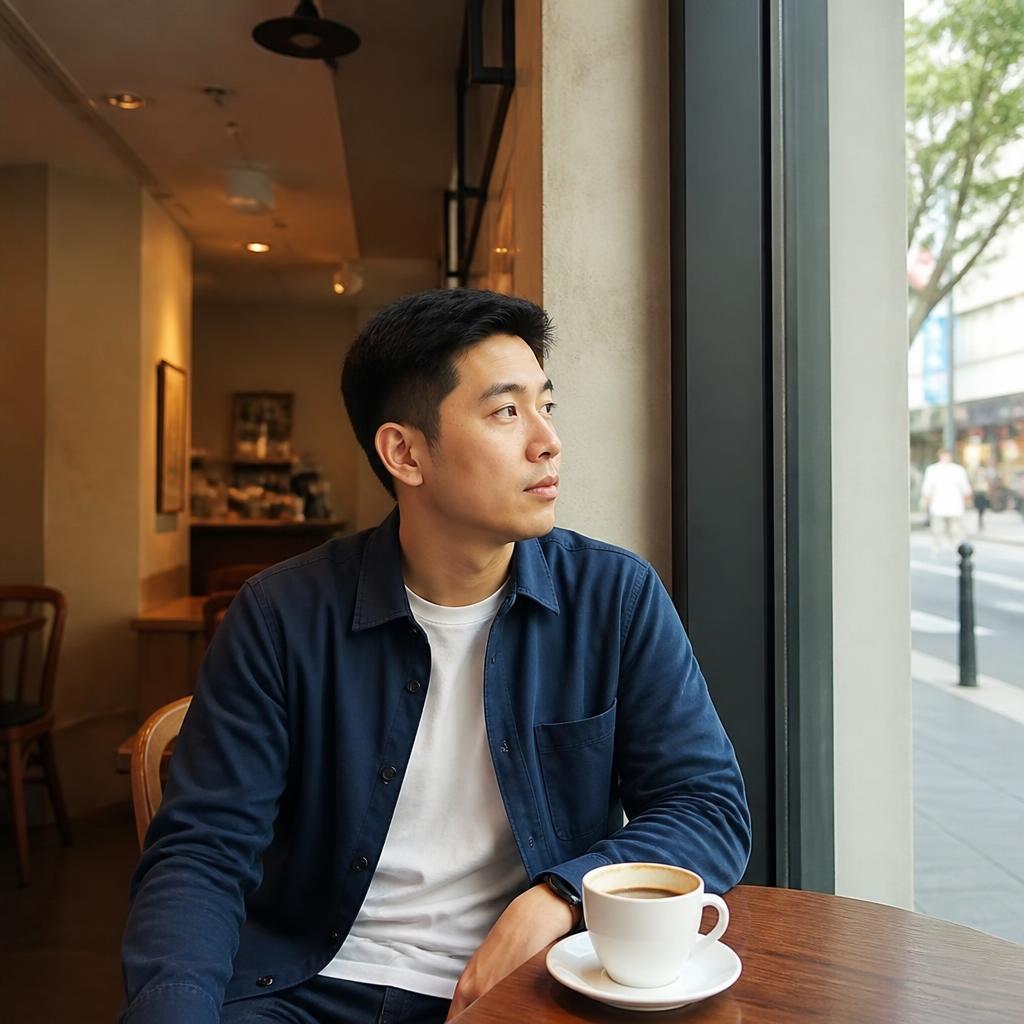






How to create a photo with a friend
Choose a frame with space
The best source image leaves room beside the main subject and clearly shows the ground or seating surface.
Describe the relationship and action
Specify friend, colleague or companion, and whether they should stand, walk, sit or pose.
Check how the people connect
Review hands, shoulders, eye direction, relative height and any overlapping body parts.
Why a shared photo needs visual connection
In a friendly scene, incorrect spacing, disconnected gazes or awkward hands are noticed immediately.
AI needs to understand the shared action: walking requires matching direction and pace, while posing requires coordinated body placement.
How to prepare the image
Leave open space beside the main subject and avoid cropping feet when both people should stand full length.
For seated scenes, make sure the chair, sofa or table edge is visually clear.
State whether both people should look at the camera, at each other or in the same direction.
Before publishing, zoom in and check the practical details: edges, face consistency, texture, shadows and whether the final image still matches the original camera perspective.
Details of a natural shared moment
The strongest results make both people share the same action, lighting and physical space.
Useful scenarios
Walking photos
Add a friend to an urban, park or travel image.
Events and celebrations
Create a shared photo for a birthday, meeting or occasion.
Social media
Build a lifestyle scene for a post, cover image or story.
Shoot planning
Preview pose and placement before a real photo session.
A shared image without another photo shoot
Manual compositing
You must cut out a person, adjust pose, lighting, color and contact shadows separately.
SmartGeniusAI
Builds a unified scene and lets you test several placements quickly.
What can make the result look artificial
Prompt ideas for friend photos
Prompt idea 1
Add an adult female friend beside the main subject, both standing naturally and looking at the camera.
Prompt idea 2
Add an adult male friend walking beside the subject in the same direction and pace, matching motion and light.
Prompt idea 3
Add a friend seated across the table, matching pose, scale and indoor lighting.
Prompt idea 4
Add an adult friend beside the subject for a relaxed vacation photo, keeping natural body language and spacing.
Frequently asked questions
Can I add a full-body friend beside me?
Yes, but the original frame needs enough open space and a visible surface for both people to stand on.
Can the people hug?
You can request a light friendly hug, but complex arm overlap needs careful review.
How do I preserve the original face?
Use a clear source image and explicitly ask to keep the main subject’s face, clothing and pose unchanged.
Does it work for a walking photo?
Yes. Describe the walking direction and ask for the new person to match the same pace.
Why do the people look photographed at different times?
Check color temperature, sharpness and light direction. A simpler source image may also help.
Can I continue editing afterward?
Yes. You can adjust background, lighting or quality with separate tools after adding the friend.
Create a photo with a friend
Upload your image and add a friend or companion to a natural shared scene.
AI processing terms
What is free and when do I need an account?
Guest AI edits are unavailable. A new account created after the offer started gets one successful free edit with any editor tool, including Premium. Further edits require tokens. This is one account-wide attempt, not one per page.
How do I pay for further edits?
Further AI edits use tokens at the tool rate. Technical failures should not consume a free attempt. Switching project modes does not reset used attempts. Purchased tokens and permanent Premium remain intact; Premium unlocks after a purchase.