
Add a Person to a Photo with AI
Place a new person into a portrait, travel photo, advertising image or social scene. AI adjusts scale, perspective, lighting and shadows to match the original frame.
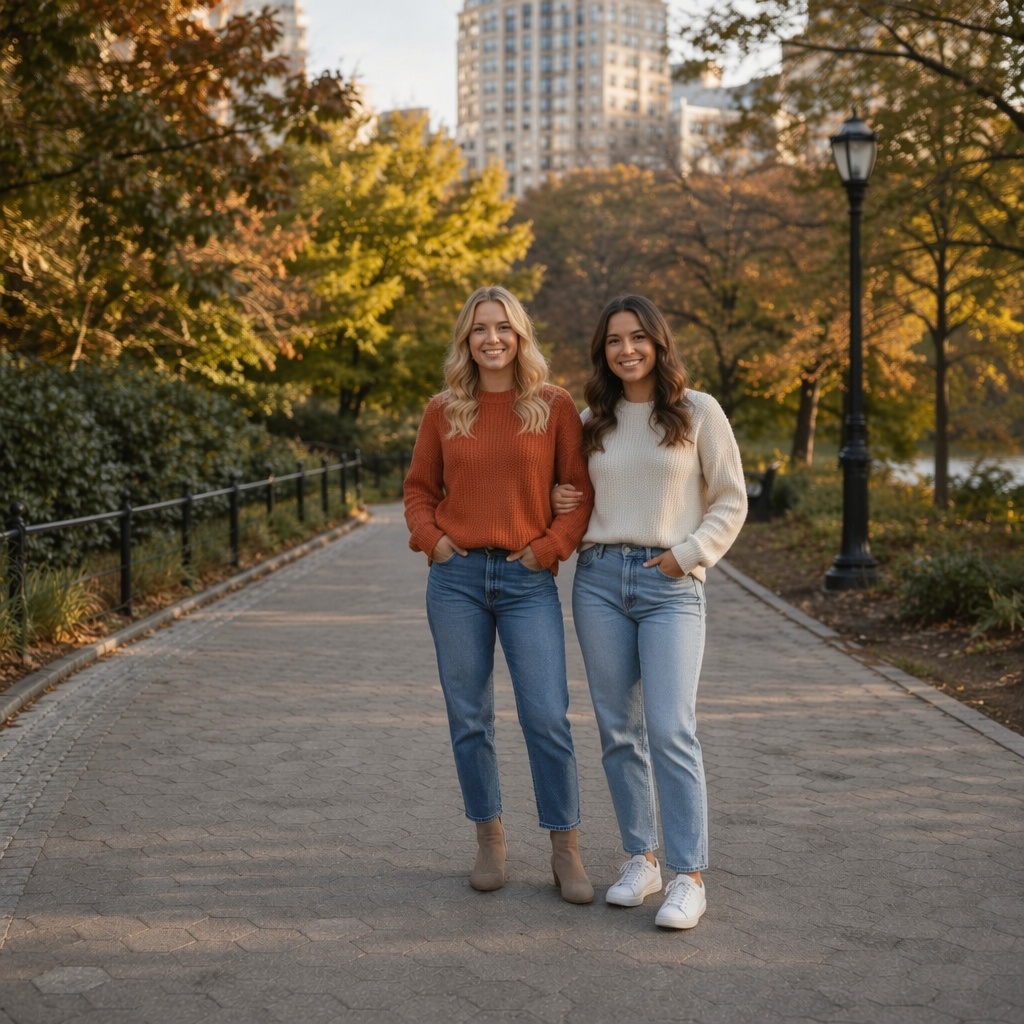
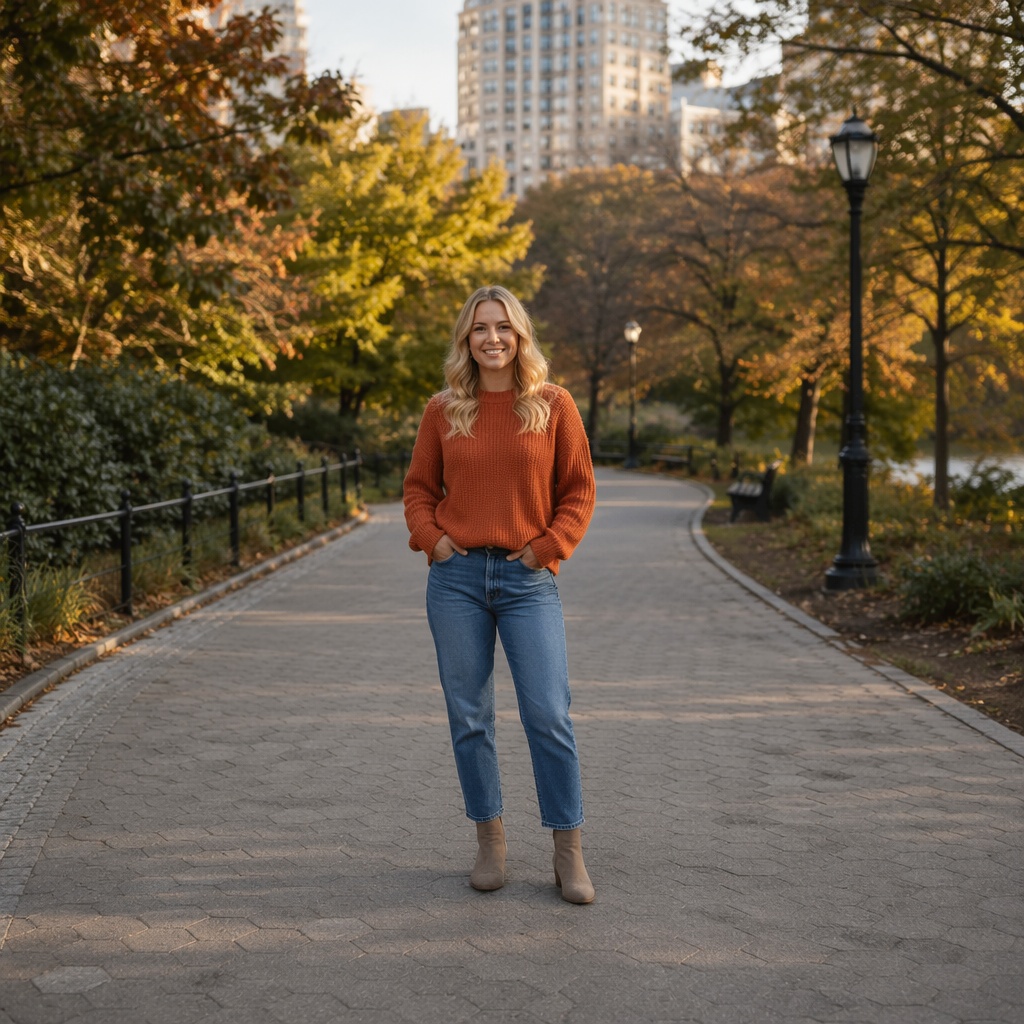
Examples of adding a person to a photo
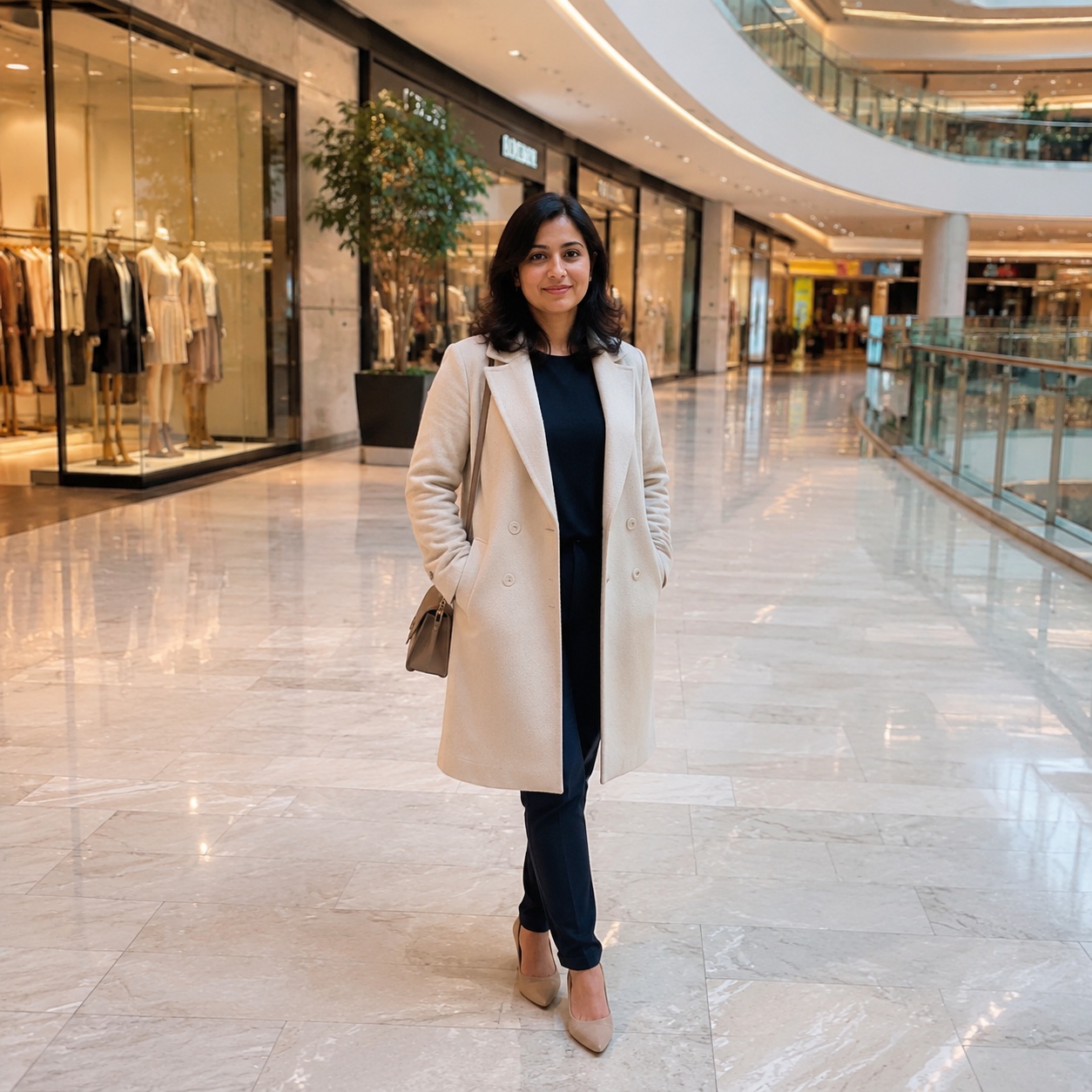
Compare the original and edited frames. The added subject should match the scene in size, camera angle, focus and lighting.
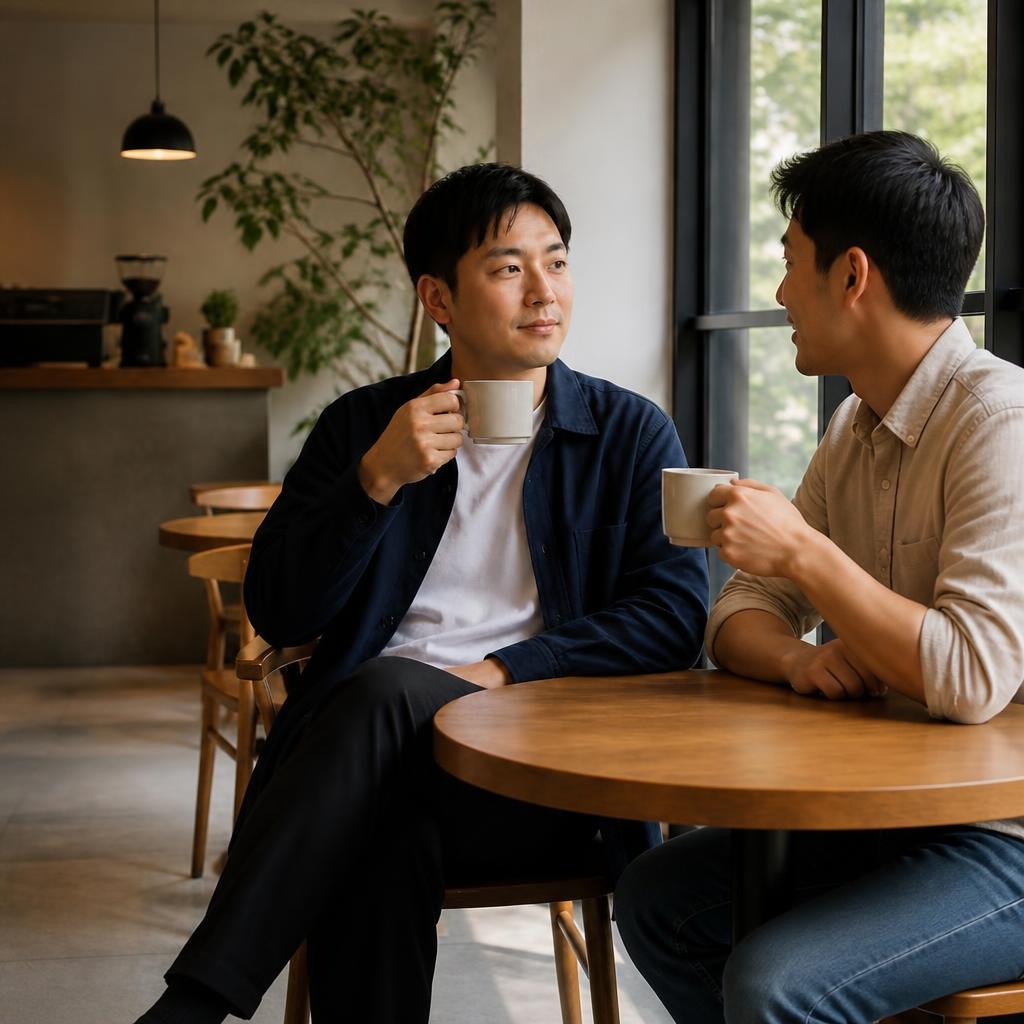
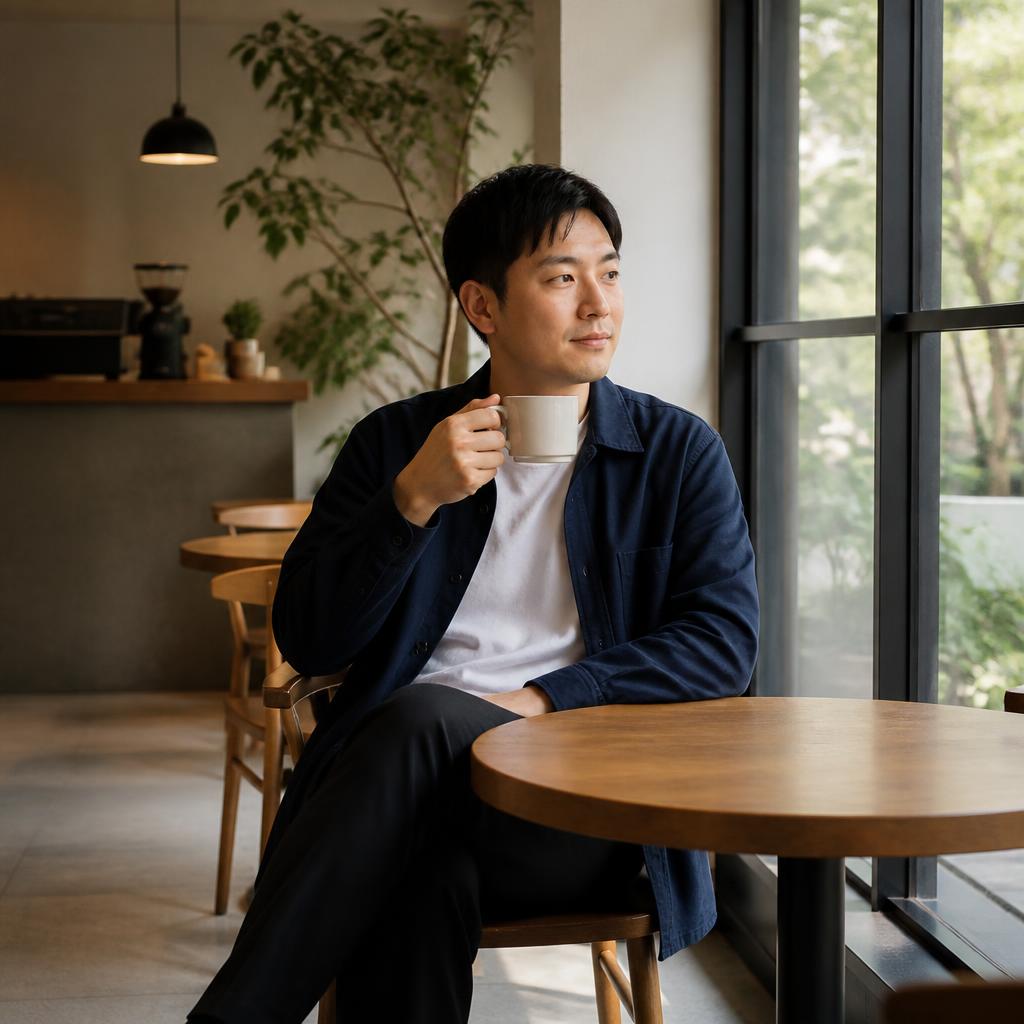

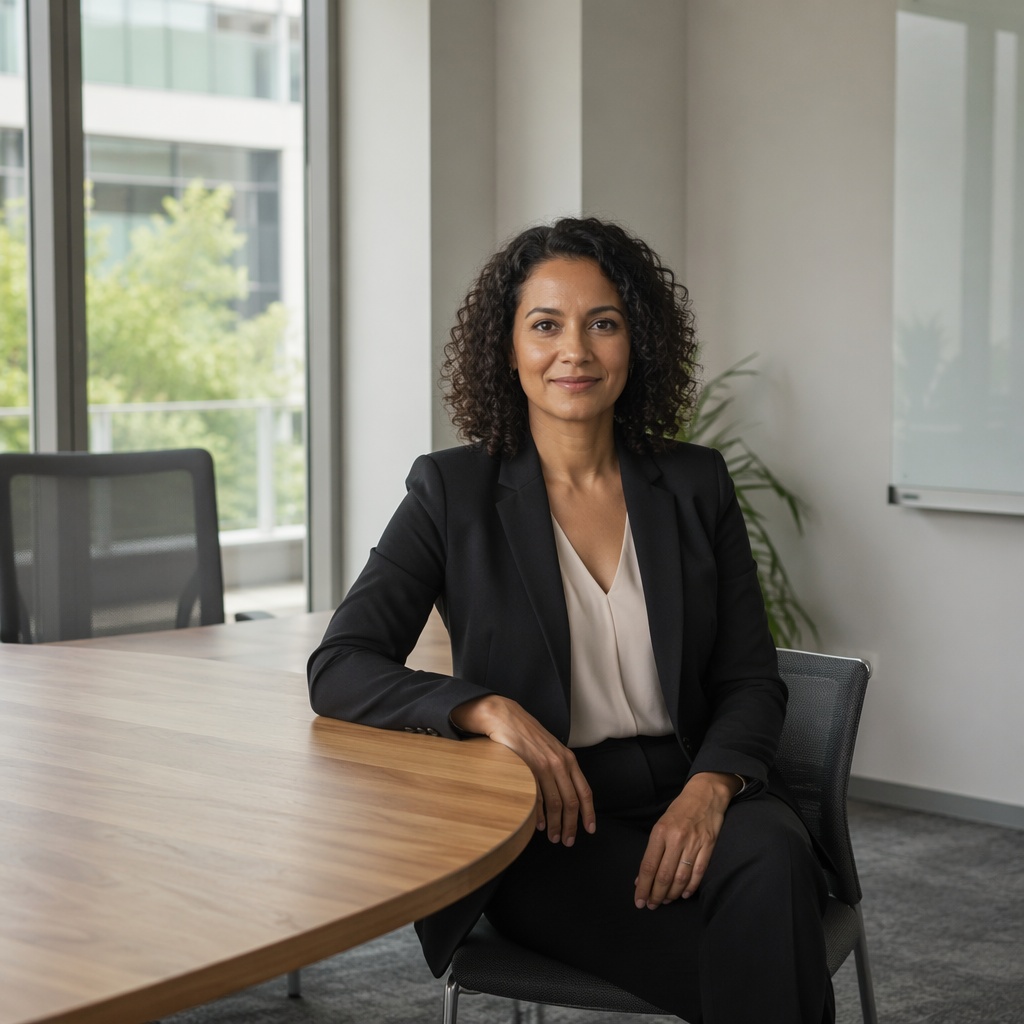
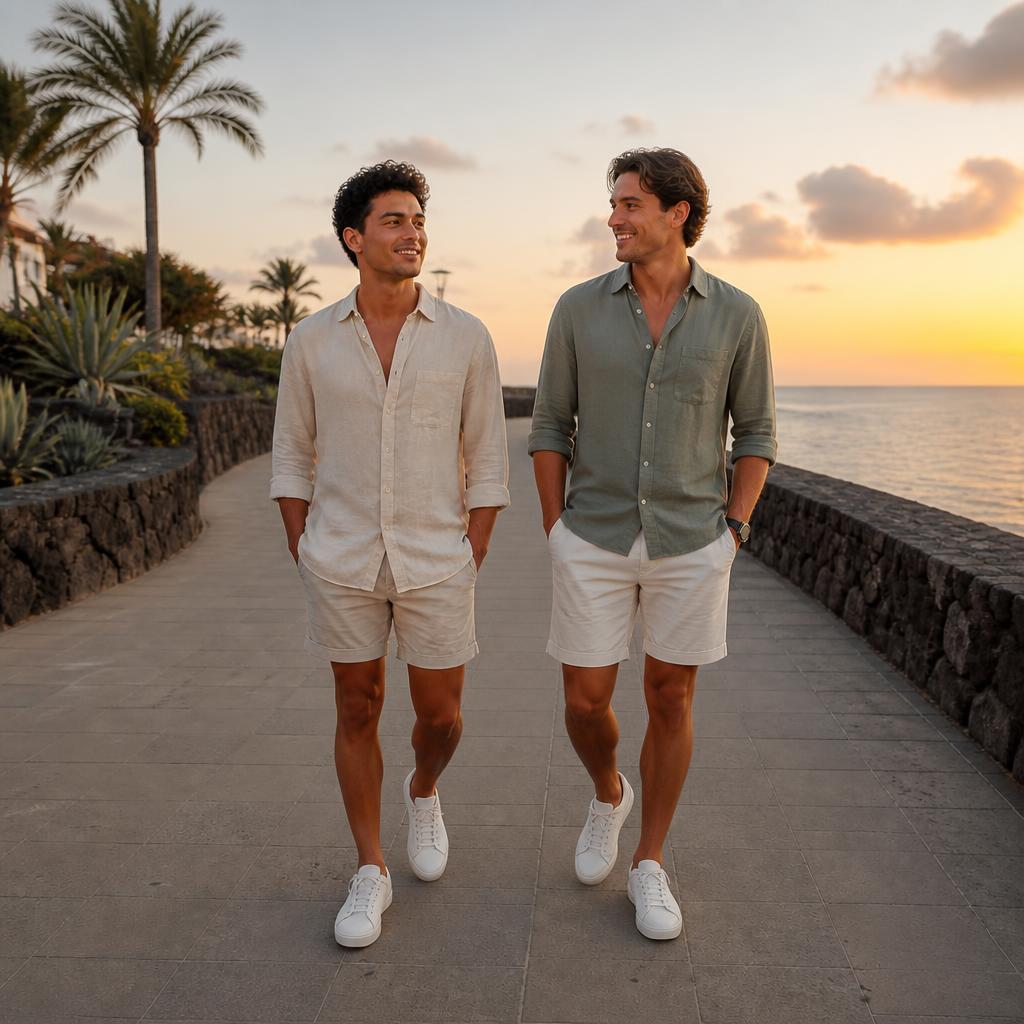
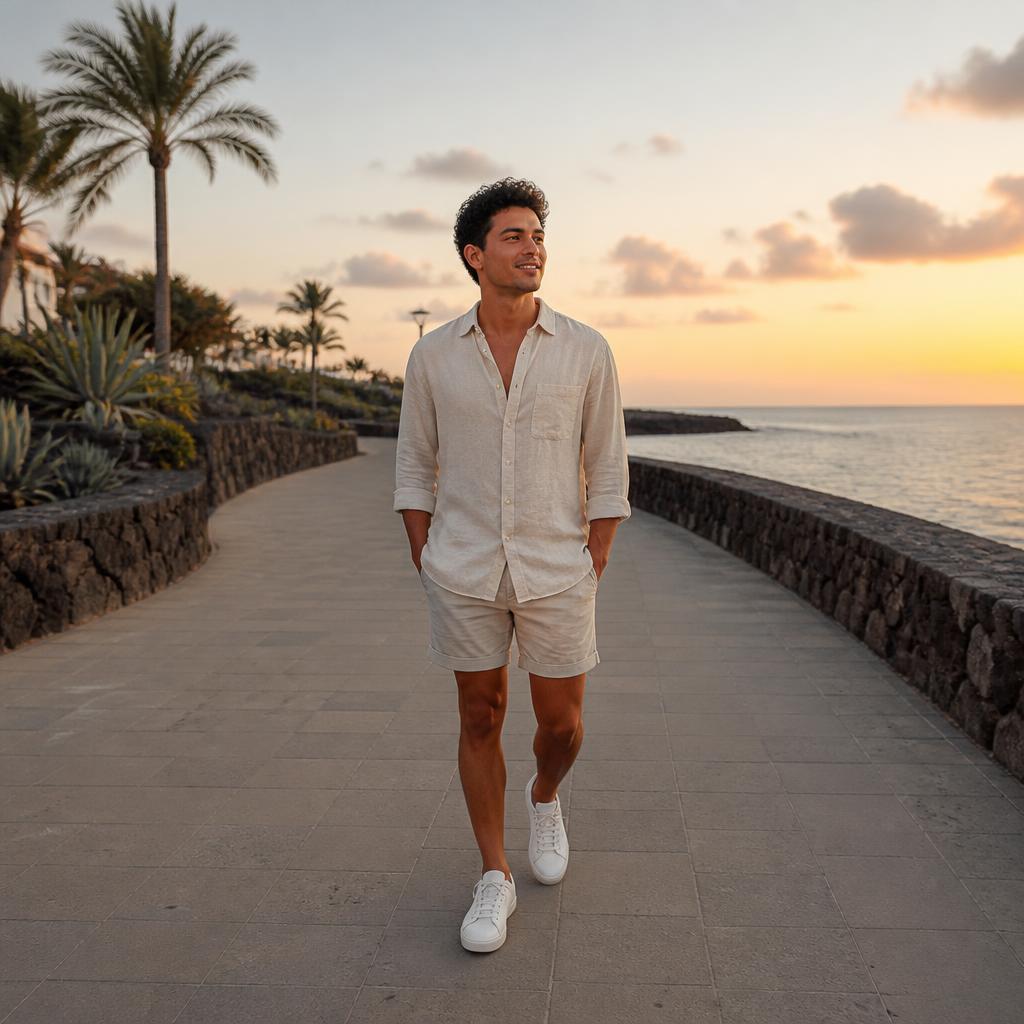
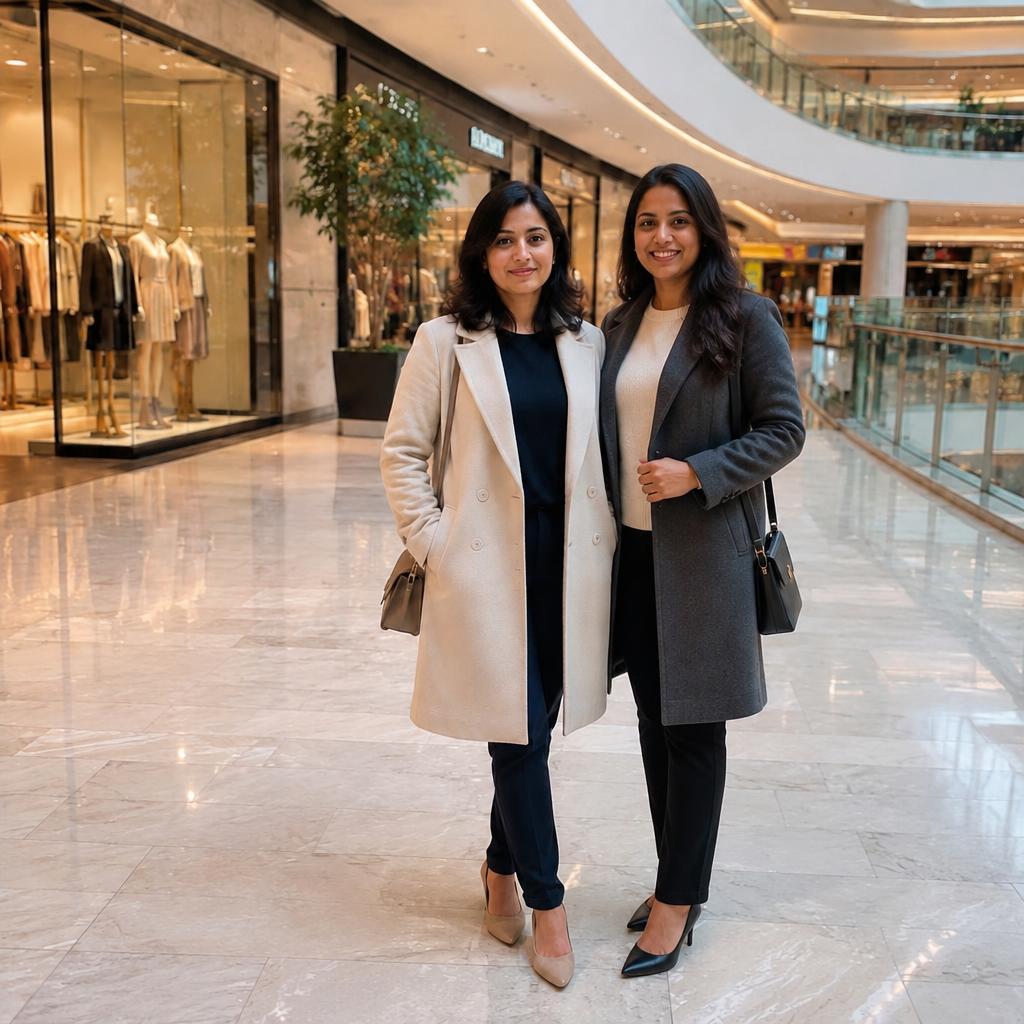
How to add a person to your photo
Upload a suitable image
Choose a frame with enough open space and clear visual cues for perspective, lighting and object scale.
Describe the new subject
Specify gender, approximate age, clothing, position and action. A precise request produces a more controlled composition.
Inspect the interaction
Zoom in and check shadows, overlaps, feet placement, sharpness and gaze direction before downloading.
How AI blends a new person into the scene
The editor does more than paste a cutout over the image. It analyzes available space, camera perspective, object size and the direction of light.
A foreground subject should appear larger and sharper, while someone farther away needs softer detail and a smaller scale. Contact points, limbs and shadows are especially important.
How to prepare the source photo
Leave enough visual space where the person should appear. A tightly cropped portrait offers fewer natural placement options.
Avoid heavy blur and blown highlights. Clear scene geometry helps AI match perspective, scale and depth of field.
For a complex edit, add the person first and change background, clothing or color in separate steps.
Before publishing, zoom in and check the practical details: edges, face consistency, texture, shadows and whether the final image still matches the original camera perspective.
What makes the result believable
Realism depends on more than the face. Scale, contact shadows, ground placement and object overlap usually reveal a poor composite first.
Common use cases
Shared photos
Add someone to an existing image when arranging a new shoot is not possible.
Ads and landing pages
Create a scene with a person for banners, presentations or promotional materials.
Social media content
Build a more engaging story for a post, cover image or campaign creative.
Concept testing
Preview a composition before investing in a full photo shoot or manual retouching.
AI placement instead of manual compositing
Manual editing
Requires cutting out a subject, scaling, masking, color matching and manually building realistic shadows.
SmartGeniusAI
Generates a unified scene in one workflow, leaving you to review details and choose the strongest version.
Source images to avoid
Prompt ideas
Prompt idea 1
Add an adult person beside the main subject, matching natural scale, camera perspective and light direction.
Prompt idea 2
Place a person in the available space without covering faces or important details in the original image.
Prompt idea 3
Add an adult person in the background and match depth of field, color and scene sharpness.
Prompt idea 4
Add a person to the advertising image while preserving the product, composition and visual identity.
Frequently asked questions
Can I add a specific person I know?
For stronger resemblance, use a separate reference image when the editor supports it. Review facial features carefully before publishing.
Where should the new person be placed?
Leave a clear area and describe the position, such as left, right, in the background or beside the main subject.
Why does the person look too large or too small?
Complex perspective or missing scale cues can cause this. Try another source image and describe the position relative to nearby objects.
Will the original subject remain unchanged?
The workflow aims to preserve the source image, but small details around the edited area may change. Always compare with the original.
Does it work on mobile?
Yes. You can upload a photo from your phone and continue in the online editor.
What should I check after generation?
Inspect hands, feet, clothing edges, shadows and overlaps, then use correction or enhancement if needed.
Add a person to your image
Upload a photo, describe the new subject and compare the generated result with the original.
AI processing terms
What is free and when do I need an account?
Guest AI edits are unavailable. A new account created after the offer started gets one successful free edit with any editor tool, including Premium. Further edits require tokens. This is one account-wide attempt, not one per page.
How do I pay for further edits?
Further AI edits use tokens at the tool rate. Technical failures should not consume a free attempt. Switching project modes does not reset used attempts. Purchased tokens and permanent Premium remain intact; Premium unlocks after a purchase.