
AI Group Photo Editor
Add a missing person to a family, team, school or event photo and place them naturally among the existing group.
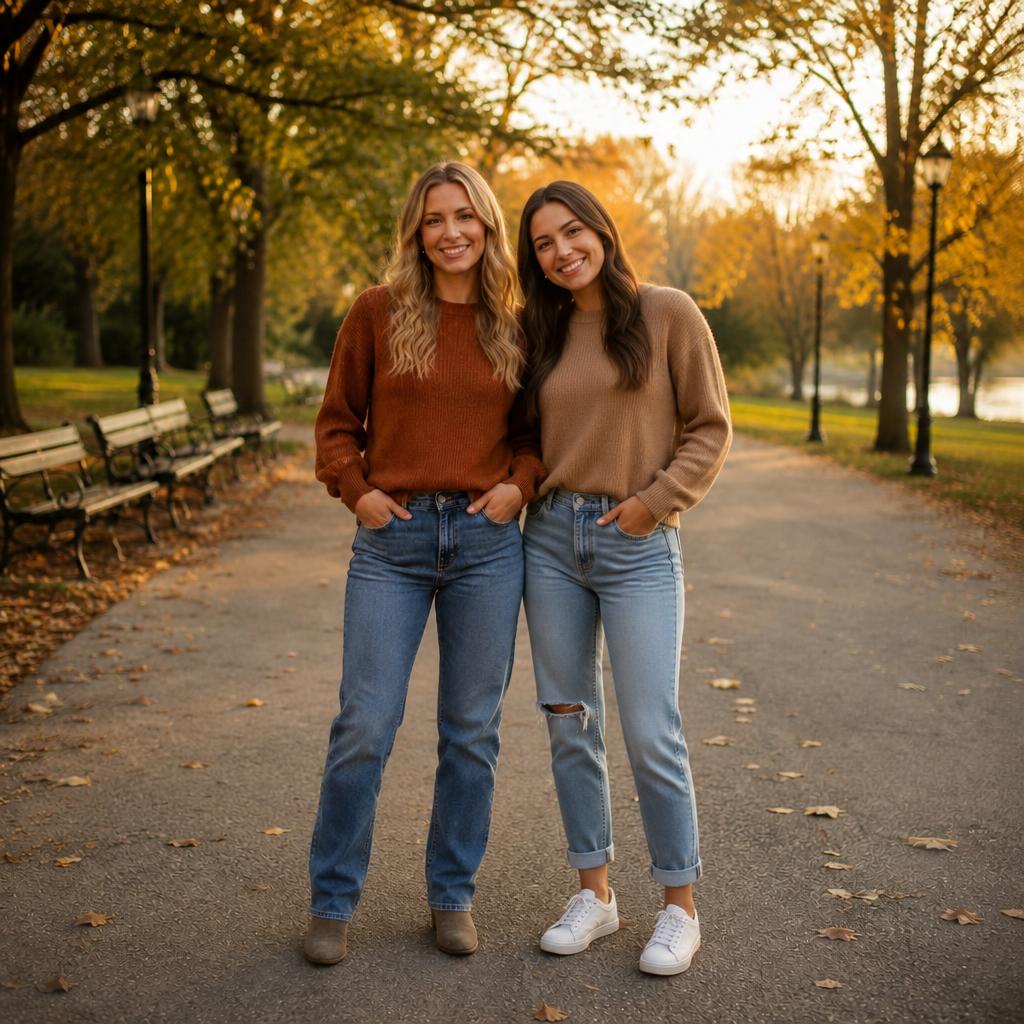
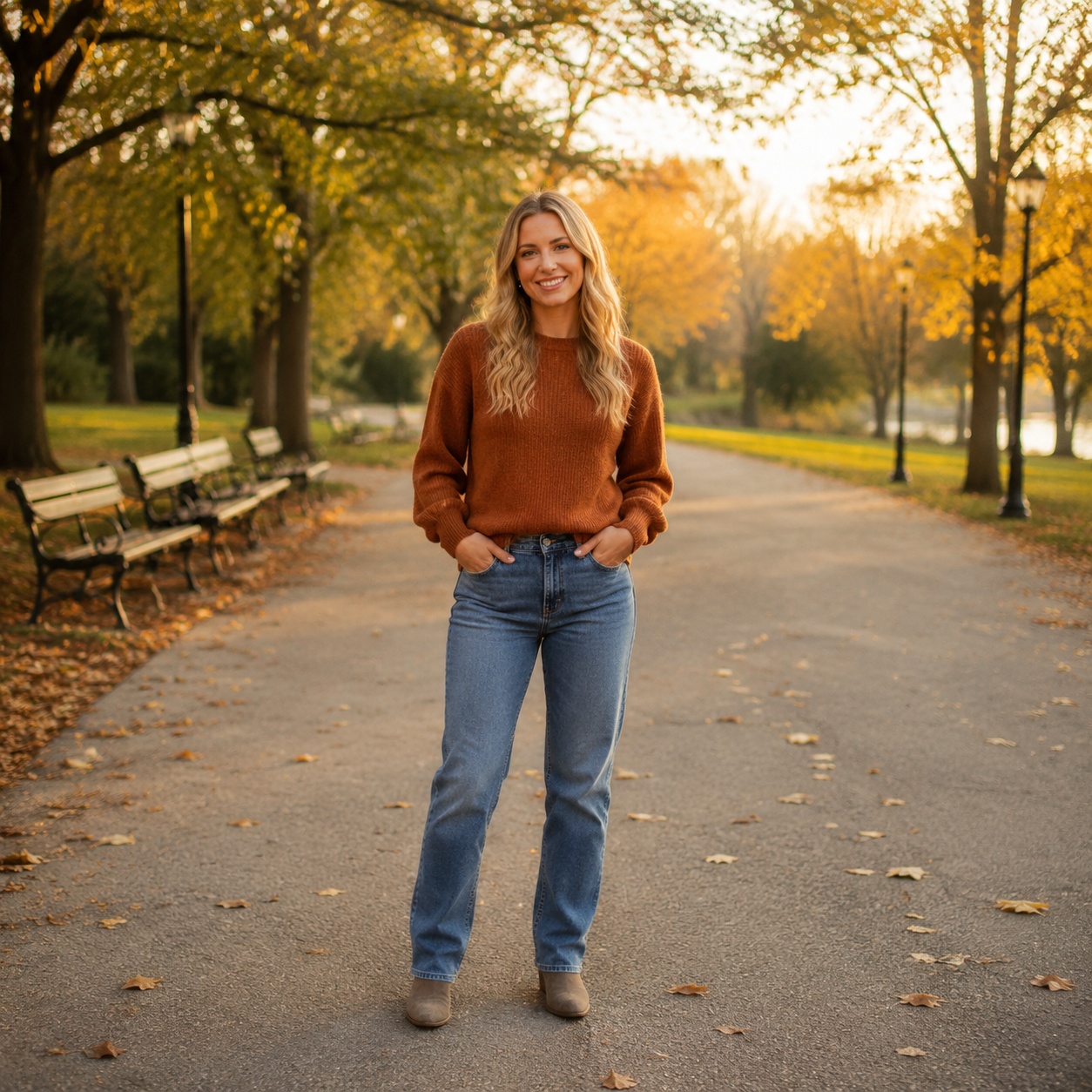
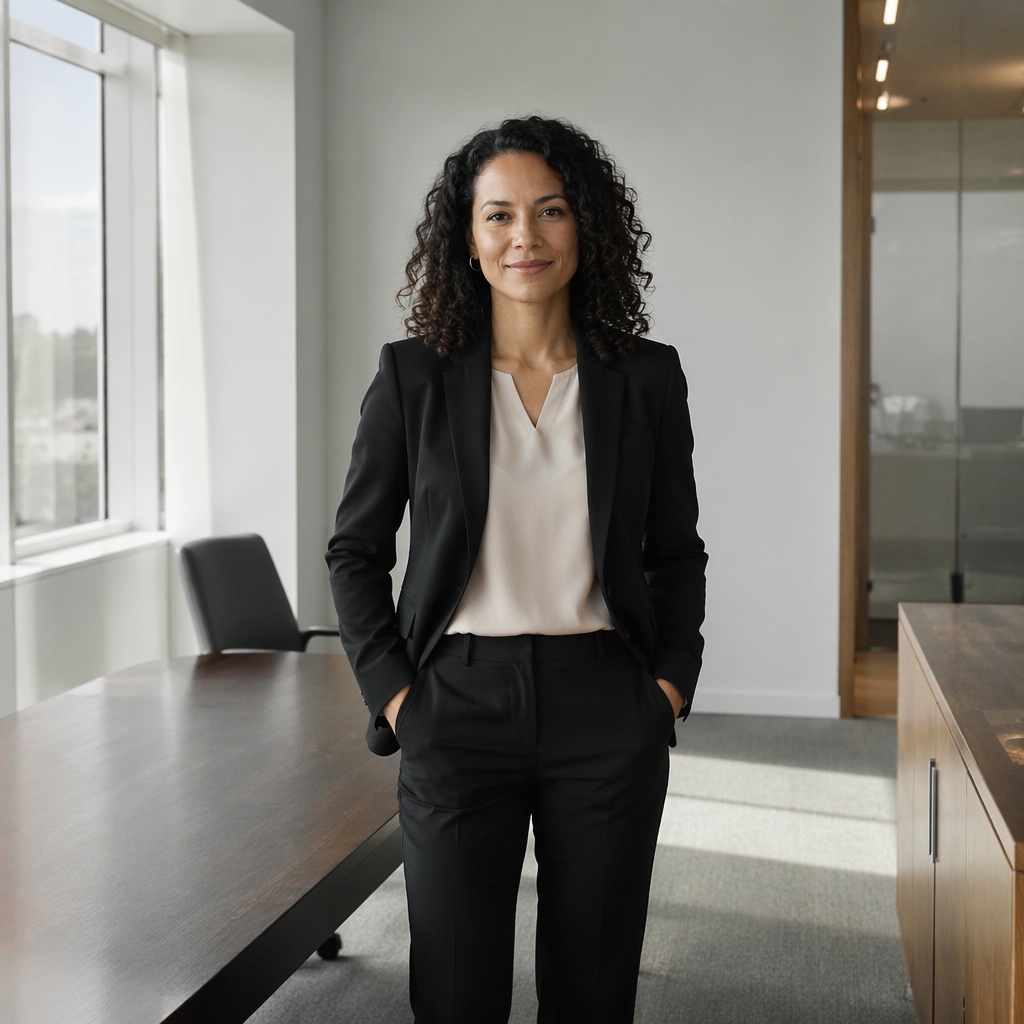
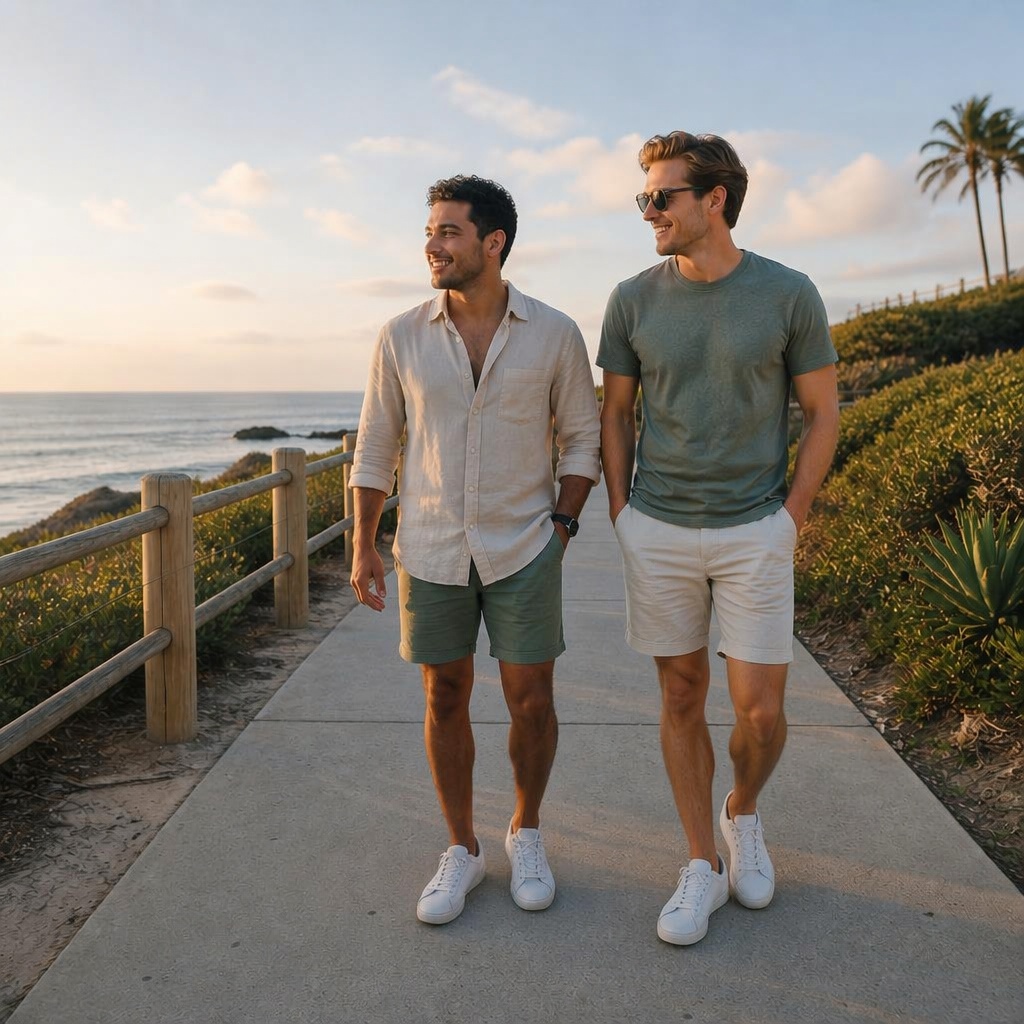
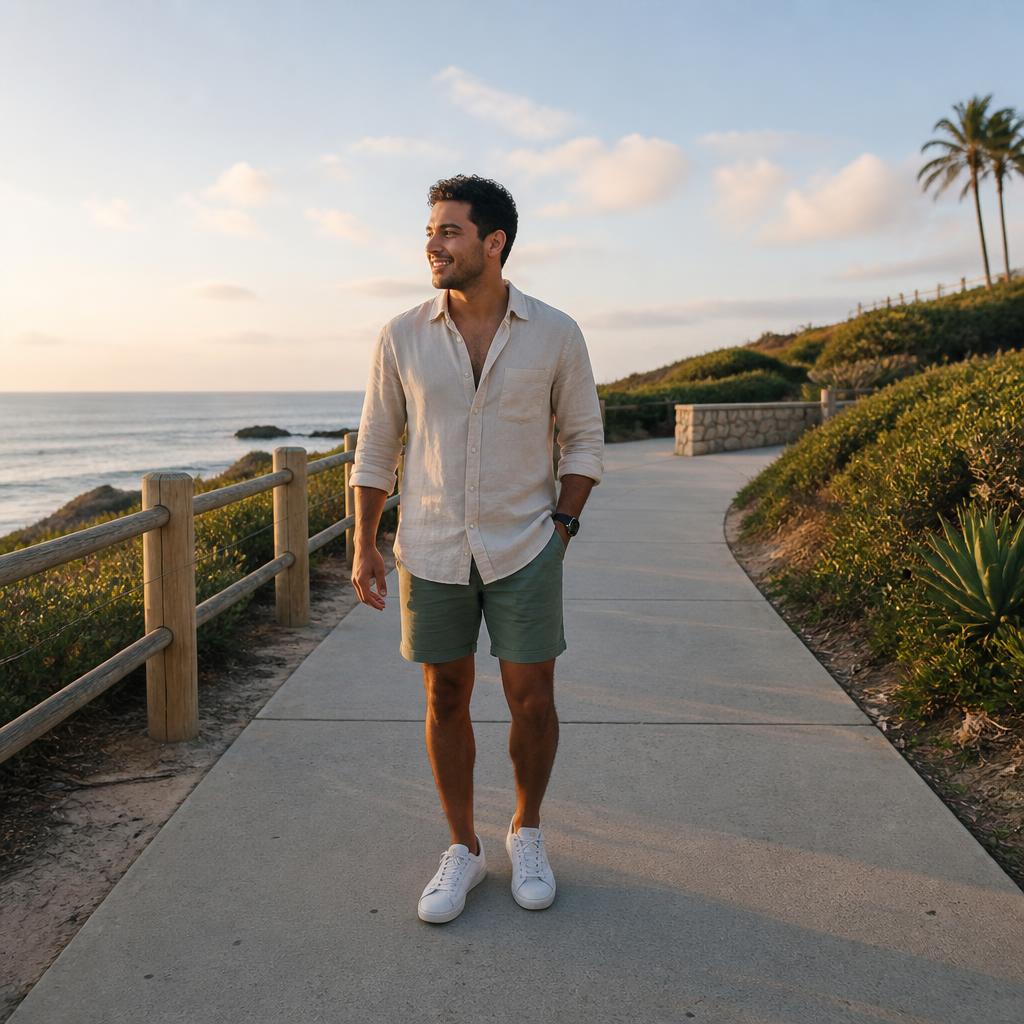
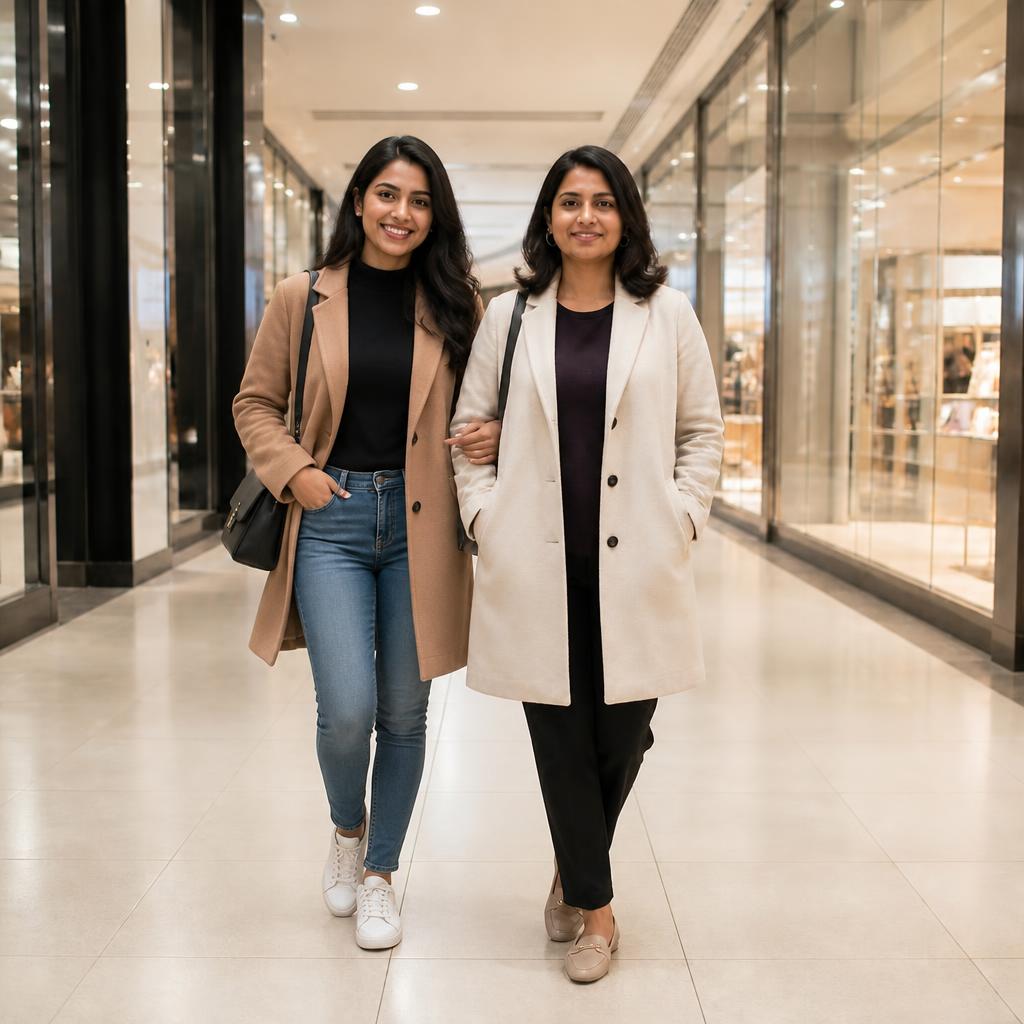
Group photo editing examples
Check how the new member fits the lineup, relative scale, body pose and shared lighting.
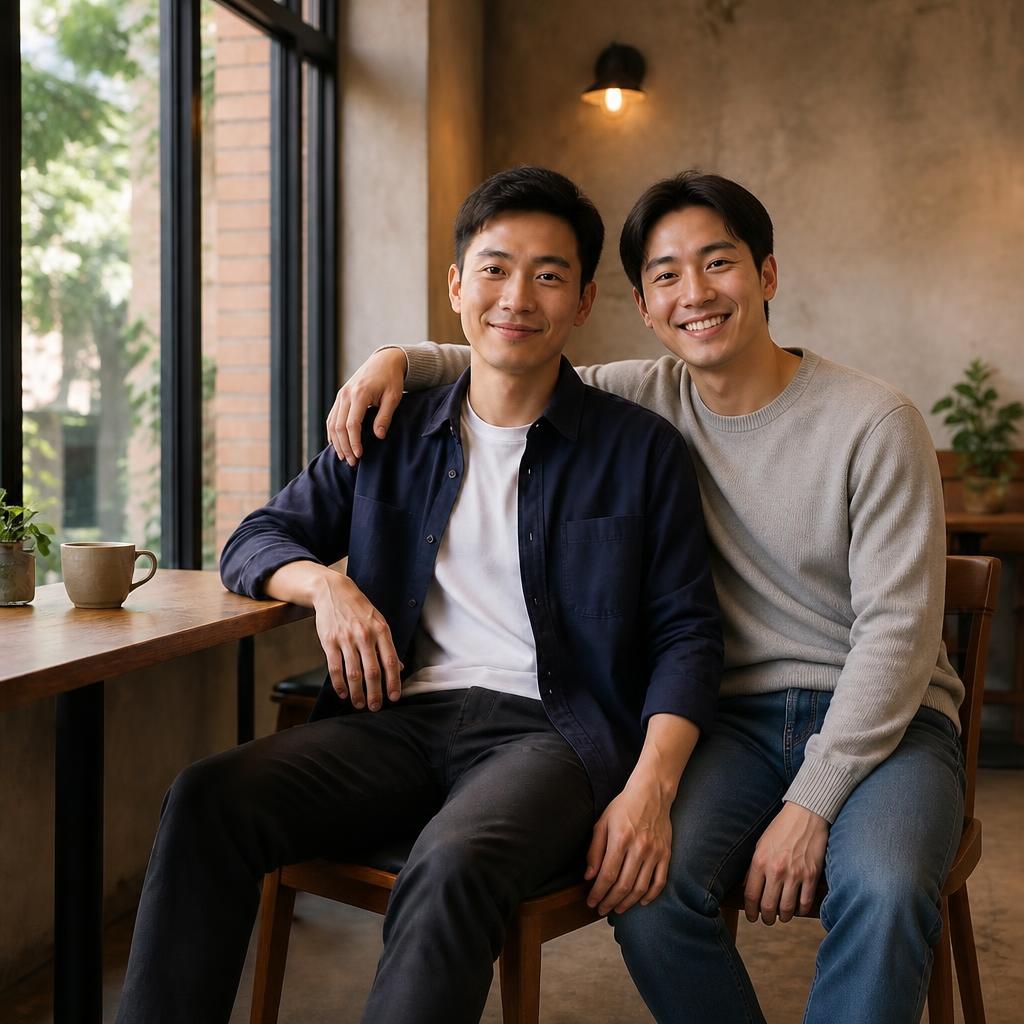
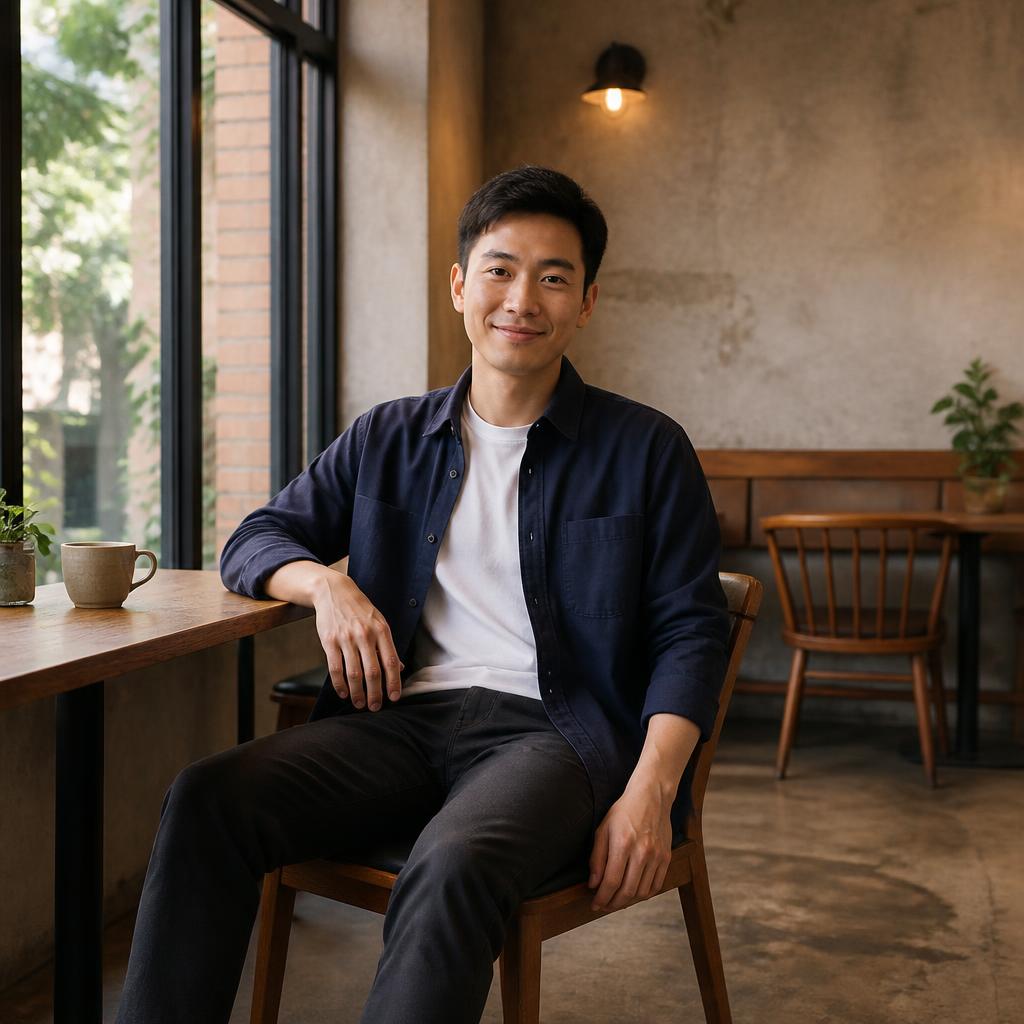

How to add someone to a group photo
Choose a readable group layout
The best image clearly shows feet, seats or shoulder rows and leaves some open space among participants.
Define the exact position
Describe the row, side, nearby person and approximate height of the new member.
Review every participant
Make sure faces, hands, clothing and outlines near the edited area remain intact.
What matters in group photo editing
A group image is more demanding than a single portrait because AI must preserve many faces while inserting a new participant.
Key cues include row alignment, spacing, ground line, relative height and natural overlap. A precise placement request improves consistency.
How to prepare the group photo
Use an image with enough resolution to inspect individual faces after zooming in.
Choose a gap in the lineup; inserting a person into a tightly packed group increases distortion risk.
Explicitly ask to preserve the faces and clothing of existing participants.
Before publishing, zoom in and check the practical details: edges, face consistency, texture, shadows and whether the final image still matches the original camera perspective.
Four group-photo checks
Even a small error in row alignment or scale can make the added member stand out.
Group photo use cases
Family photos
Add a relative to a holiday or commemorative image.
Teams and workplaces
Complete a staff, sports team or project photo.
School and graduation
Add a missing student to a class or group lineup.
Events
Build a complete group image after a meeting, ceremony or occasion.
Complete the group without a new shoot
Manual retouching
Requires precise cutouts, overlap reconstruction and detailed contact matching.
SmartGeniusAI
Generates the new member within the shared scene and preserves the group’s visual logic.
When results may be less stable
Group photo prompt ideas
Prompt idea 1
Add an adult person in the open space within the group, preserving lineup, scale and light direction.
Prompt idea 2
Add the missing participant to the right side of the group, standing on the same surface and matching nearby height.
Prompt idea 3
Add a person to the second row, keeping natural partial overlap and scene depth.
Prompt idea 4
Add a new member to the team photo, matching clothing style without changing the faces of existing people.
Frequently asked questions
Can I add someone in the middle of the group?
Yes, but an existing gap or small amount of free space usually gives a cleaner result.
Will other faces change?
The editor aims to preserve them, but faces next to the inserted subject should be reviewed carefully.
How do I add someone to the second row?
Specify the second row, nearby participants and the desired amount of natural overlap.
Can I use an old family photo?
Yes, provided the faces and group geometry are still readable. Enhancement may help afterward.
Can I add several people at once?
Adding one person per step is more reliable, especially in a crowded group.
What should I inspect before download?
Review faces, hands, height, ground alignment, light direction and outlines around the new participant.
Complete your group photo
Upload the group image and place the missing participant in a natural position.
AI processing terms
What is free and when do I need an account?
Guest AI edits are unavailable. A new account created after the offer started gets one successful free edit with any editor tool, including Premium. Further edits require tokens. This is one account-wide attempt, not one per page.
How do I pay for further edits?
Further AI edits use tokens at the tool rate. Technical failures should not consume a free attempt. Switching project modes does not reset used attempts. Purchased tokens and permanent Premium remain intact; Premium unlocks after a purchase.